
Node Explained · Lesson 7 of 12
CODE Node: Sandboxed Data Transformation
Run sandboxed code instead of prompting for it. Declare an input model and an output model, then write the logic, reading from inputs and assigning to the output, for the parsing and transformation a language model has no business doing.
What You Will Learn
- What the CODE node is for, and the class of tasks prompts are genuinely bad at
- Writing four lines instead of a paragraph of instruction and hoping
- That it is a step like any other, with mapped inputs, an output every later step can use, and its own log entry
- That it runs sandboxed and isolated from everything else in the platform
- Comparing duration and cost against an agent doing the same job
- The rule for the whole canvas: if a task is deterministic, do not give it to a model
Step by step guide
Step 1: Add a Code Node to Your Workflow
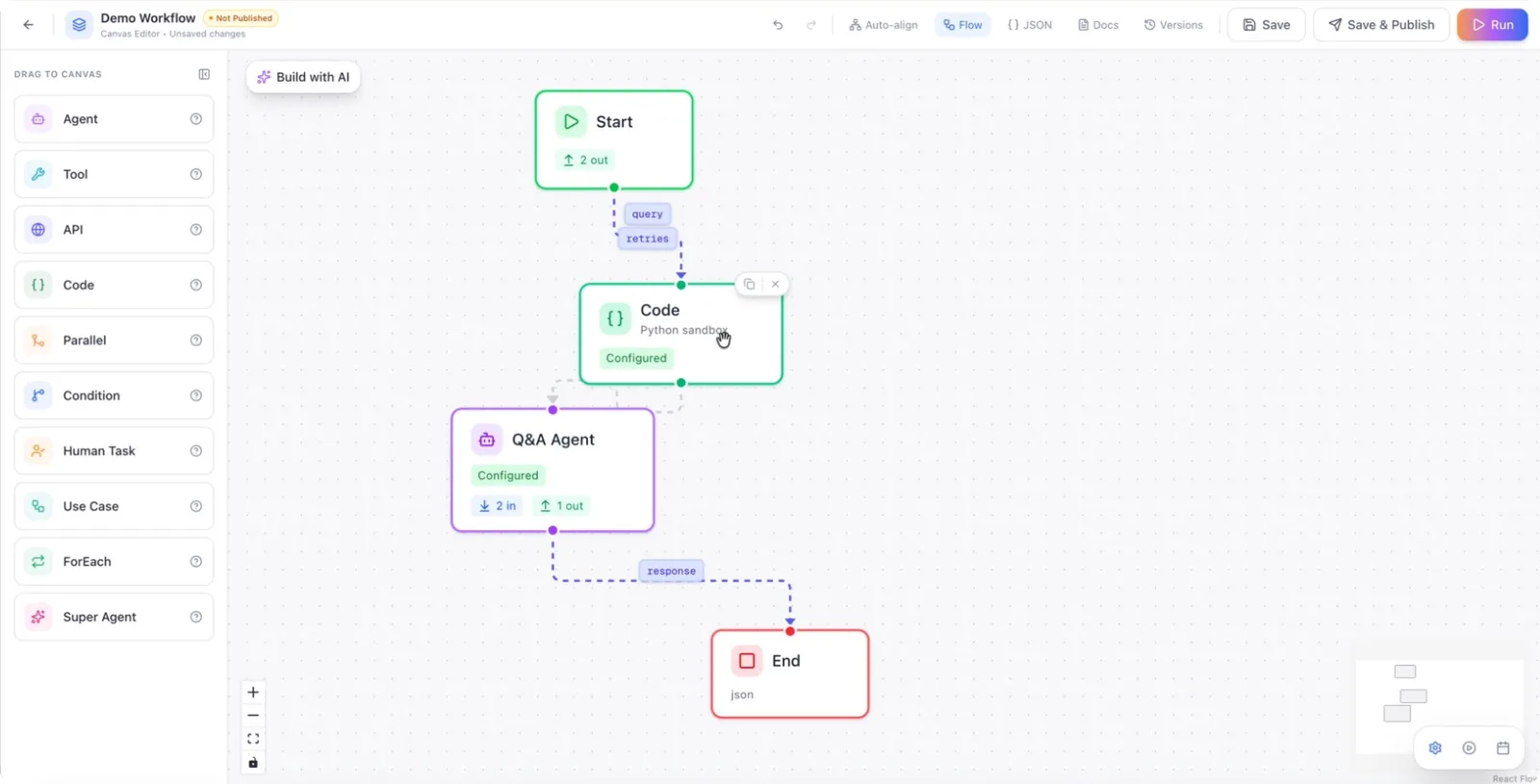
To start using a Code Node, drag and drop the Code Node component into your workflow canvas.
Step 2: Open the Code Node Configuration
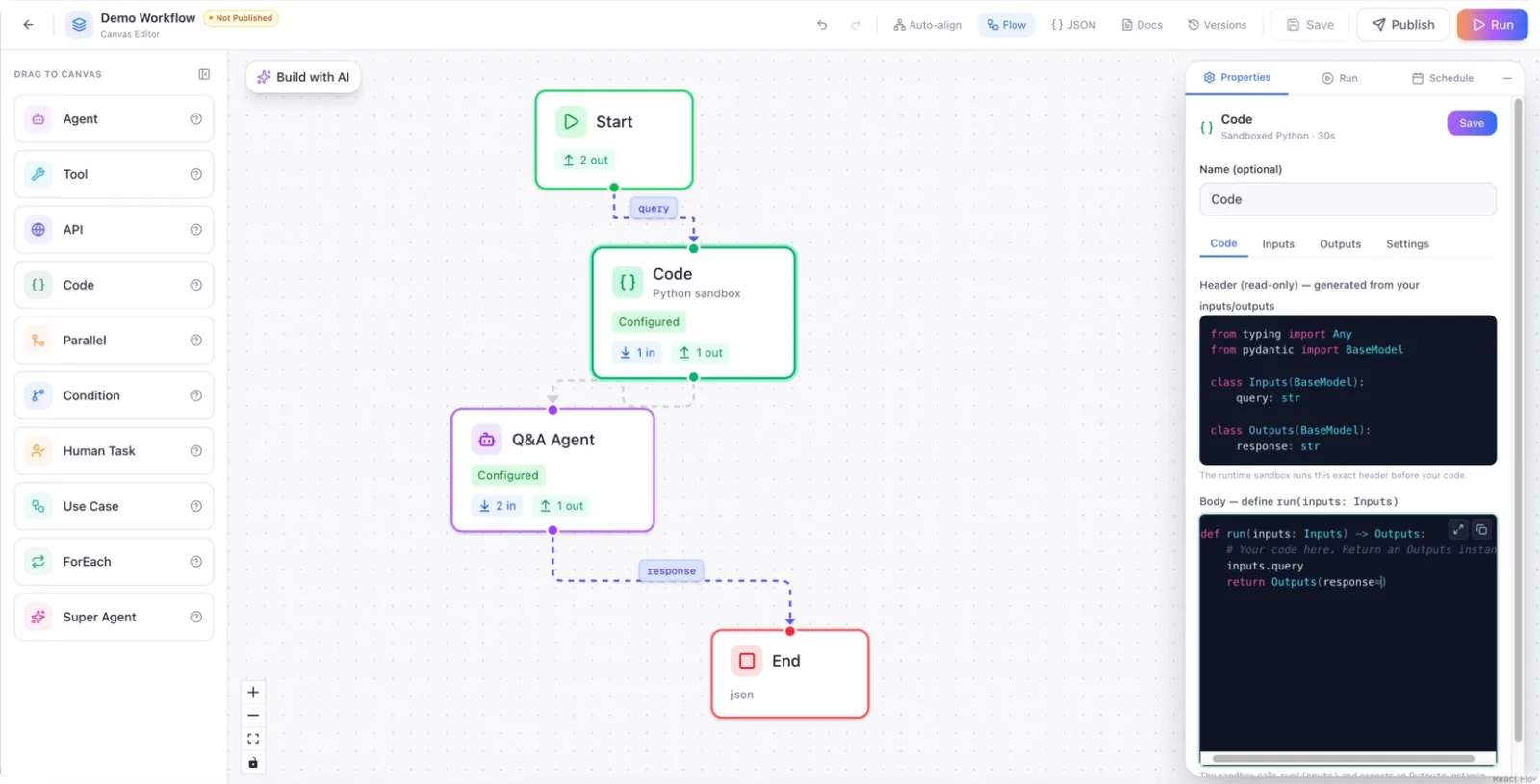
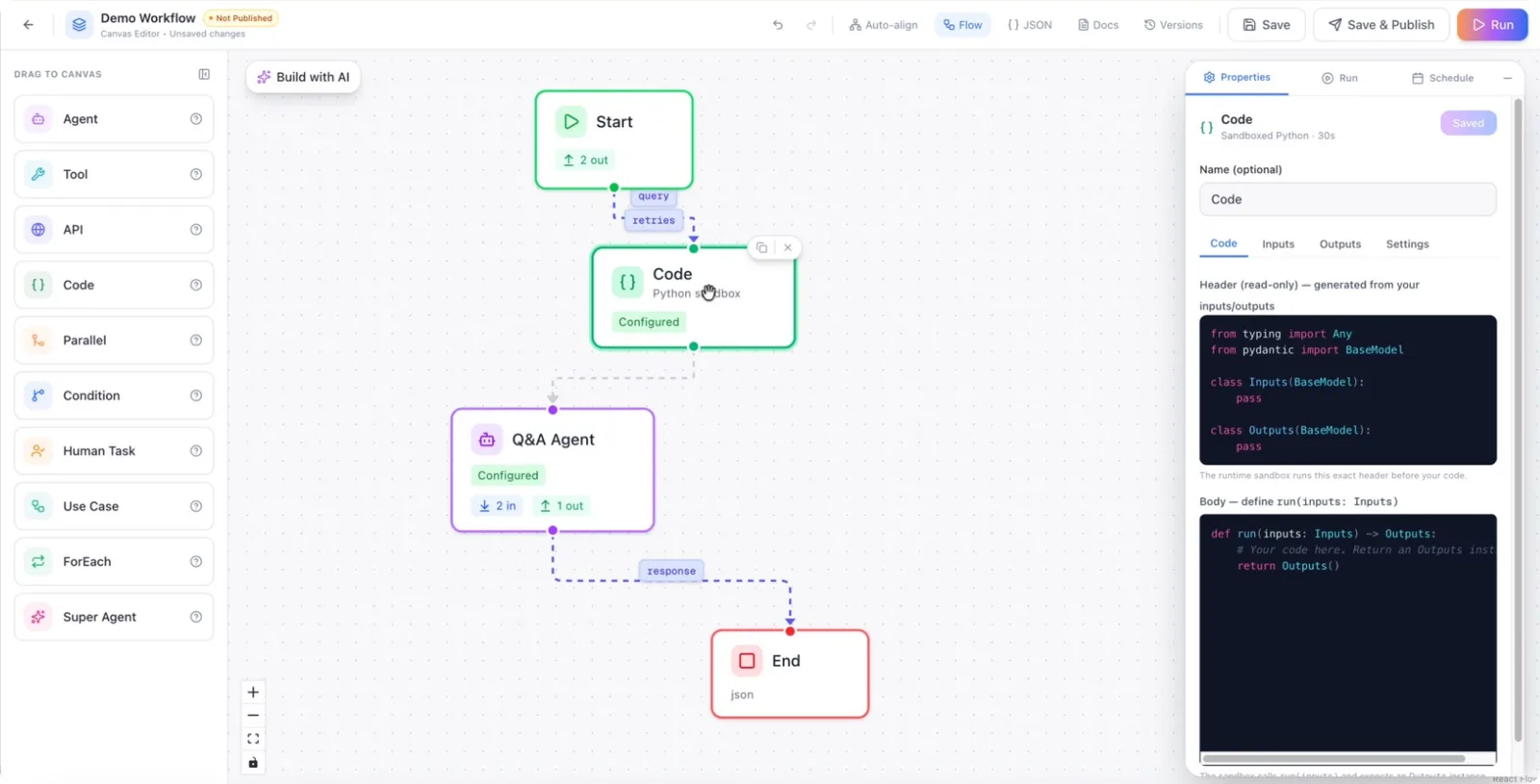
Click on the Code Node you just added to open its configuration panel. Here, you can see the Pydantic input model as well as the area where you will write your custom code.
Step 3: Review and Configure Input Fields
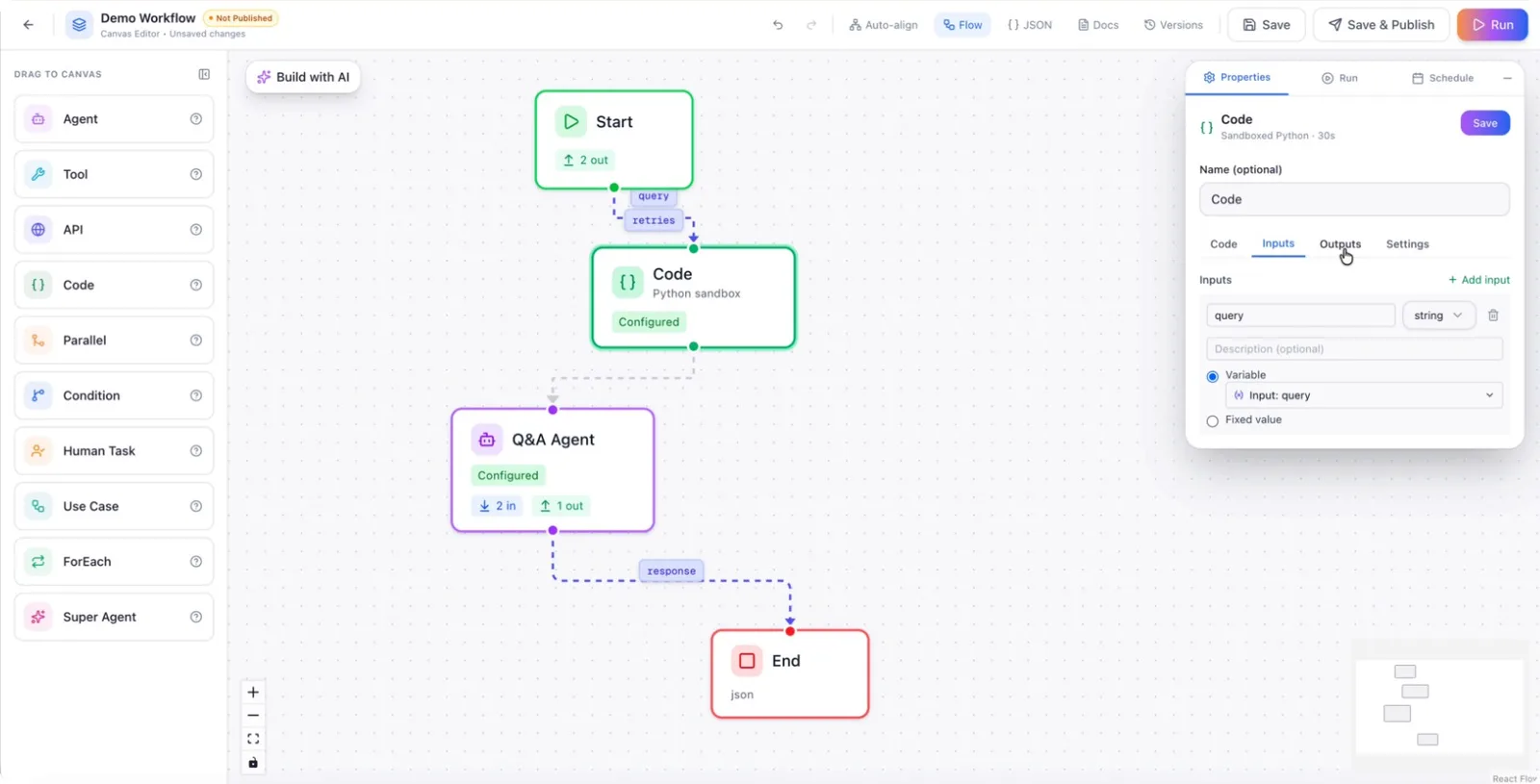
In the input section, you can define the fields that the Code Node will receive. For example, if you want to capture the query coming from a previous node, add an input field named query.
This query will represent the incoming query from the input. Just specify the field name as query.
Step 4: Define Output Fields
Next, configure what the Code Node should output. For instance, you can create an output field named response that will hold the processed result.
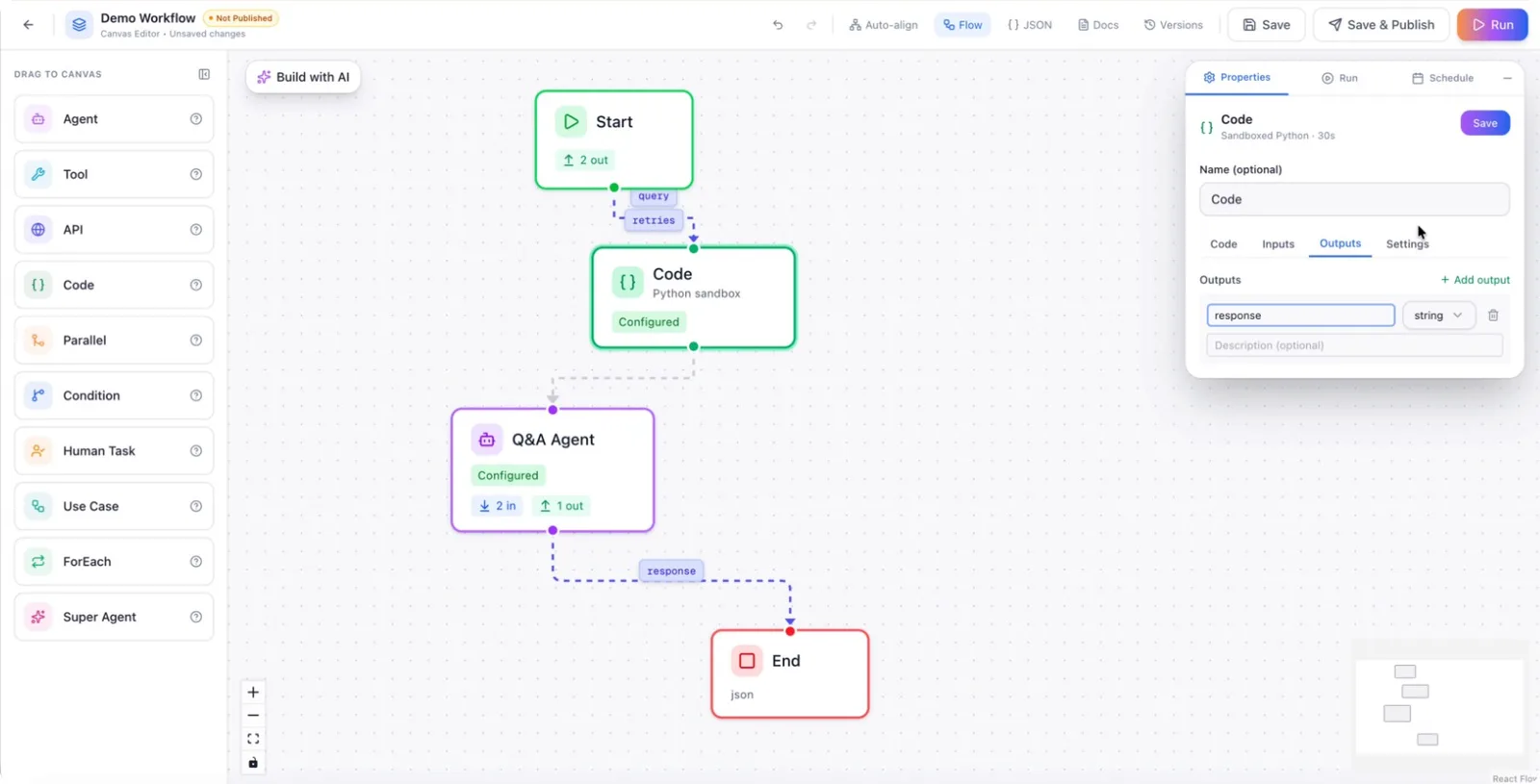
After defining the input (query) and output (response) fields, save the configuration.
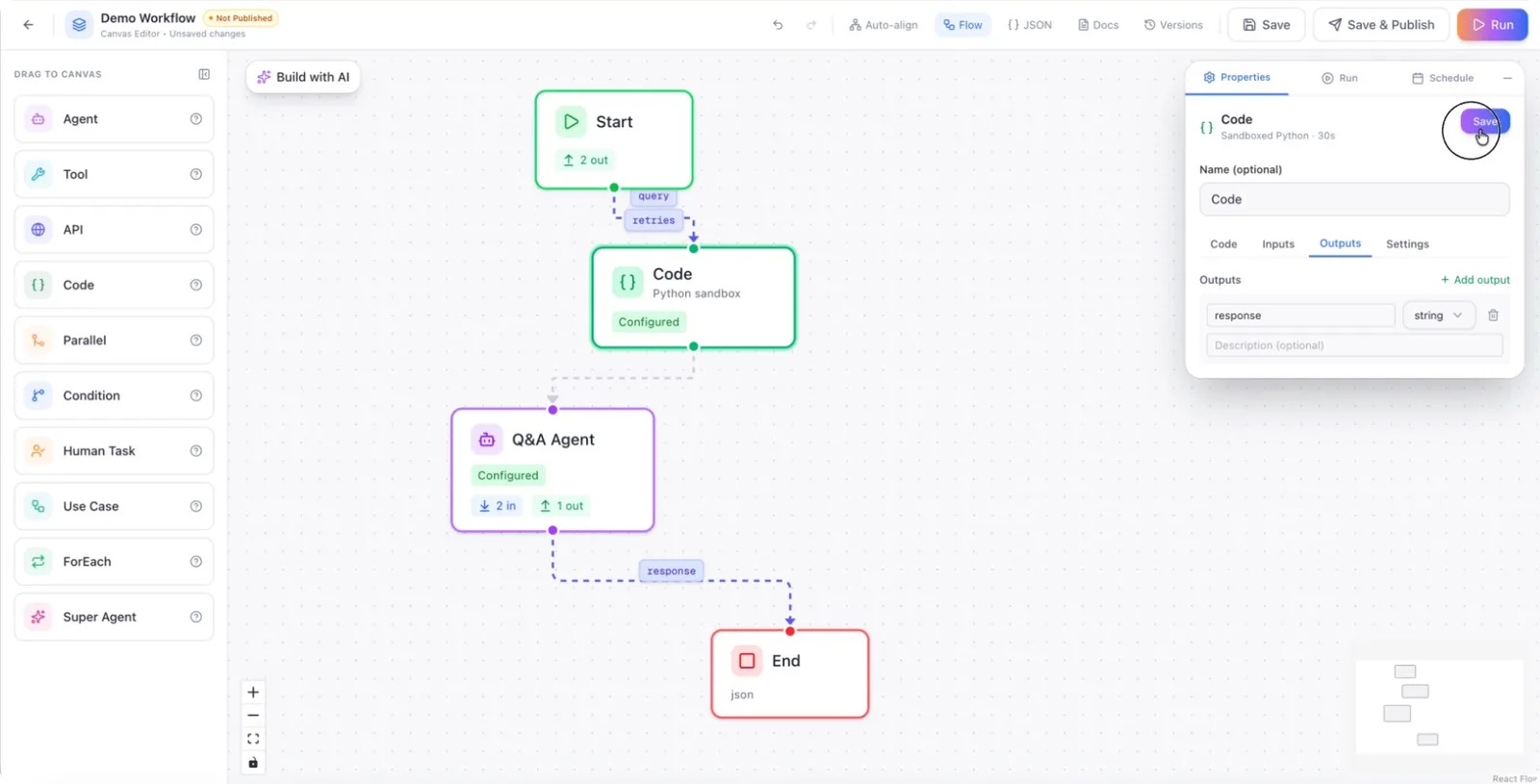
By default, the node will now show query as an input and response as an output.
Step 5: Write Custom Logic Using Inputs and Outputs
Inside the code editor of the Code Node, you can now write your custom logic.
- To access the input value, use
inputs.query. - To set the output, assign to
response, for example:response = some_processing_function(inputs.query)
Use this area to implement data transformations, filtering, JSON parsing, or any other custom logic you need within your workflow.