
Node Explained · Lesson 12 of 12
HUMAN TASK Node: Approval and Escalation Workflows
Pause a run and ask a person. Set up an approval or a clarification task, choose who it goes to and what context they see, then route the workflow on the answer that comes back.
What You Will Learn
- Where to place it: in front of anything that leaves your organisation
- Choosing who gets asked, and choosing carefully what they see, because a reviewer should decide in about five seconds or they stop reviewing properly
- What waiting for input actually means: parked durably, not running, not consuming tokens, and surviving a worker restart
- What the approver experiences, which is a task in their inbox and never the builder canvas
- That the run picks up exactly where it stopped with every variable intact
- The build detail people get wrong: follow it with a conditional, because approved, rejected and changes requested are three different outcomes and handling only the first means a rejection quietly does nothing
Step by step guide
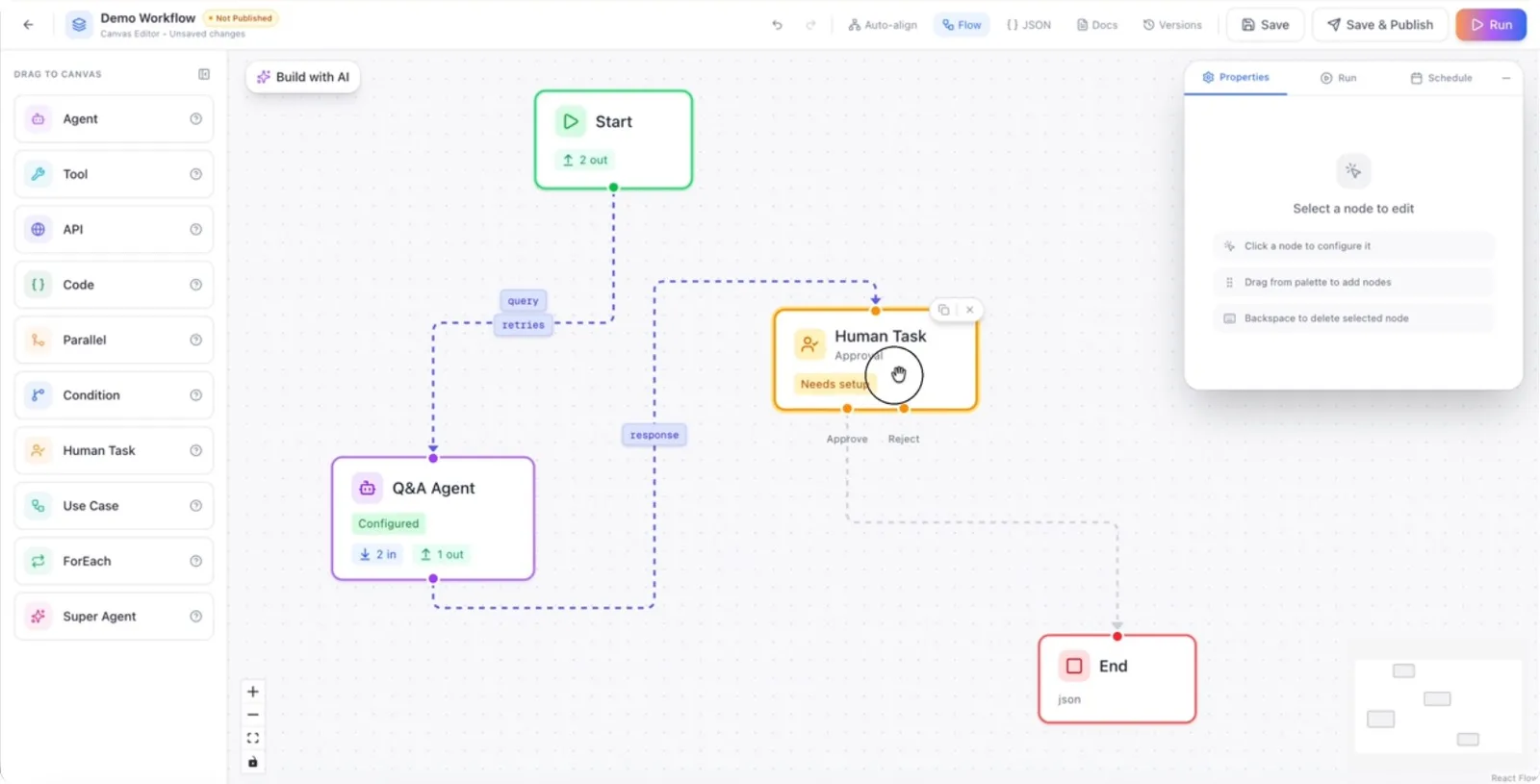
Step 1: Add a Human Task Node to the Workflow
Drag and drop the Human Task node into your workflow canvas.
Step 2: Set the Task Title
Click on the newly added human task node and provide a clear, descriptive title for the task so users understand what is required.
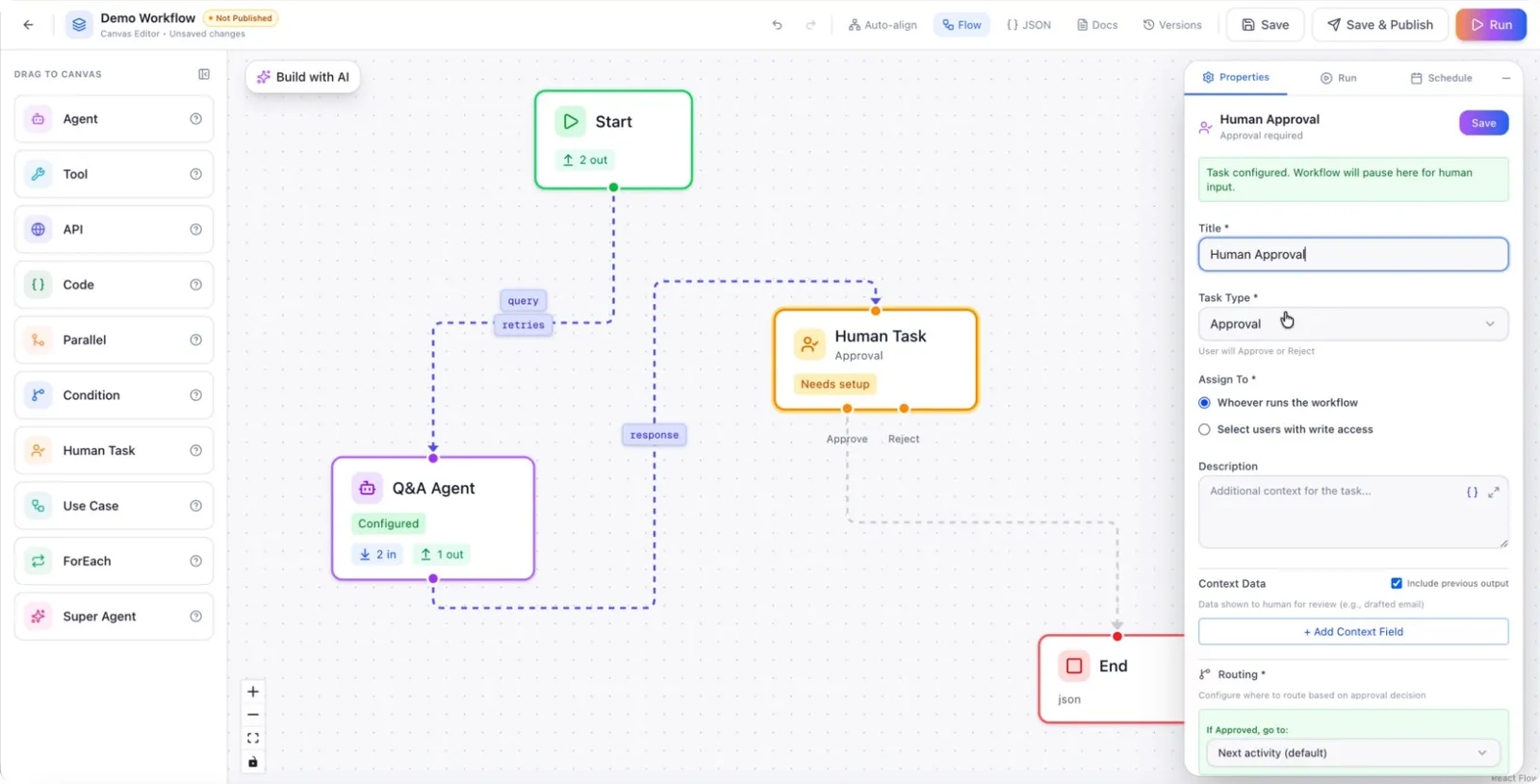
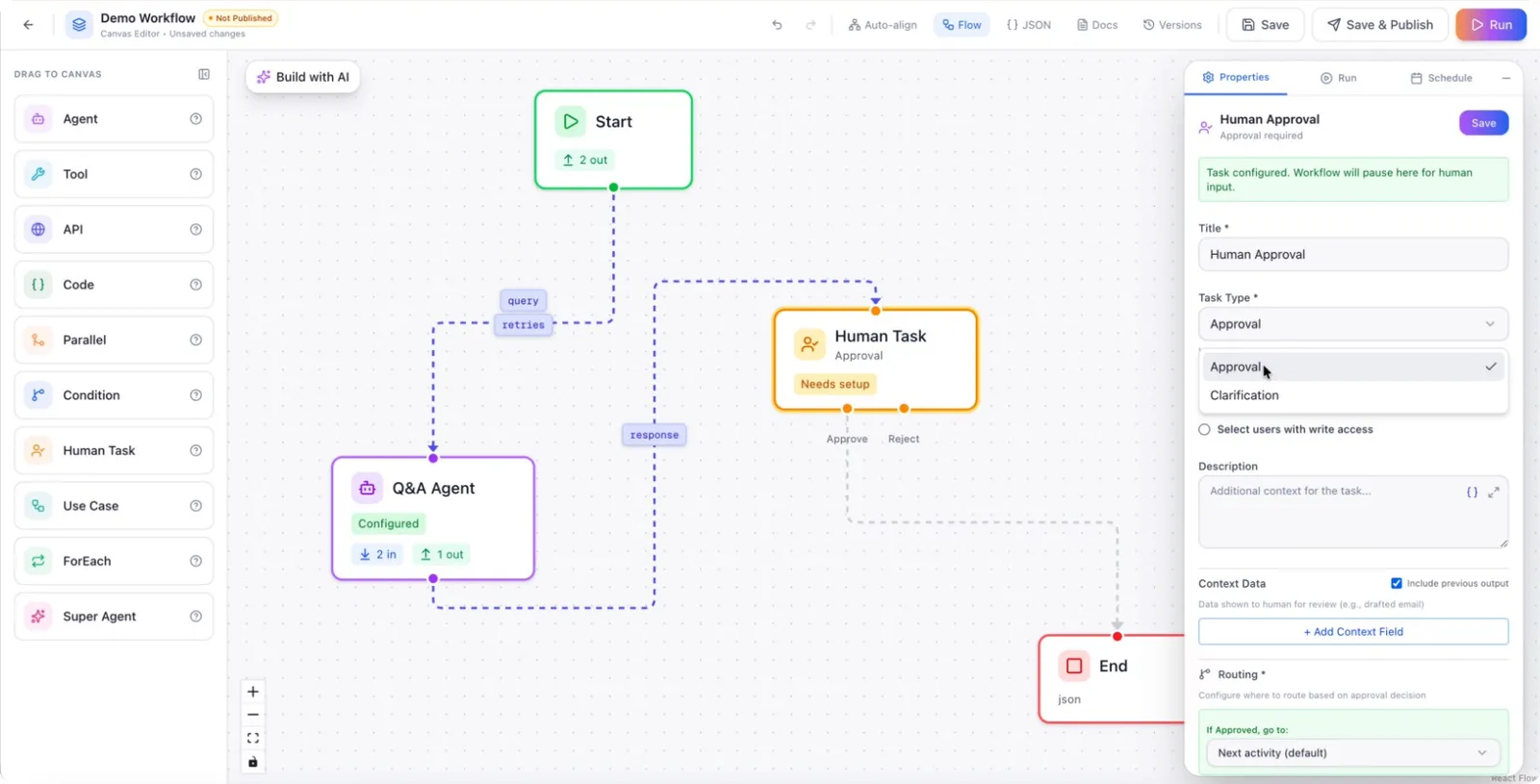
Step 3: Choose the Task Type
Select the type of human task you want to configure. You can choose between:
- Approval – for approve/reject decisions
- Clarification – for collecting additional information from users
Step 4: Configure an Approval Task
If you select Approval, configure how the approval should be handled.
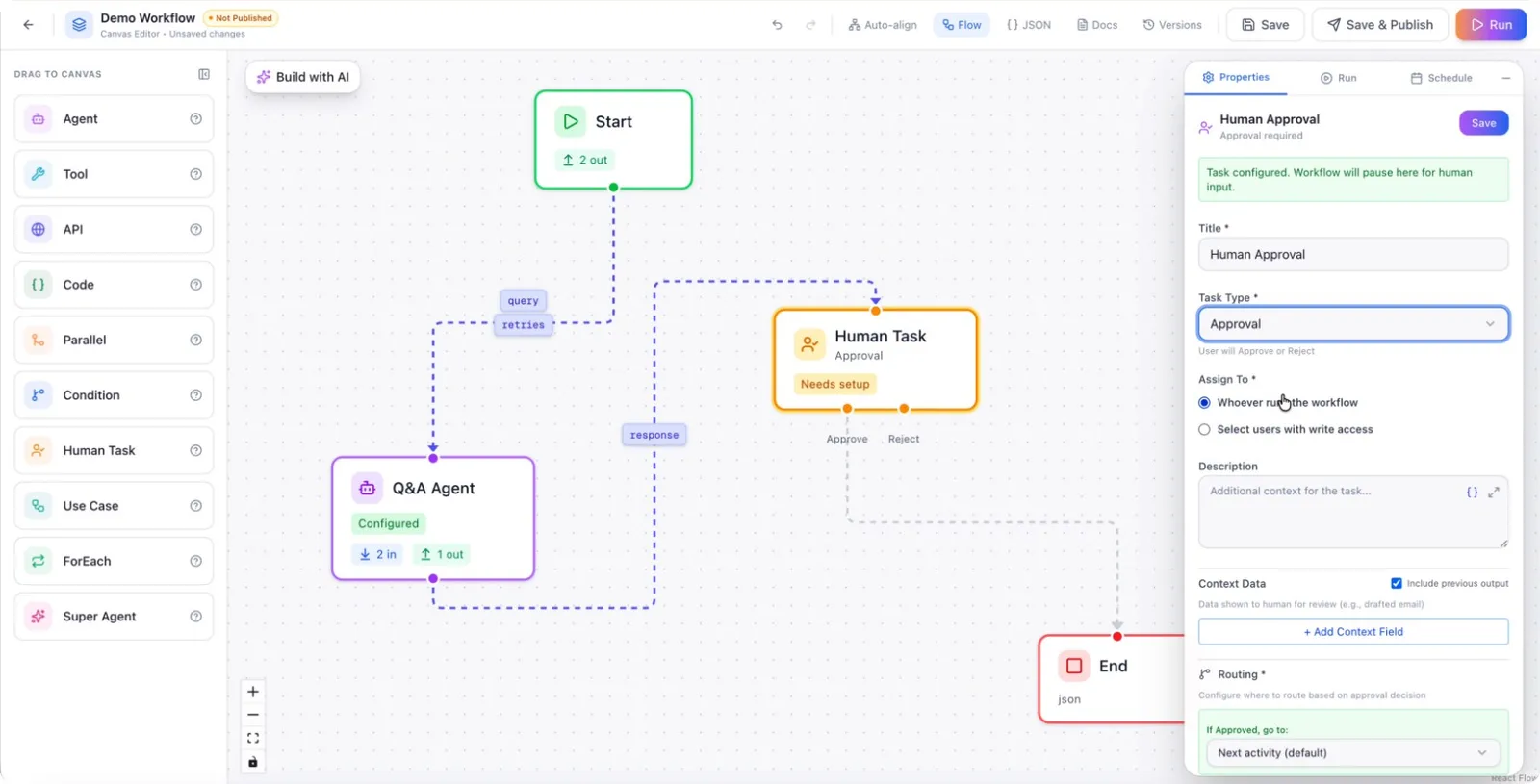
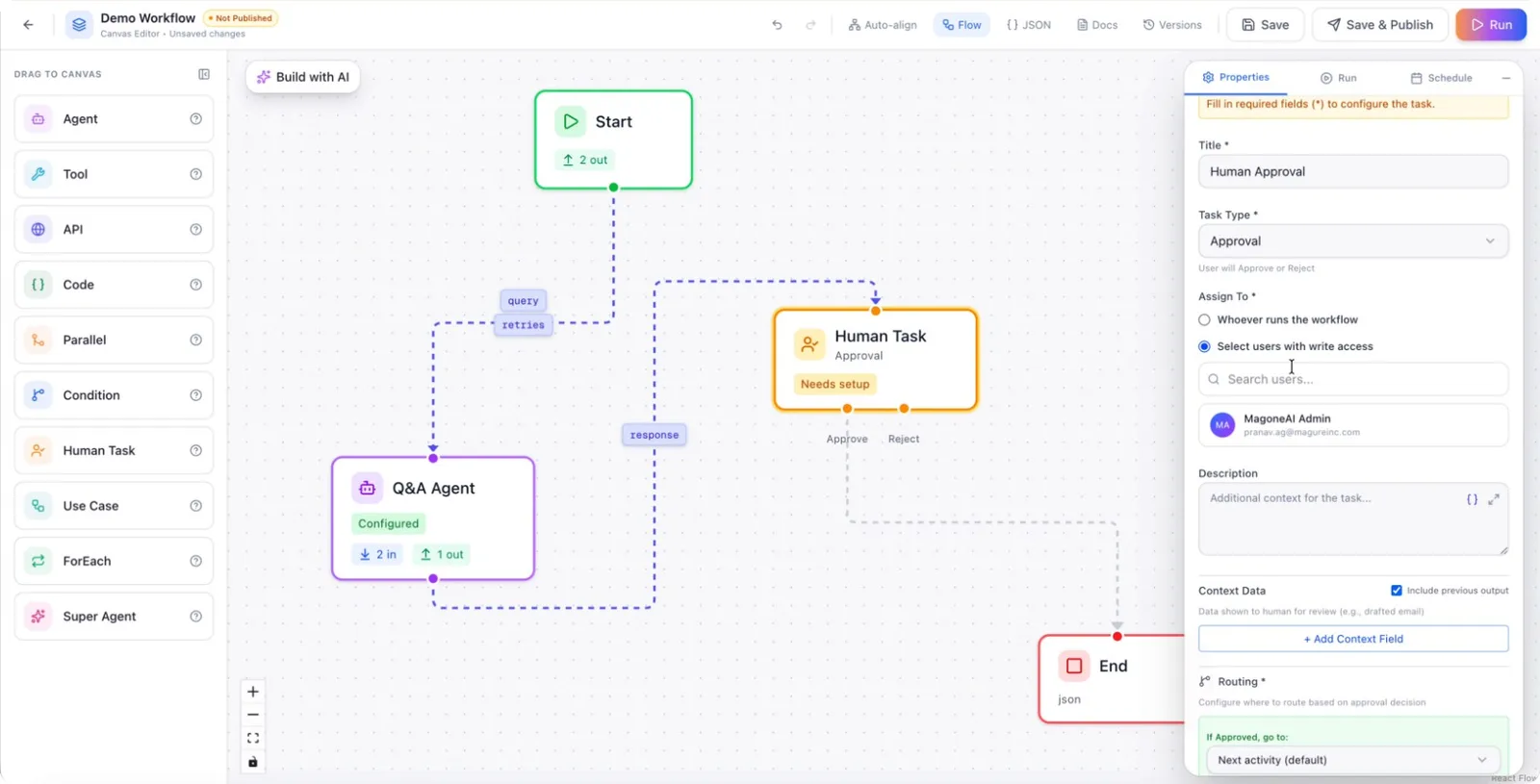
You can specify who the approval will be assigned to:
- Assign it to the user who runs the workflow, or
- Select a specific user from the list of users.
Step 5: Add Description and Context for Approval
Provide a description explaining what the approver is expected to do. This description is shown to the assigned user when they receive the task. Add context data to give the approver more information.
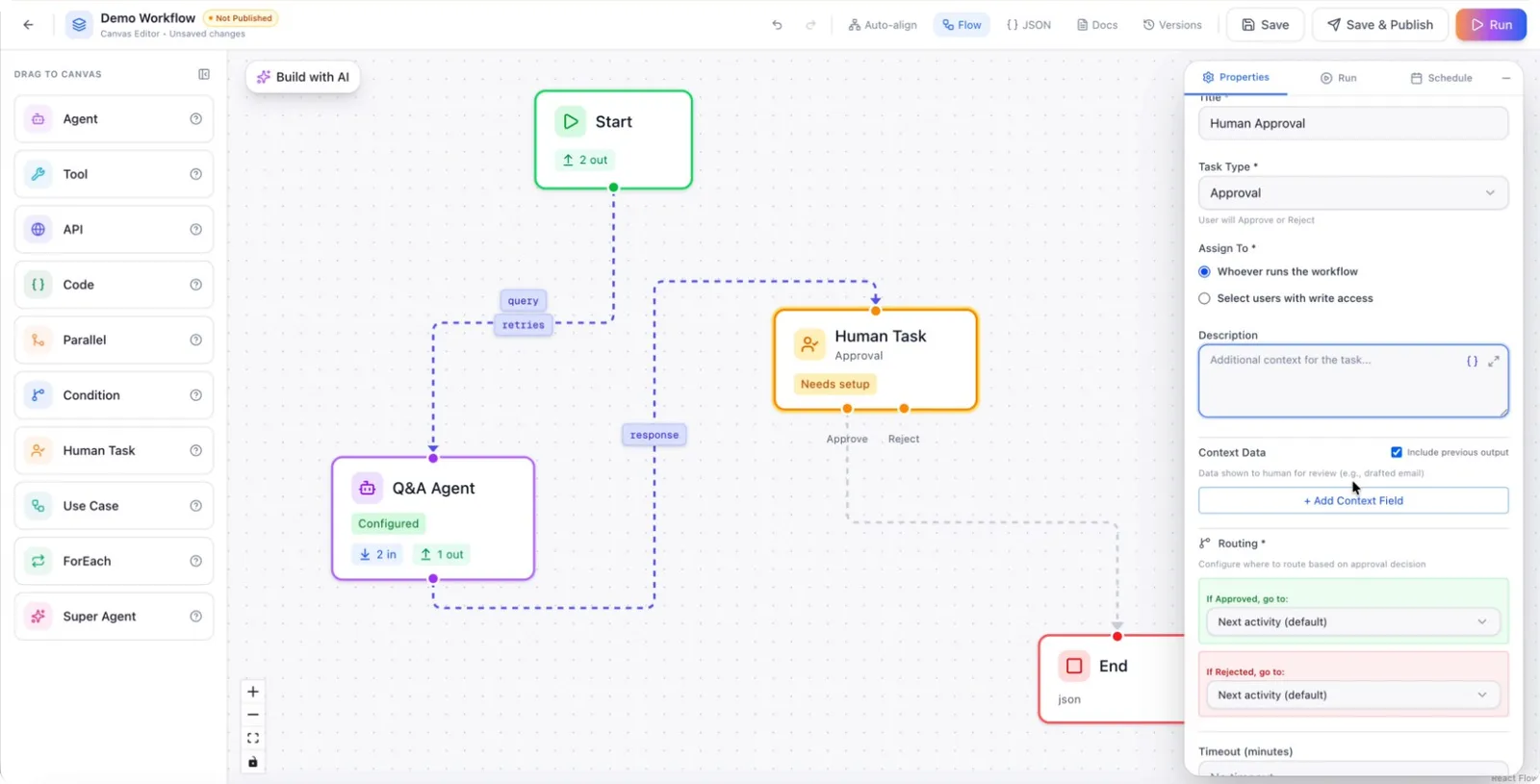
This context data can come from workflow variables or any custom fields you have defined. Based on whether the task is approved or rejected, configure the workflow to route to the appropriate branch.
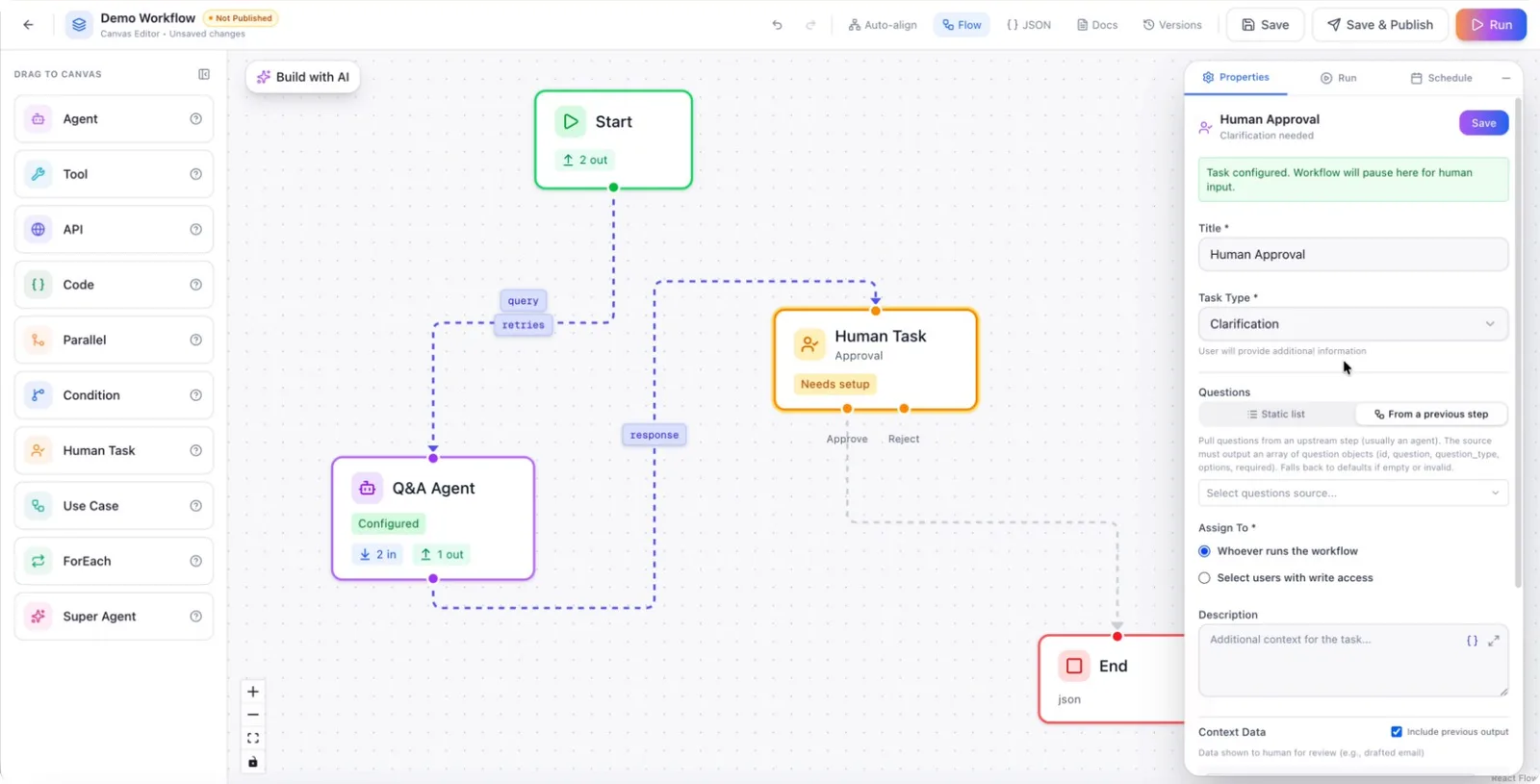
Step 6: Switch to Clarification Task Type (If Needed)
If you want to collect more information instead of an approval, select the Clarification task type.
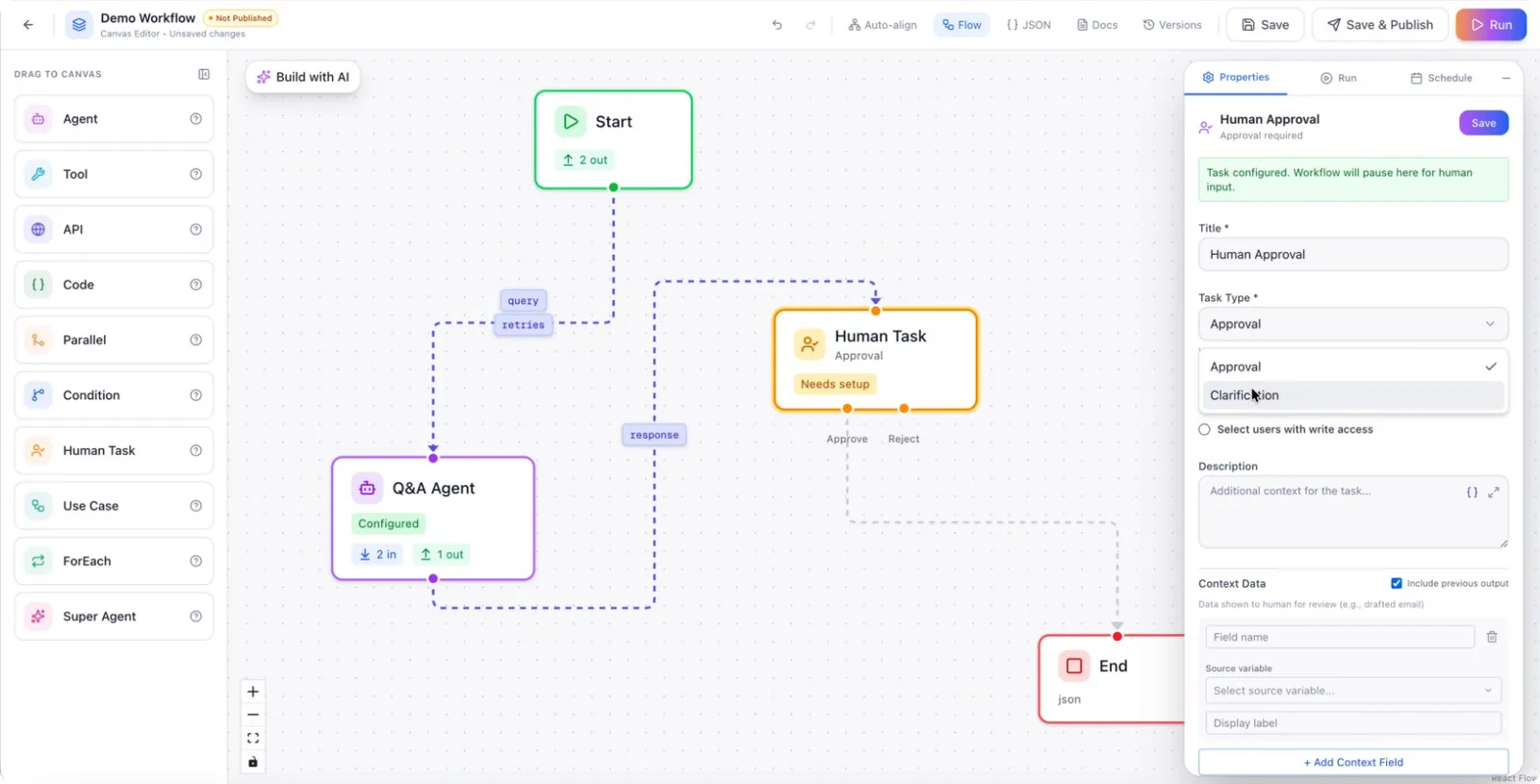
A clarification task is a set of questions you want to ask the user.
Step 7: Define Clarification Questions
Configure the questions for the clarification task. You can either:
- Define a static list of questions directly in the task, or
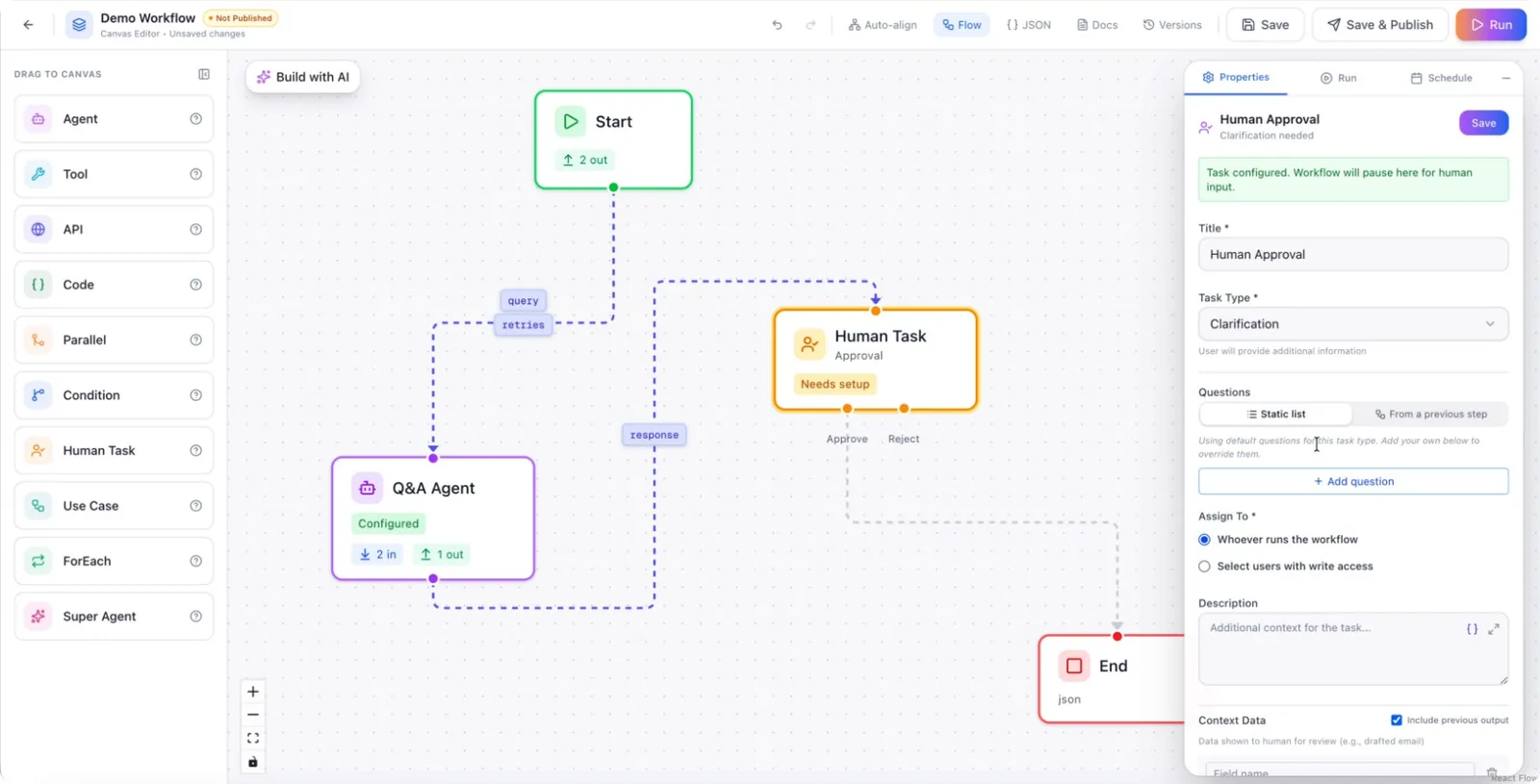
- Pull in questions dynamically from a previous step, determined by your agent or workflow logic.
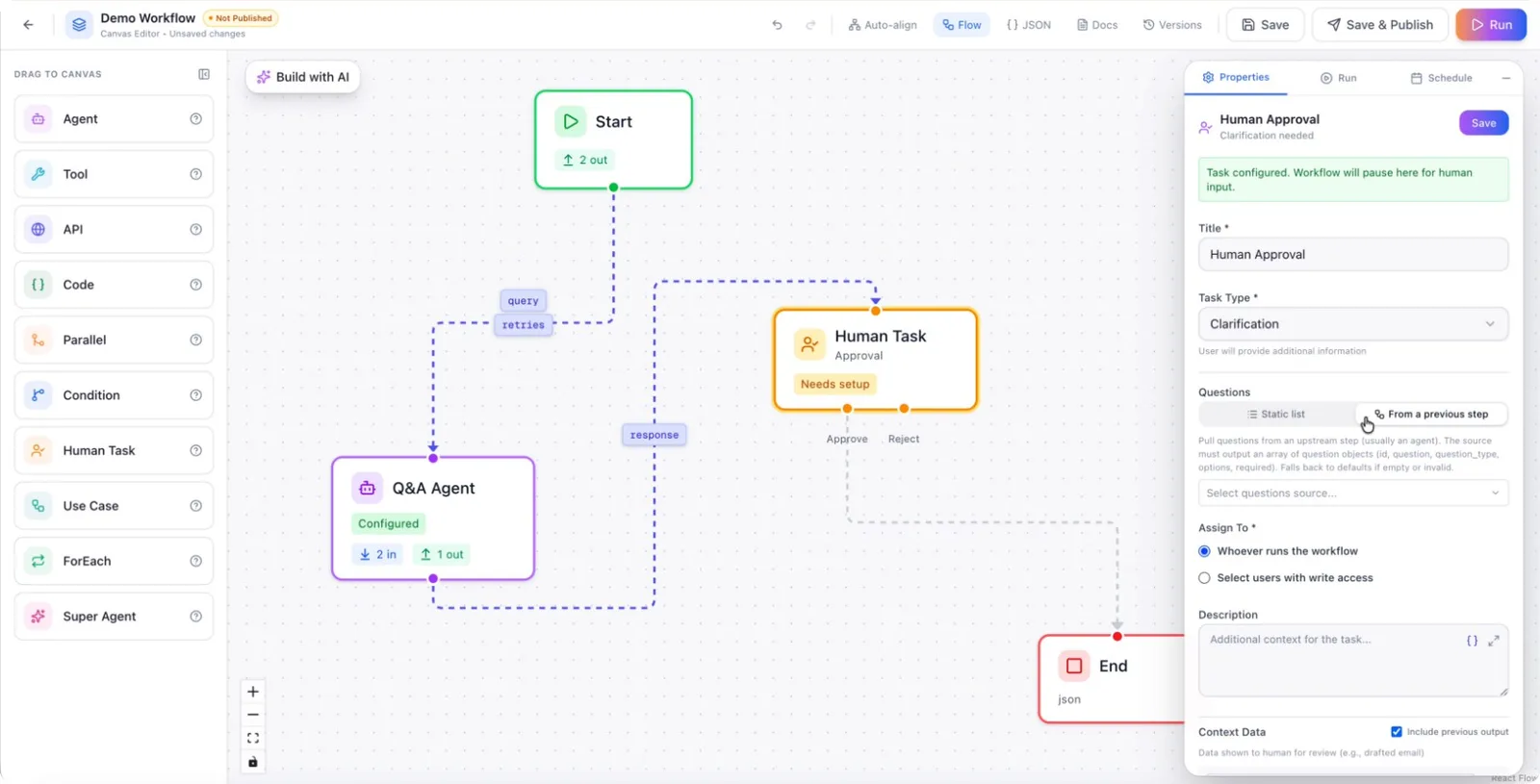
Step 8: Assign Clarification Task and Add Details
Set who will receive the clarification task:
- Assign it to the user who runs the workflow, or
- Select a specific user as the assignee.
Add a clear description of what information is needed, along with any relevant context. You can also add additional context fields as required to help the user respond accurately.
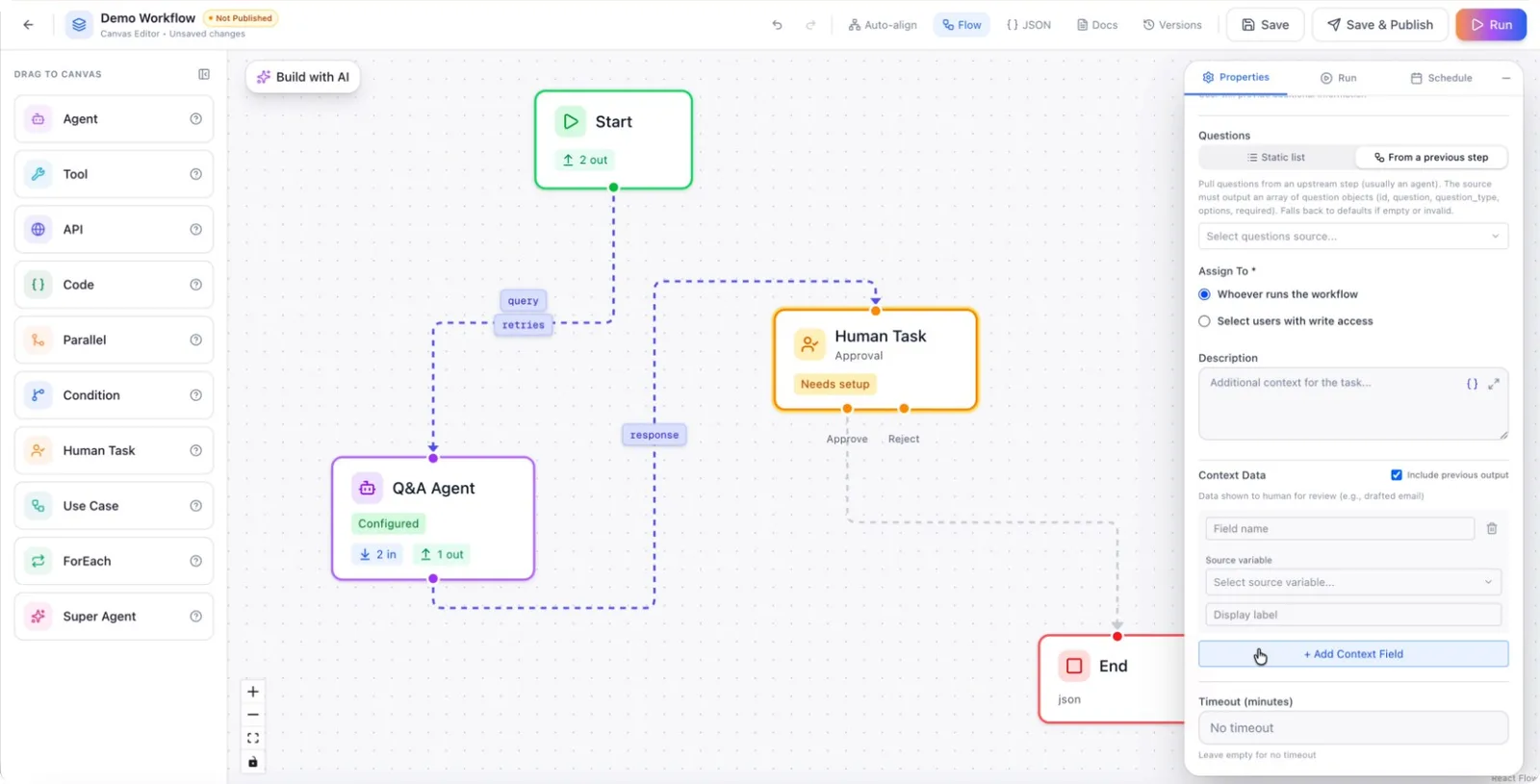
Configure the workflow to move to the appropriate next step based on the clarification responses.