

How-to · Lesson 8 of 19
Building Your First Enterprise AI Workflow
Build the smallest useful workflow (Start, Agent, End) from an empty canvas: define an input field, give the agent a job, map data between nodes with the variable picker, and run it against a real question.
What You Will Learn
- Where workflows live in MagOneAI Studio and why the smallest useful one is three nodes
- Setting up the START node: input fields become both the form your users fill in and the payload your API accepts
- Adding an AGENT node and giving it a job description rather than a name like agent one
- Mapping data with the variable picker instead of typing paths by hand
- Why END is a contract, not a full stop
- Reading the execution log: what went in, what the agent was asked, what it answered, how long it took and what it cost
- Why you do not need to save before running, but you do need to publish before anyone else can use it
Step by step guide
Step 1: Create a New Use Case in the Northlight Project
Click the New Use Case button in the Northlight project workspace to create a new workflow.
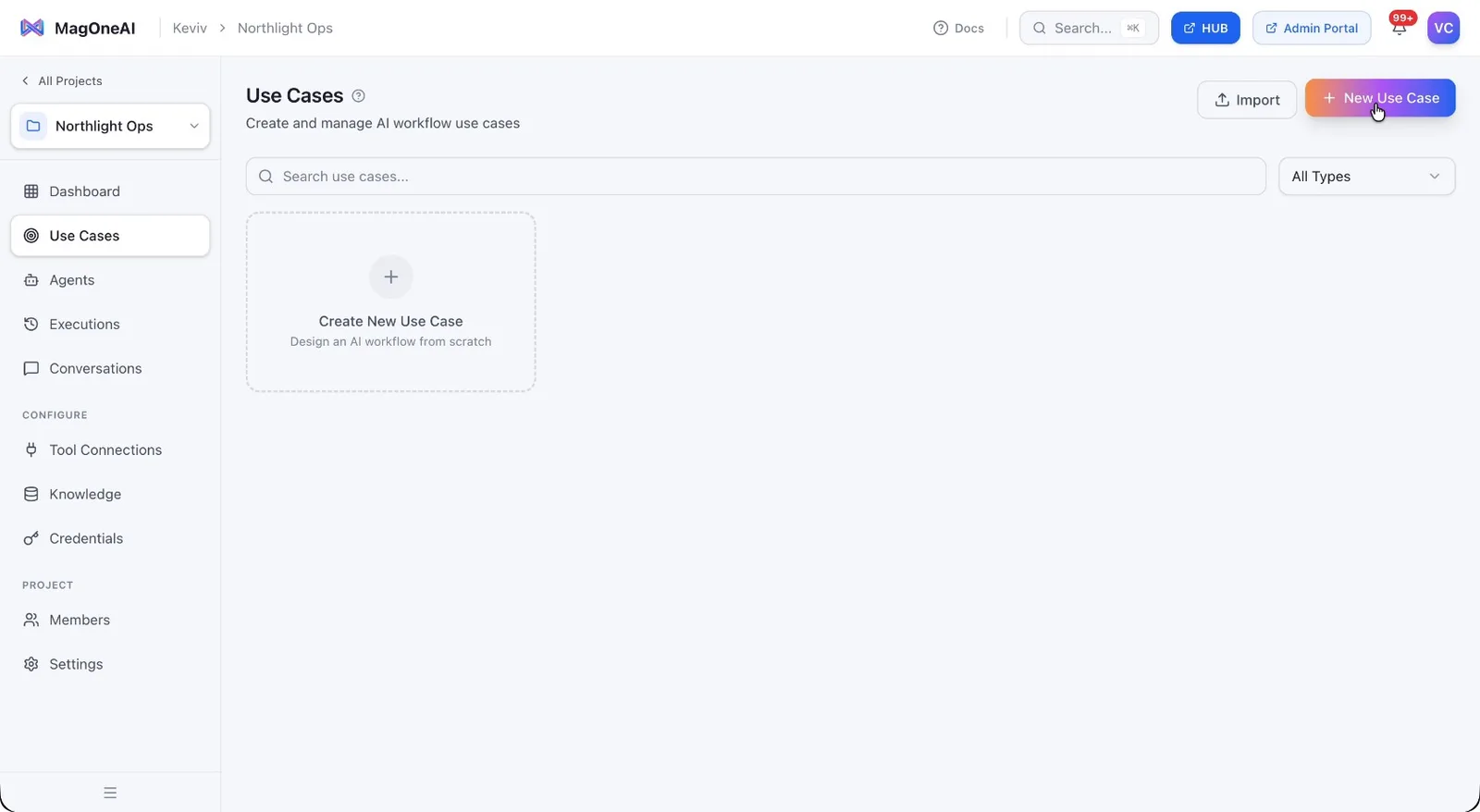
Enter a name for the use case in the Use Case Name field.
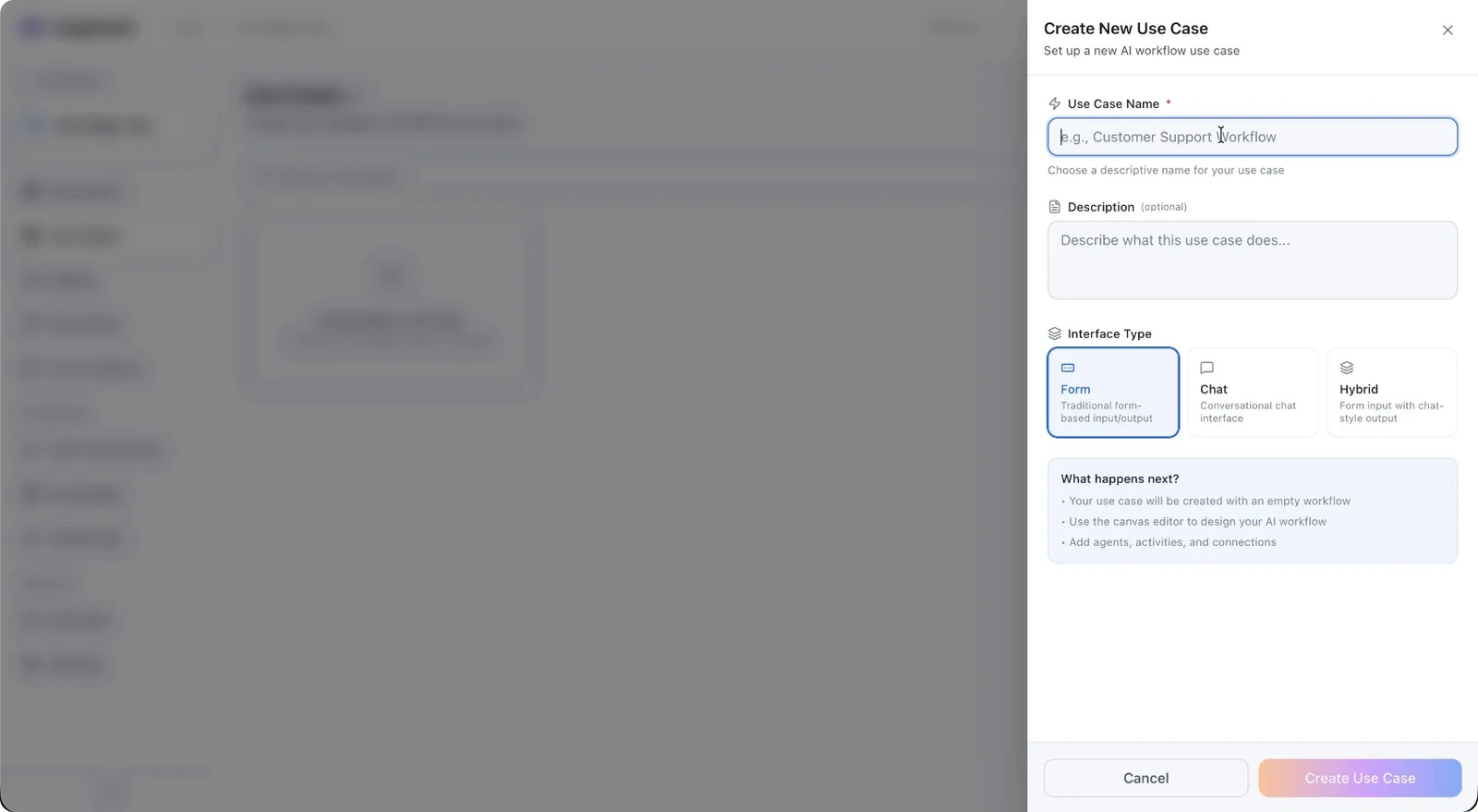
Leave the Description field empty, as it is optional.
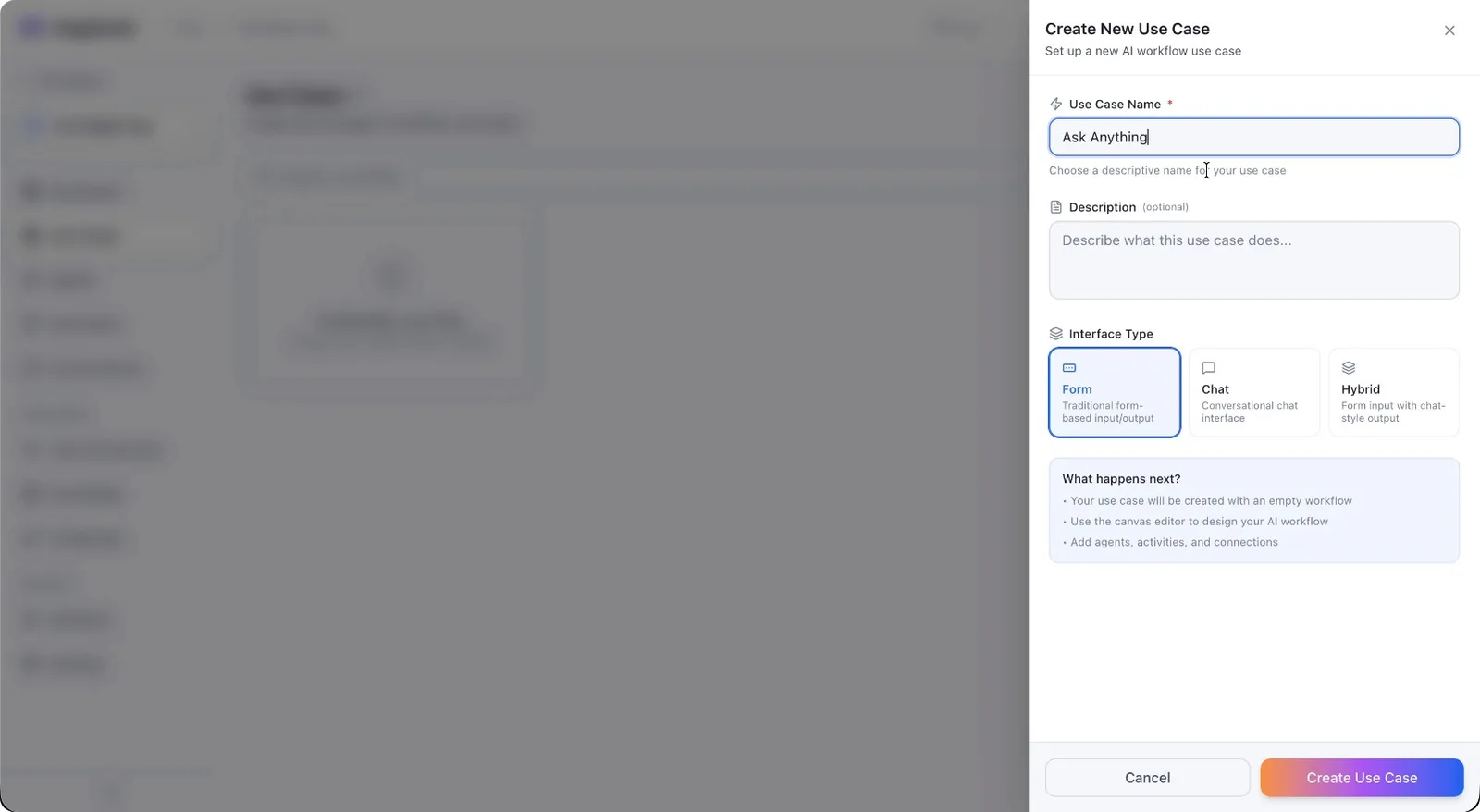
For Interface Type, select Form.
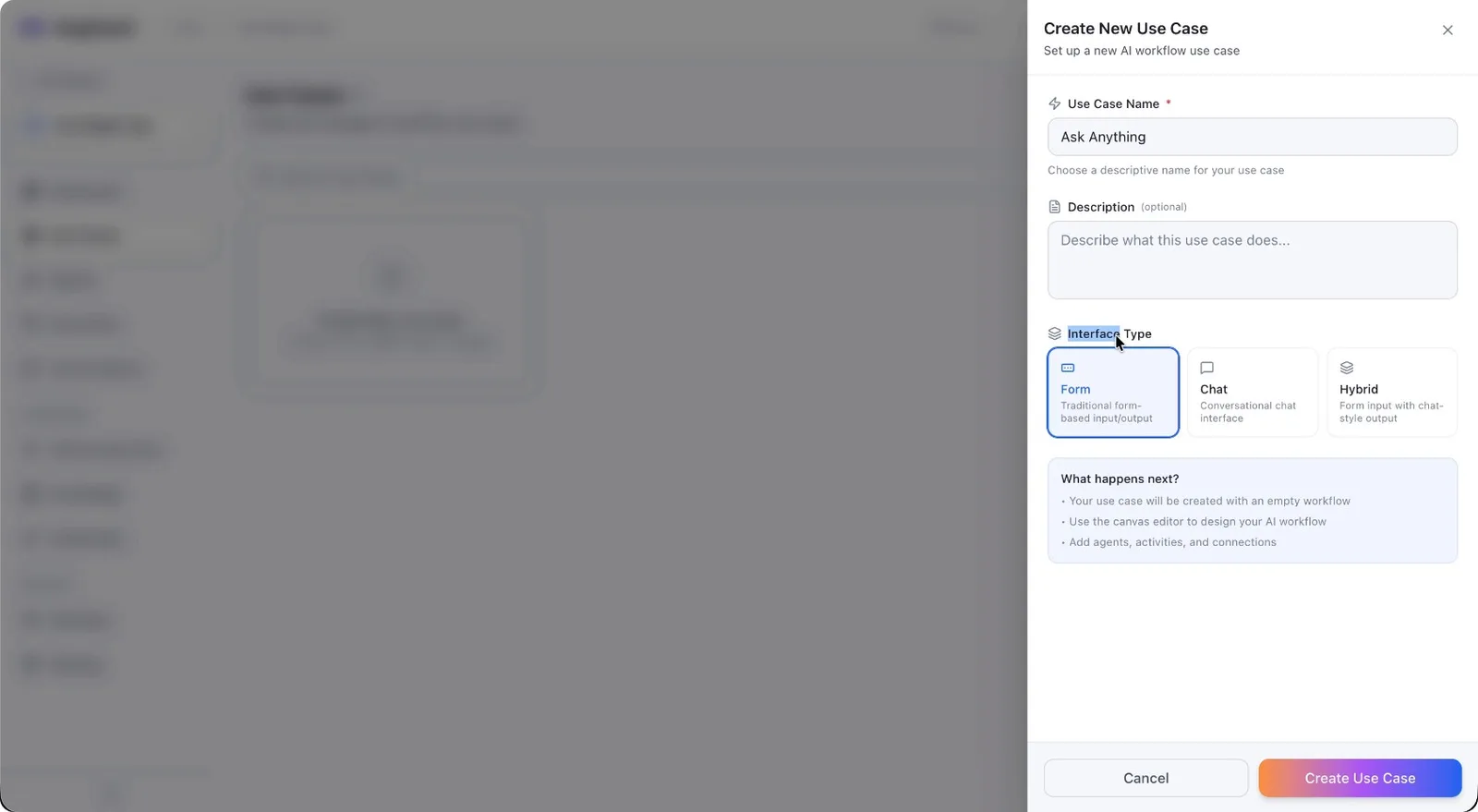
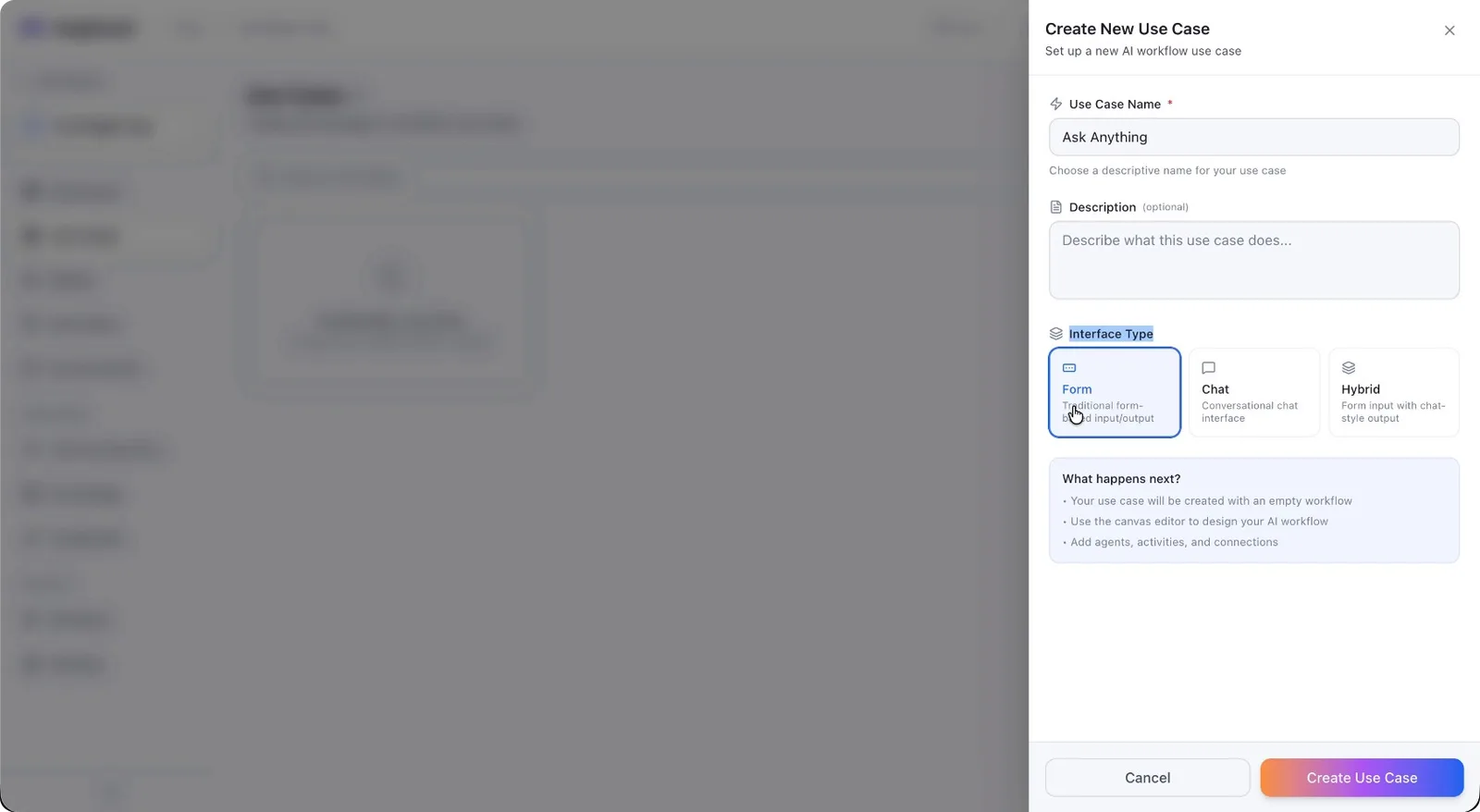
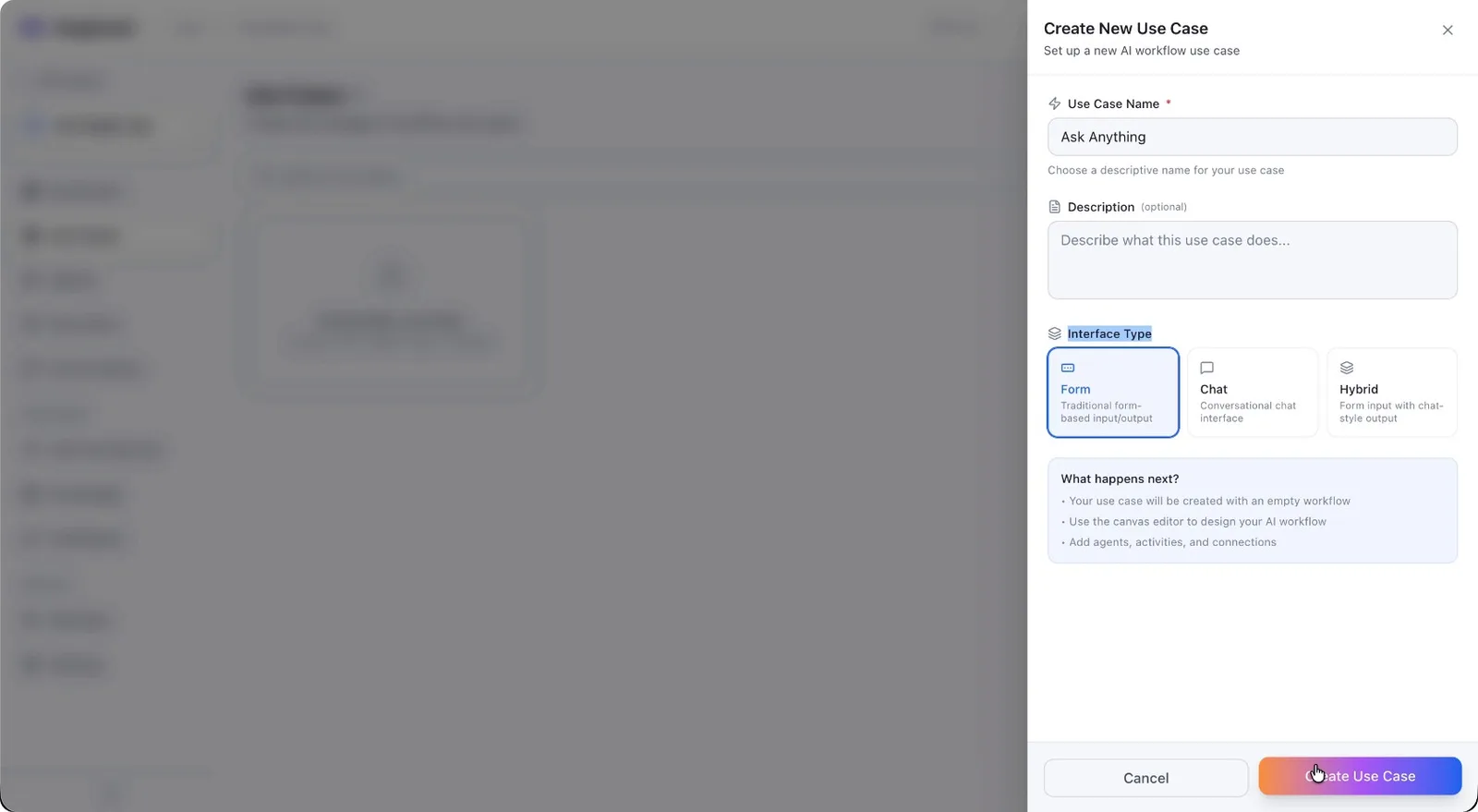
Click the button to Create the use case.
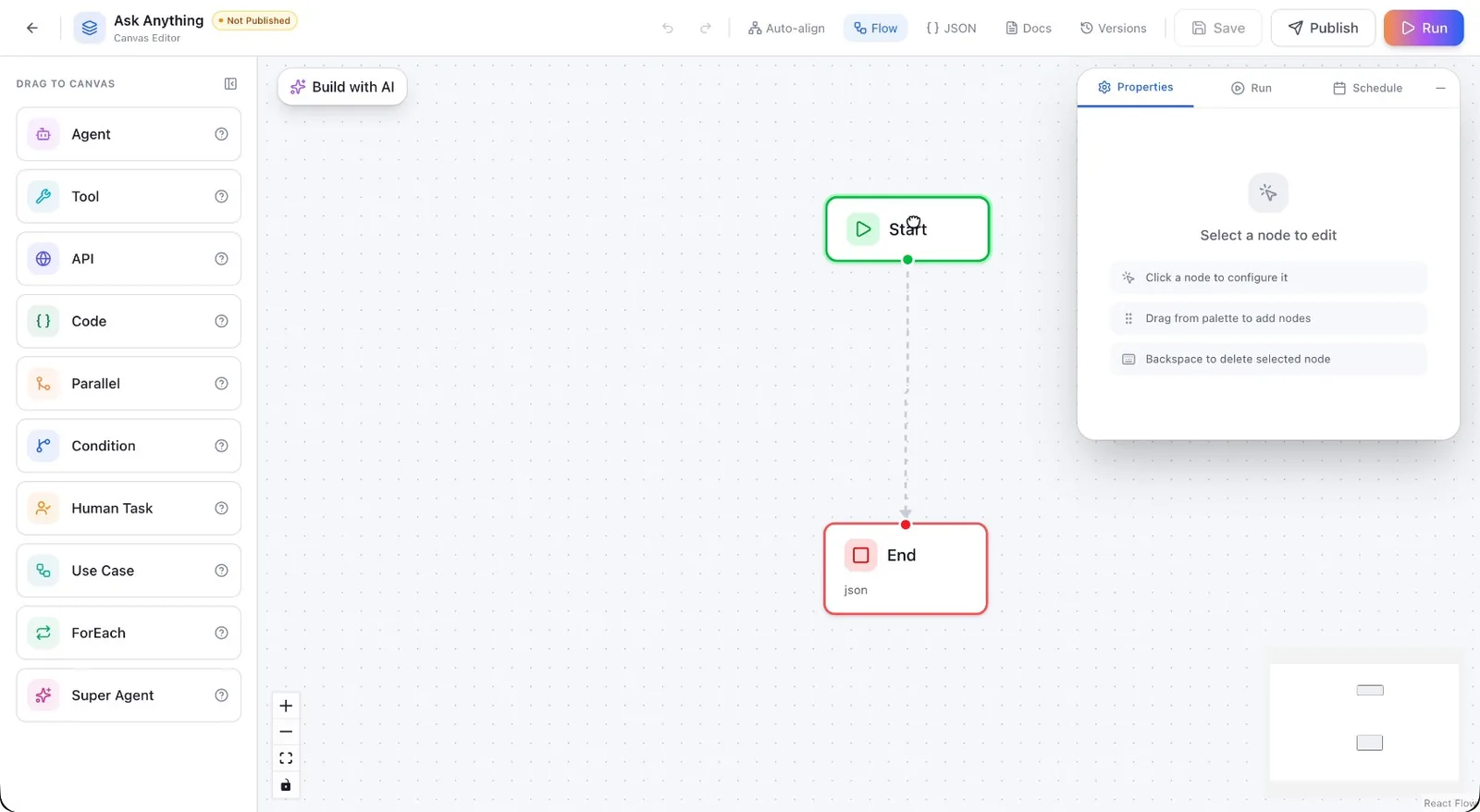
After creation, you will be redirected to the canvas, which by default shows two nodes: Start and End.
Step 2: Configure the Start Node and Input Field
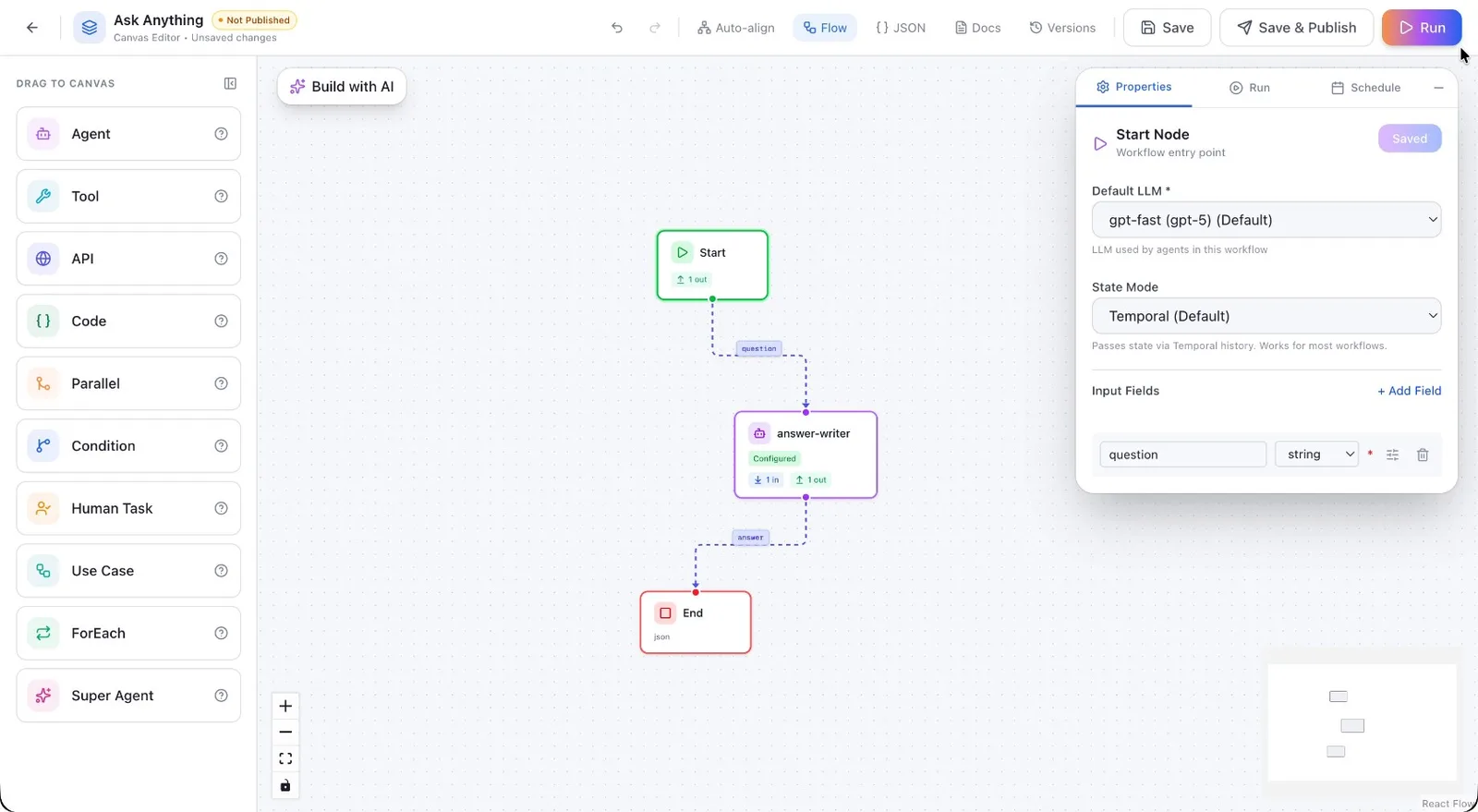
Open the Start node configuration.
Confirm that the default LLM configuration is set to GPTFast.
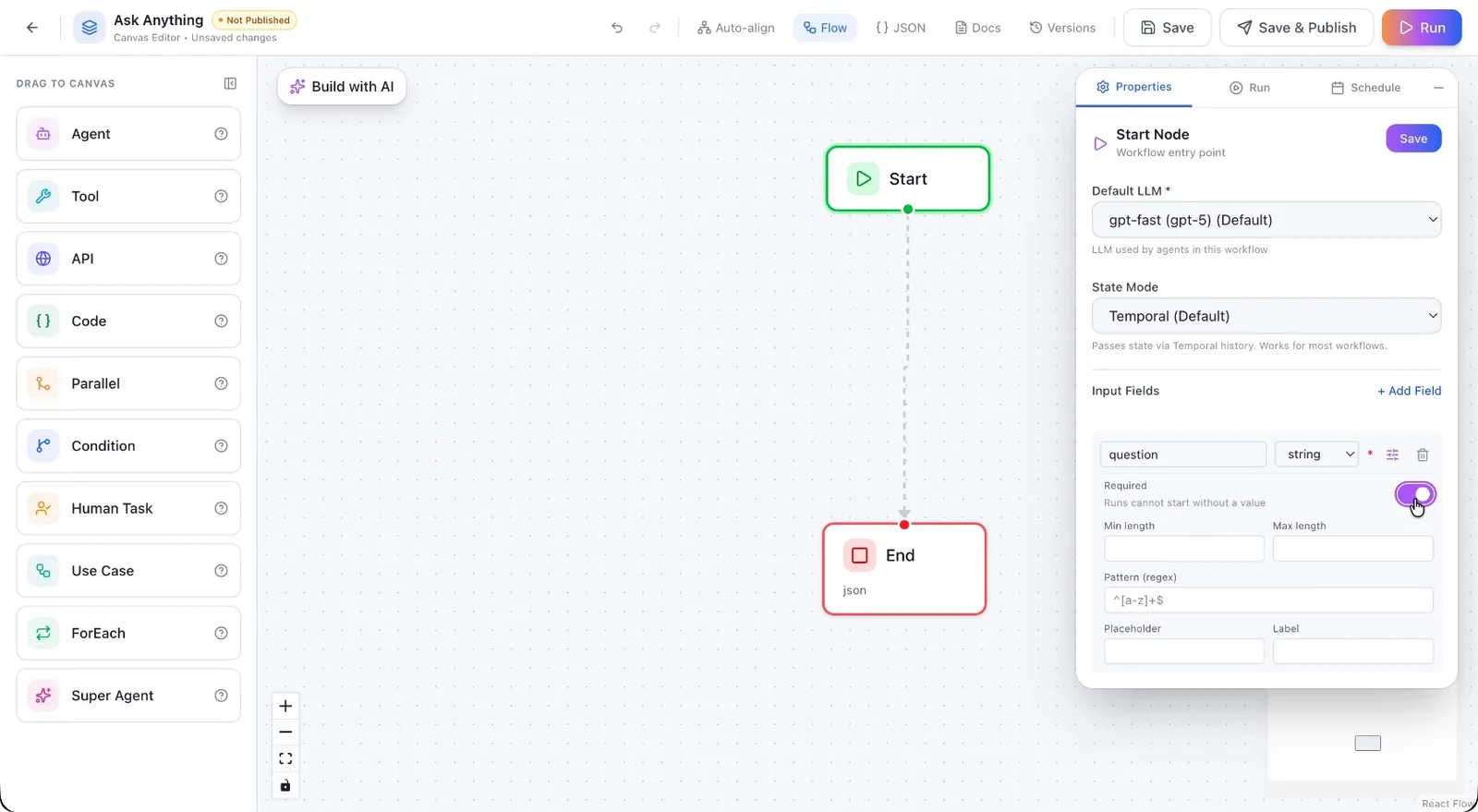
Add a new input field for the user’s question.
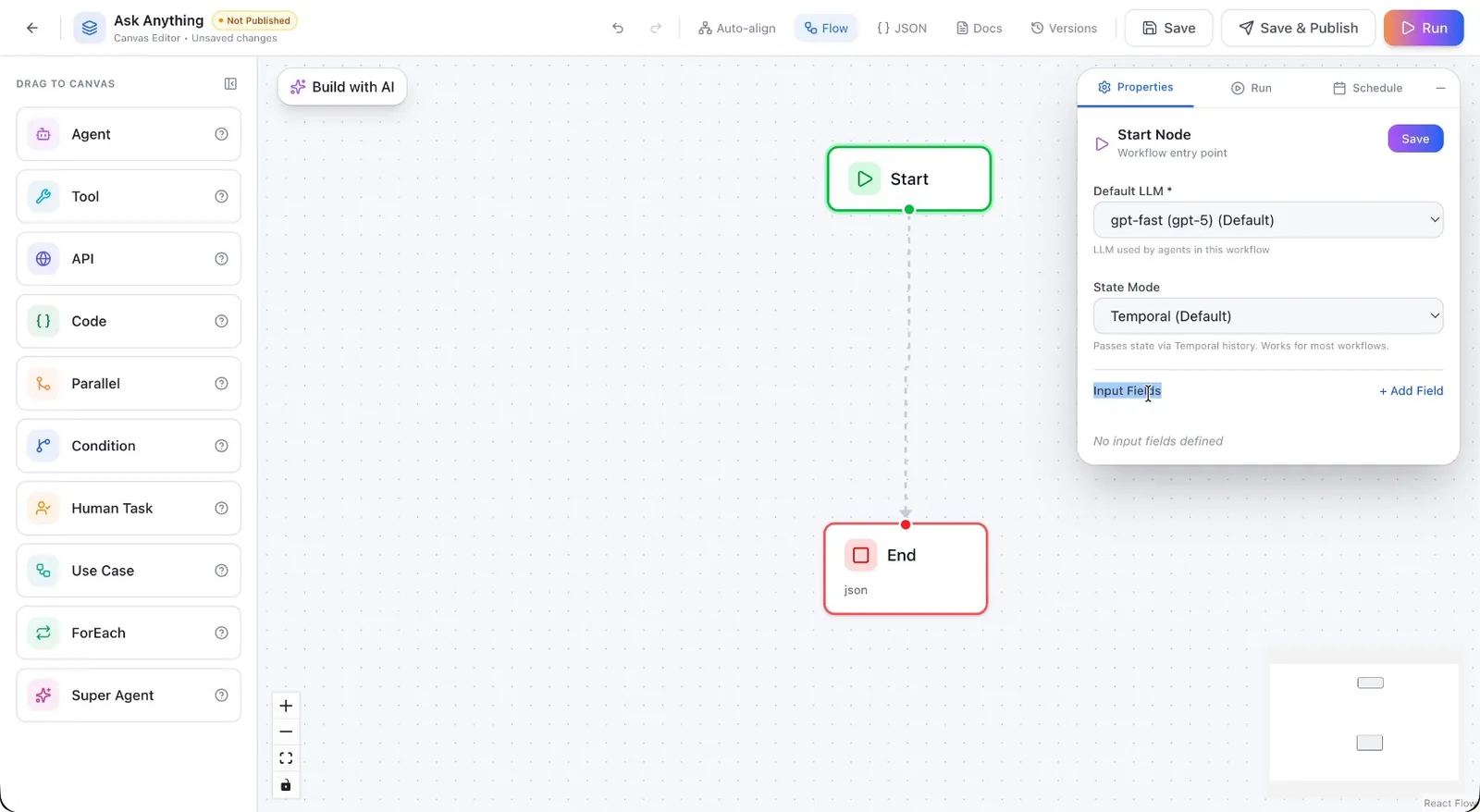
- Set the field name to Question.
- Set the type to String.
- Mark this field as Required, so the user must provide a question.
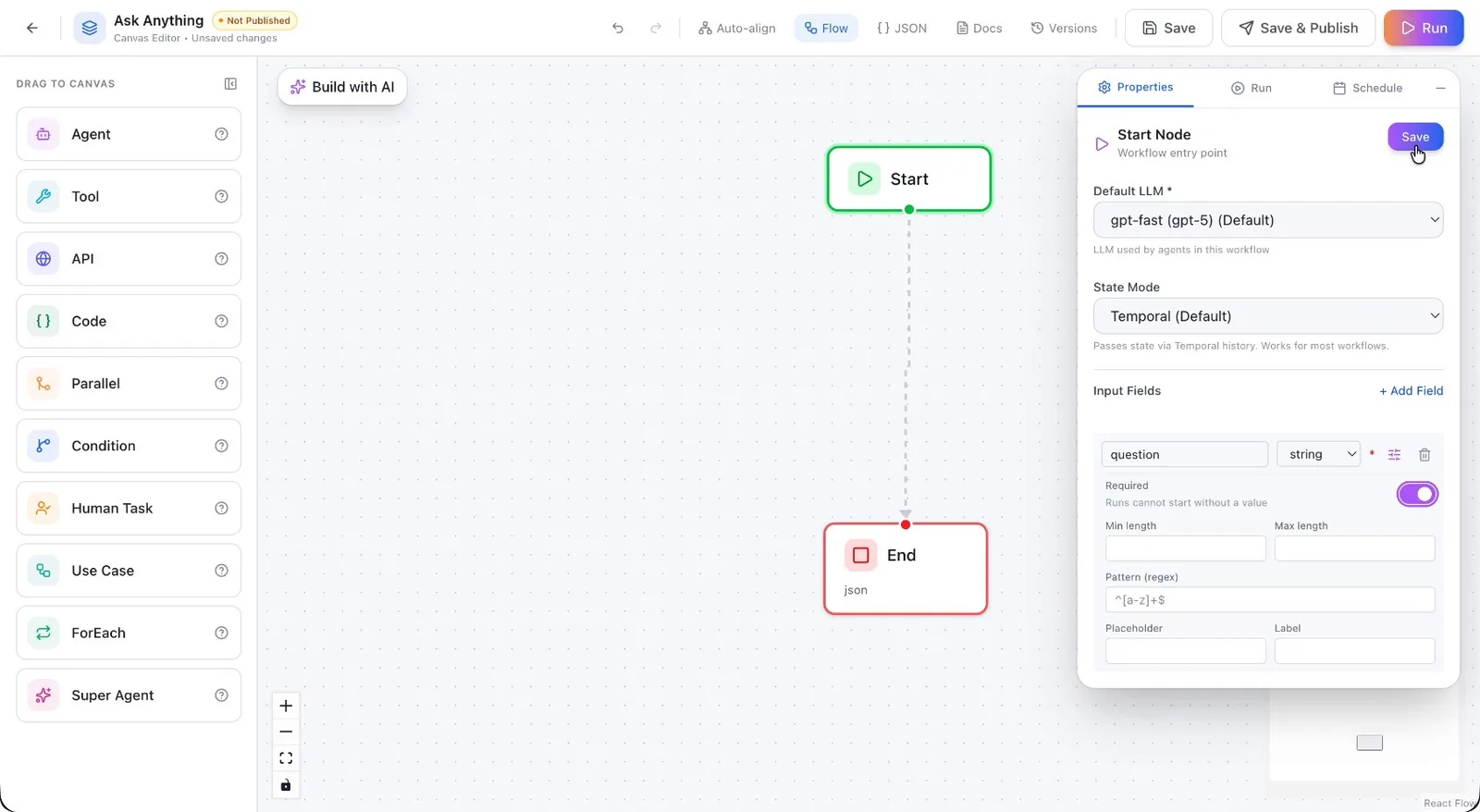
Click Save to store the Start node configuration.
Step 3: Add and Position the Agent Node
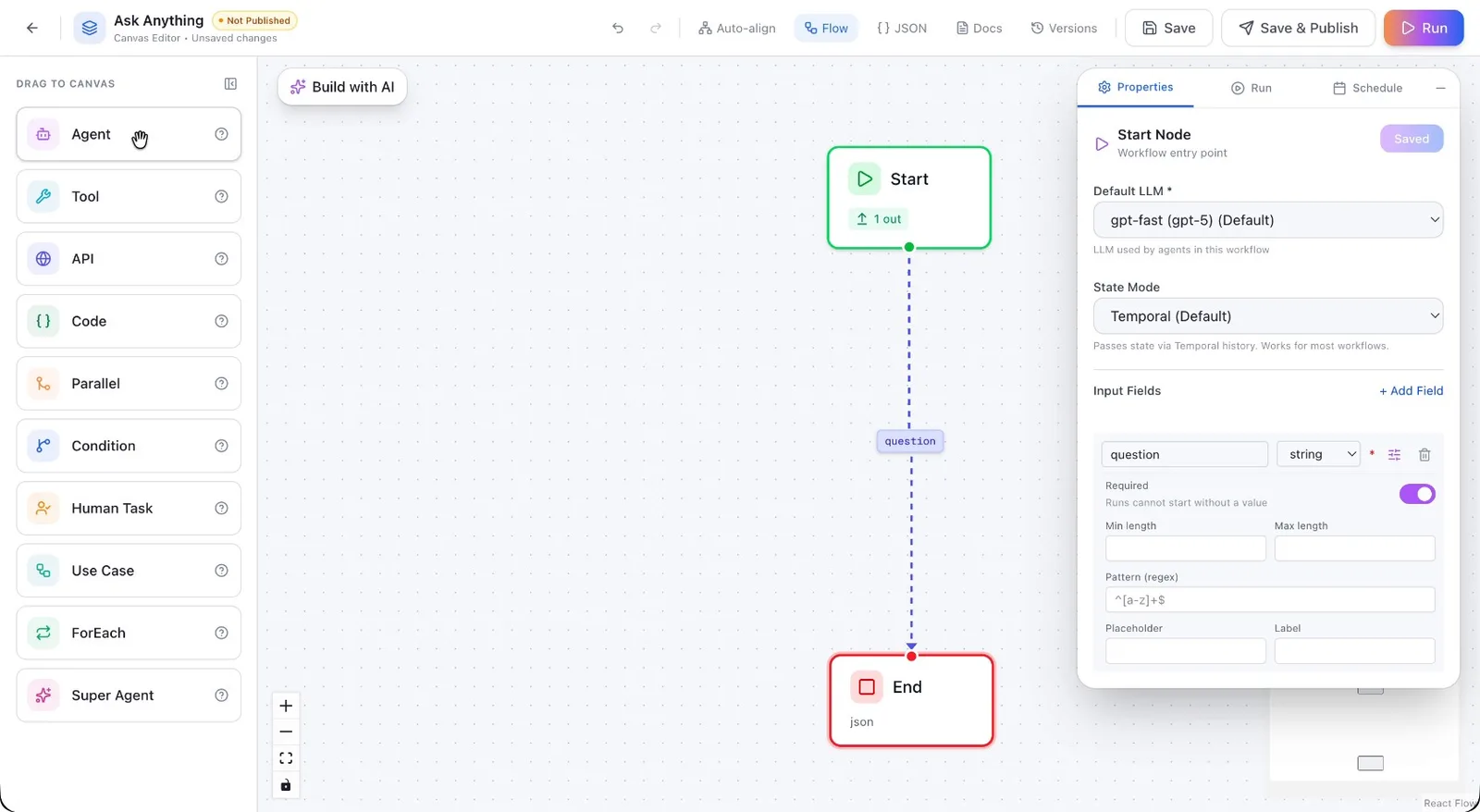
Add an Agent node to the workflow by dragging it from the left-side panel onto the canvas. Place it between the Start and End nodes.
Step 4: Configure the Agent Node
Open the configuration for the Agent node.
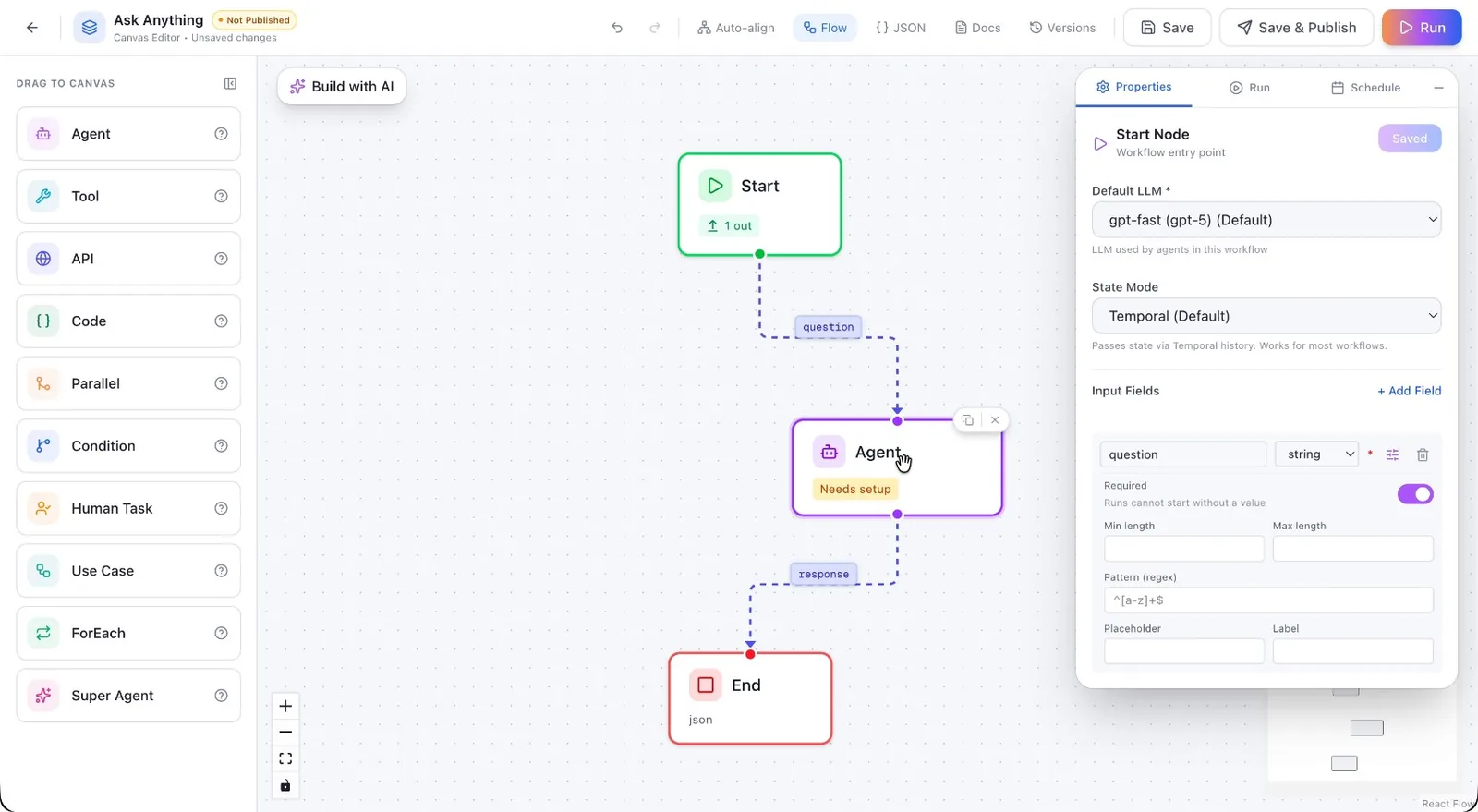
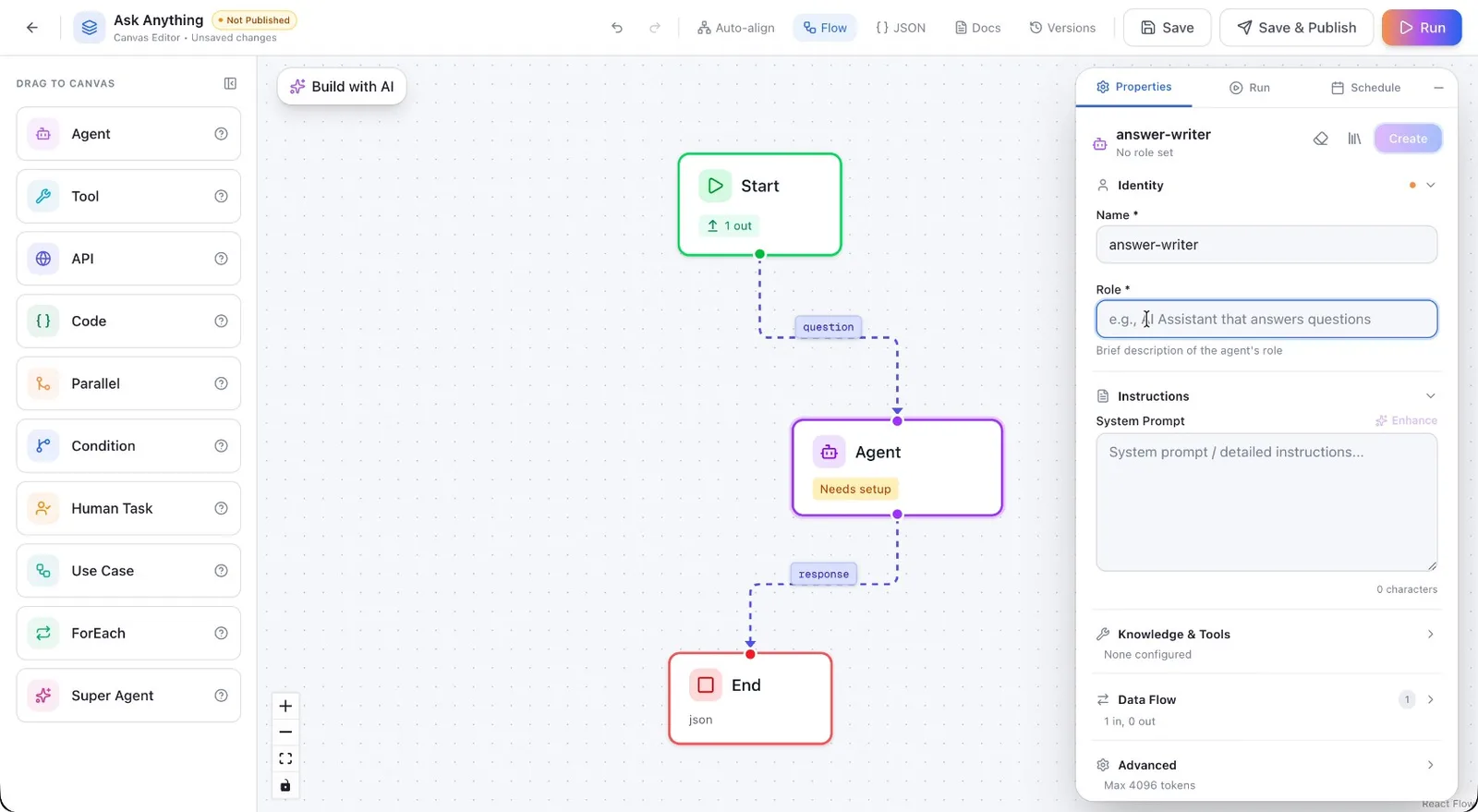
Give the Agent node a descriptive Name.
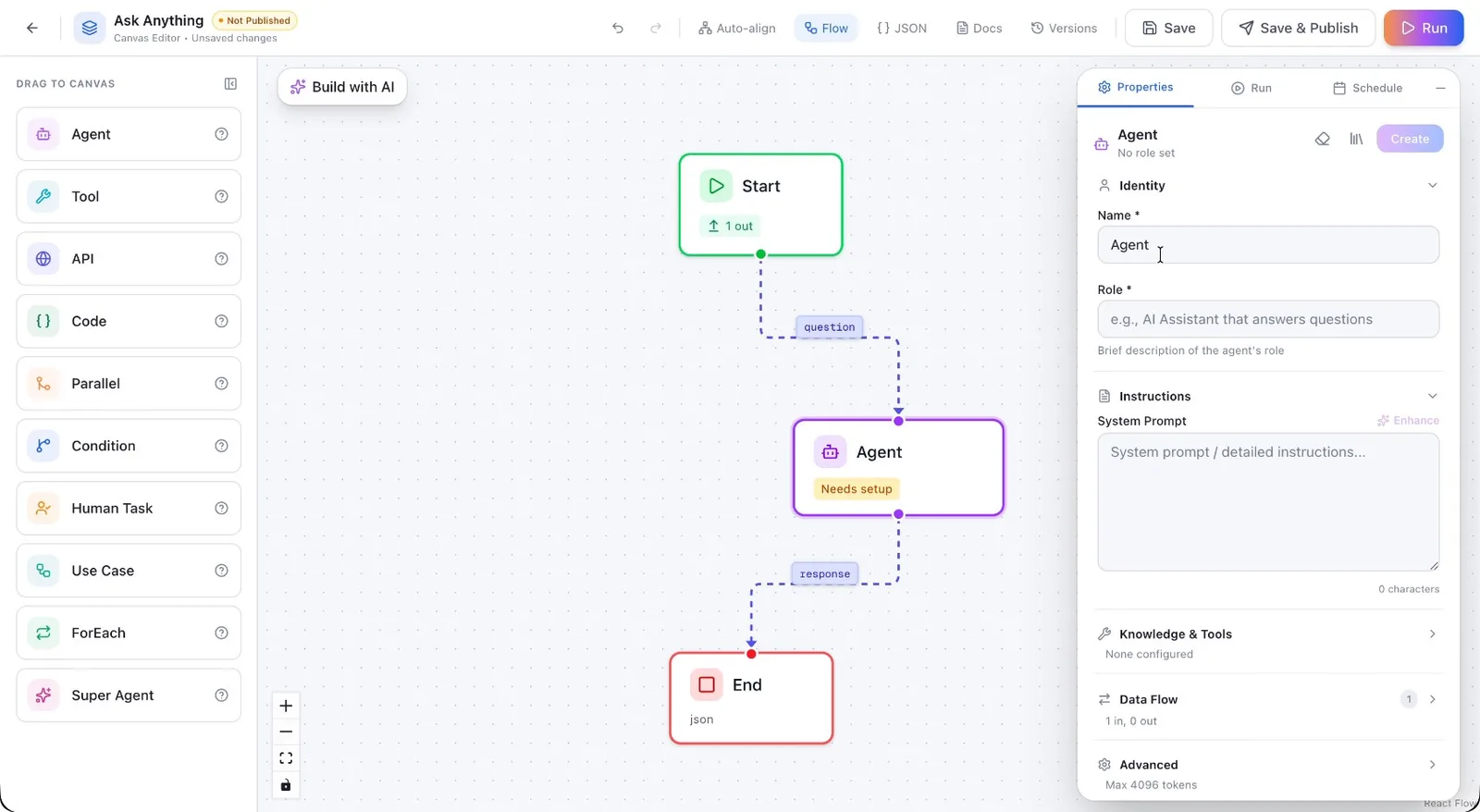
Set the Role to something like: “Answer staff questions in plain language.”
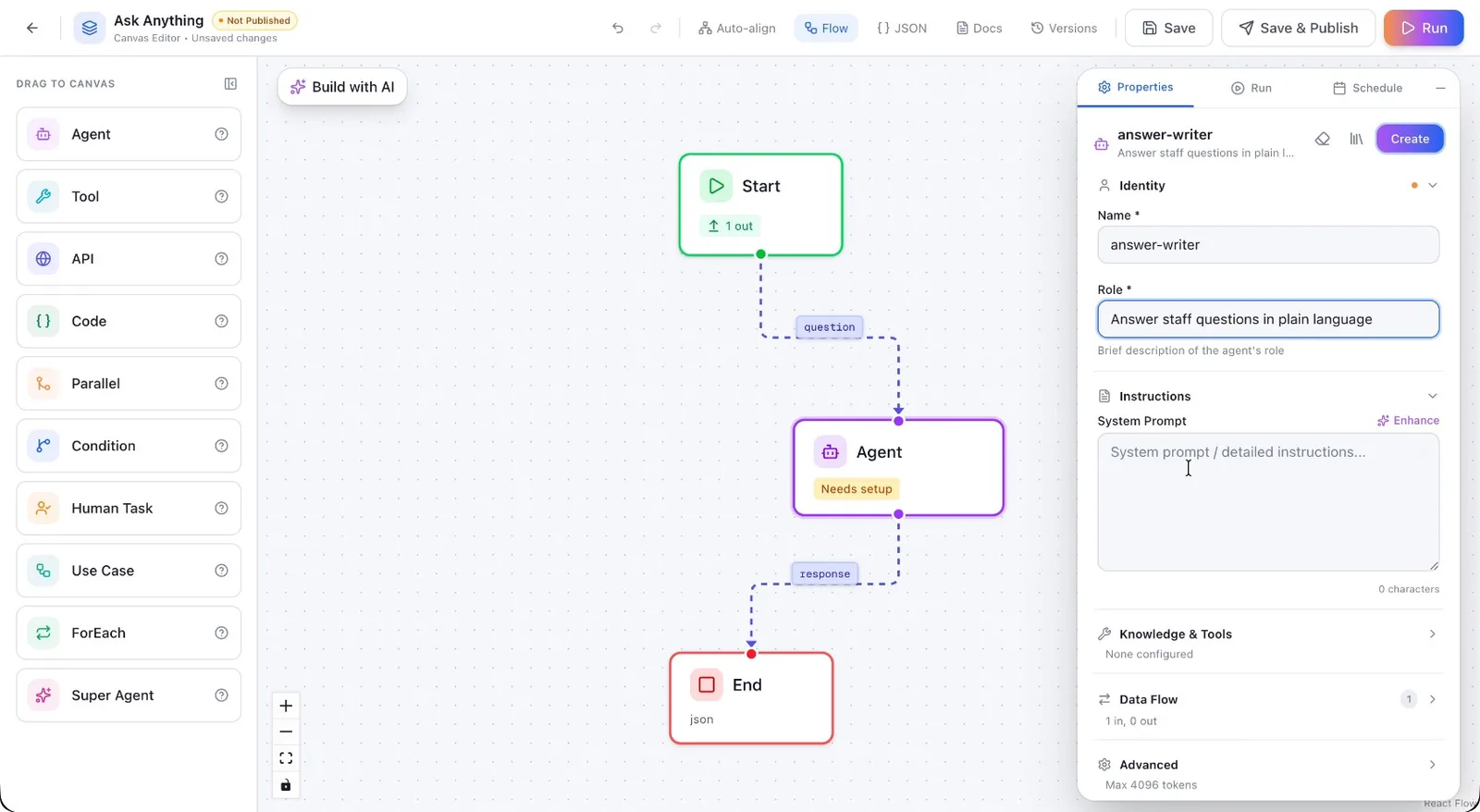
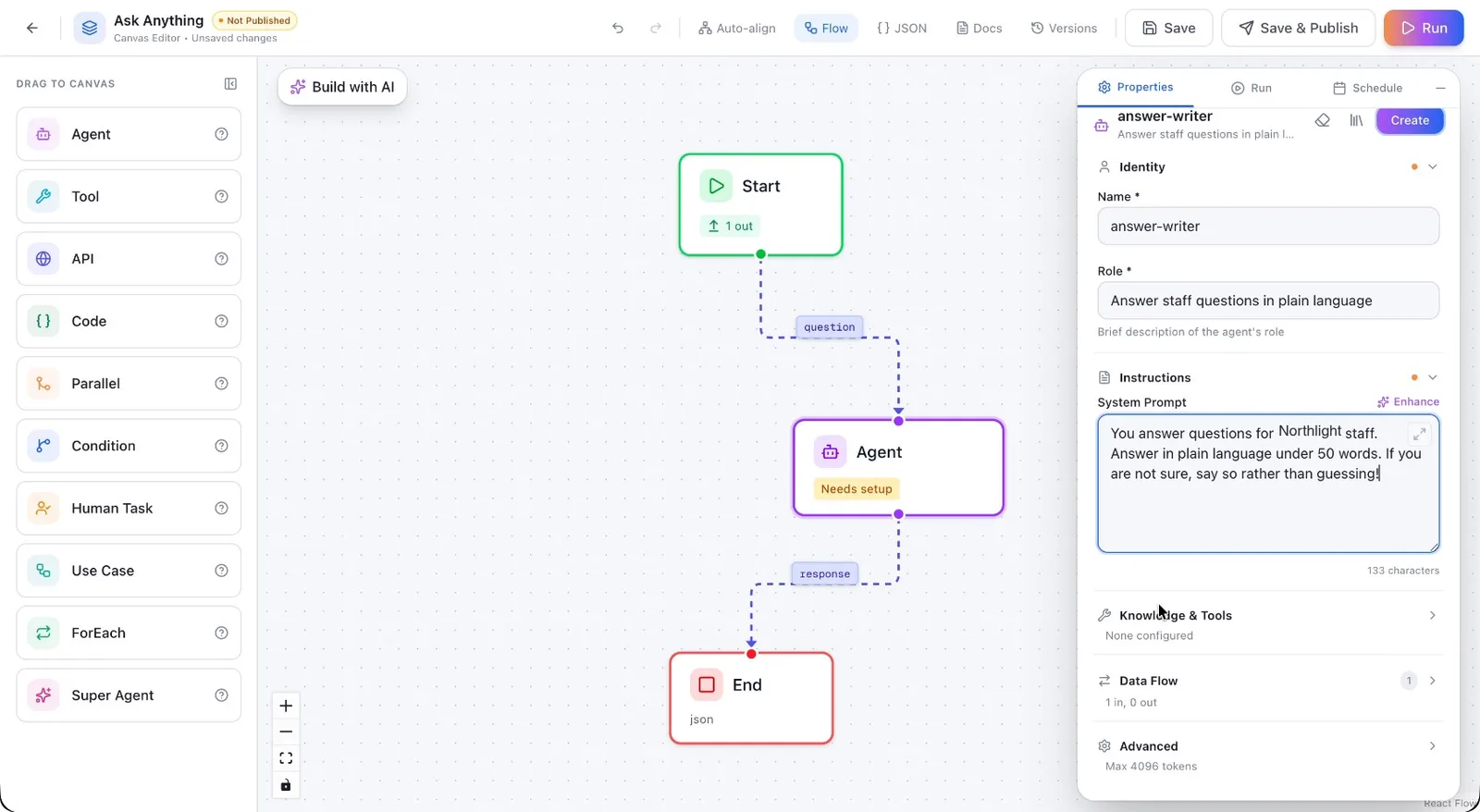
Add clear Instructions for the agent, describing how it should answer questions.
Configure the Data Flow so the question from the Start node is passed into the Agent:
- In Input Mappings, ensure the field Question is selected and mapped from the Start node’s input field.
Define the Output Schema:
- Add a new output field and set its name to Answer.
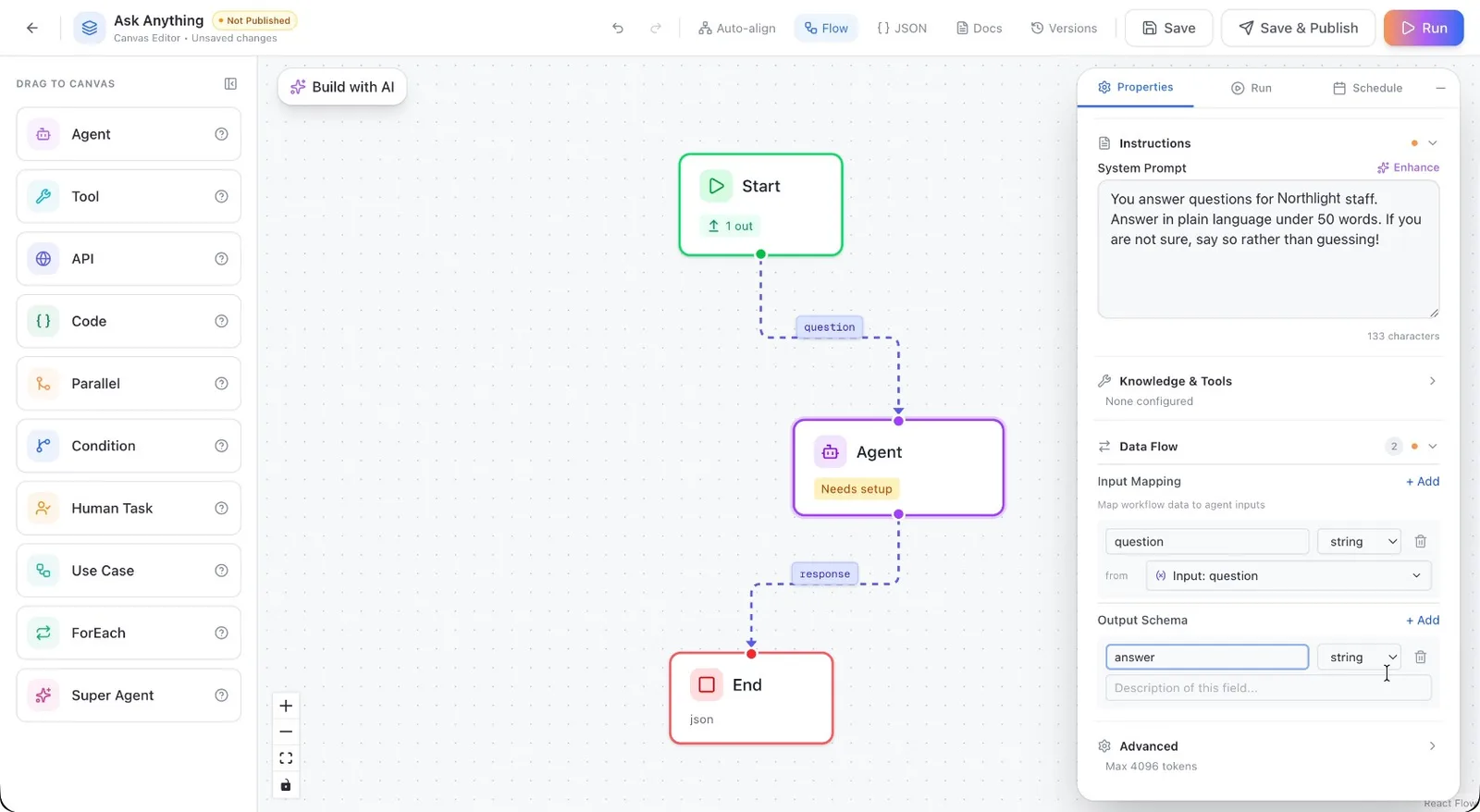
When all configurations are complete, click Create to save the Agent node settings.
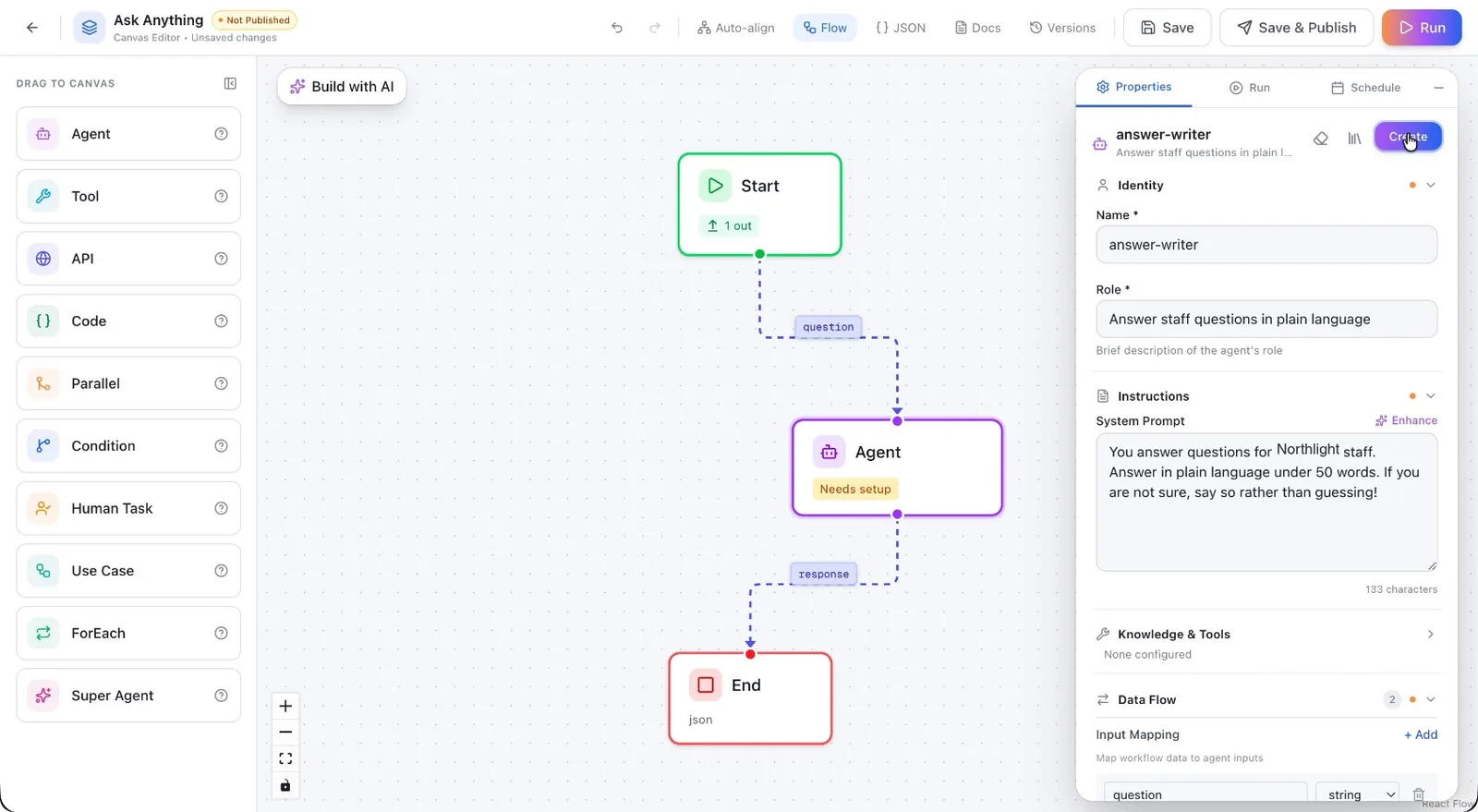
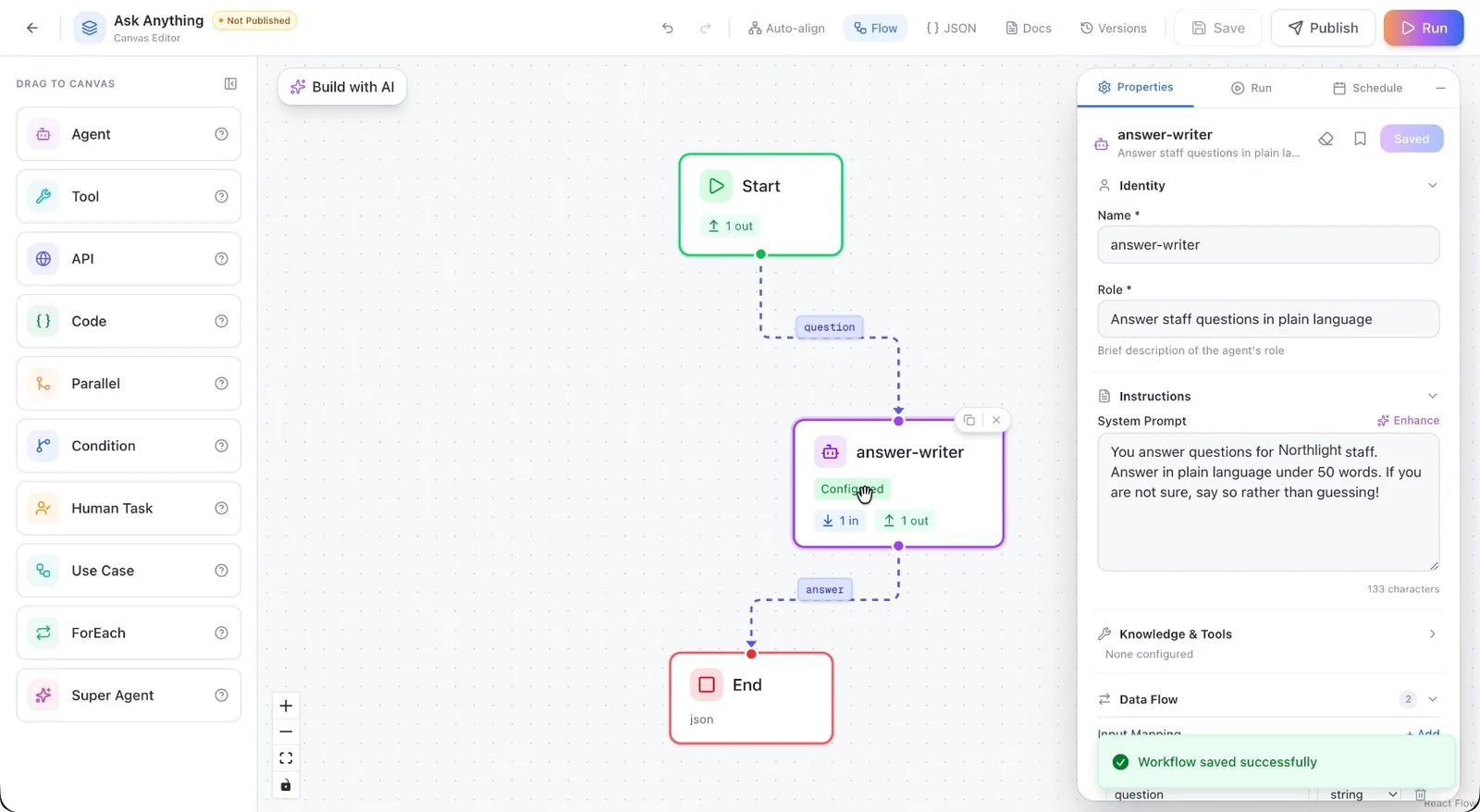
Confirm that the Agent node has been successfully added and configured on the canvas.
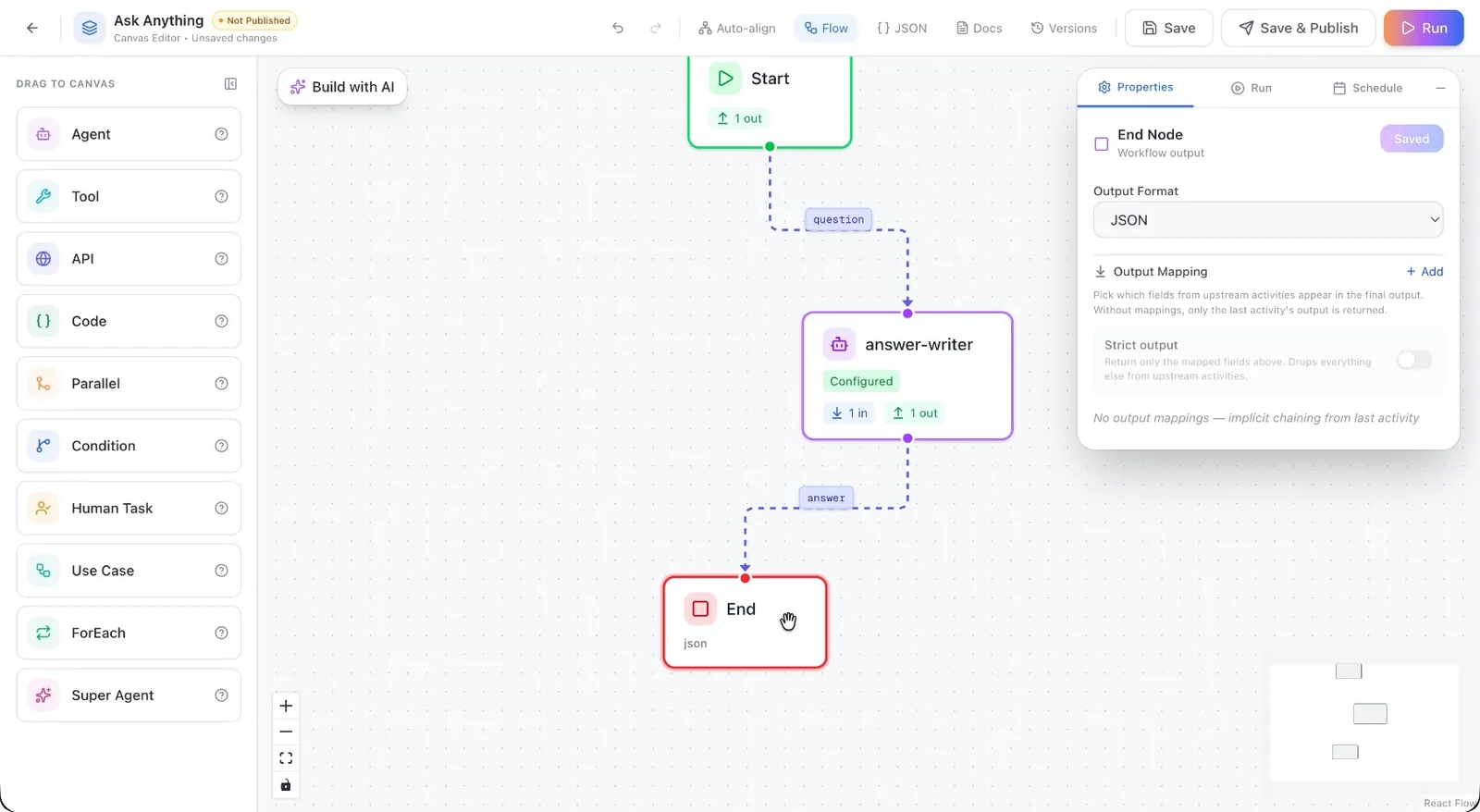
Step 5: Review the End Node Configuration
Open the End node configuration and keep the default settings, as they are sufficient to output the response generated by the Agent.
Step 6: Run and Test the Workflow
Run the workflow to verify that it works as expected:
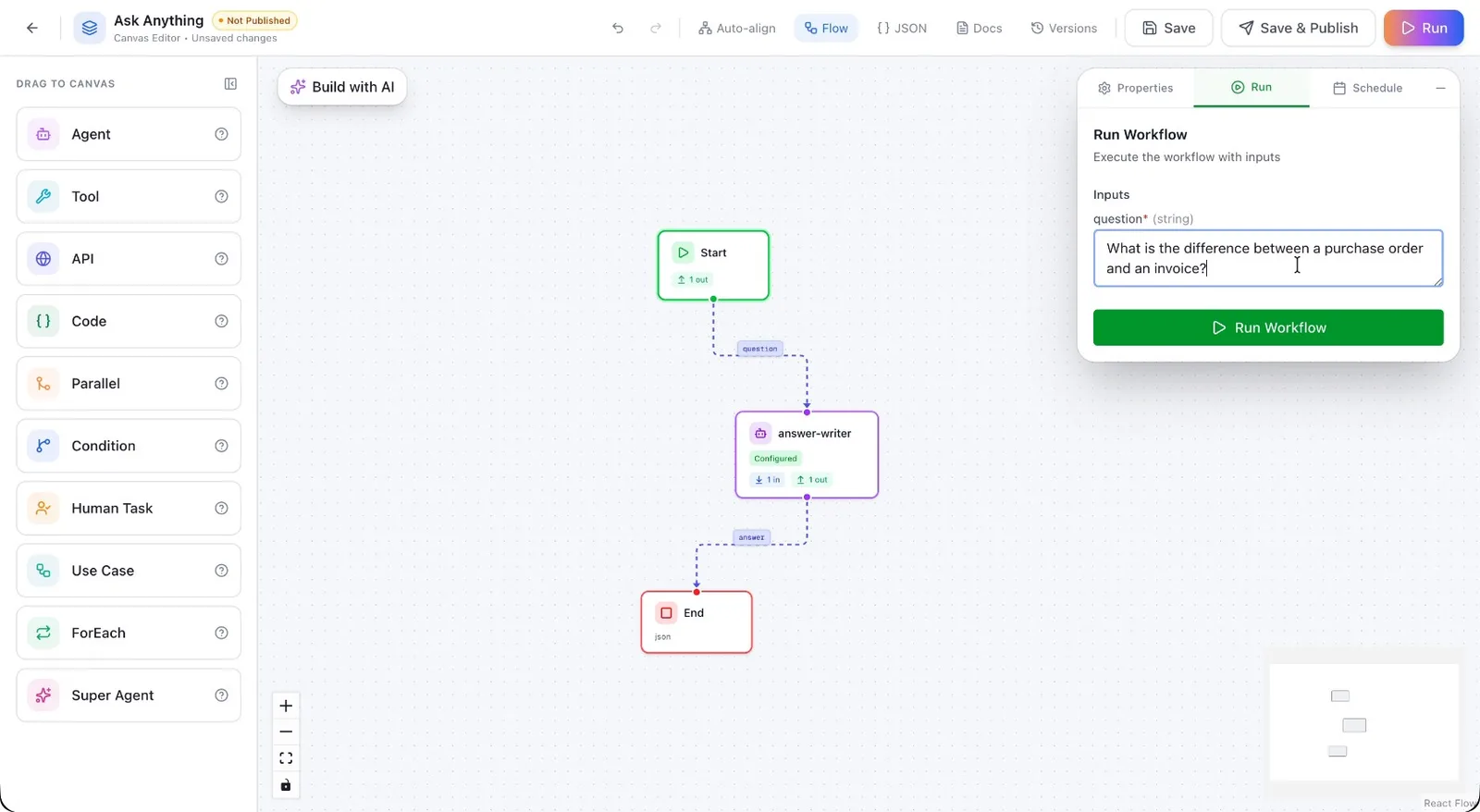
Click the Run button.
When prompted for input, enter a test question, for example: “What is the difference between a purchase order and an invoice?”
Execute the run and review the output.
You should see the Answer field populated with a concise response (for example, around fifty words) explaining the difference between a purchase order and an invoice.