

How-to · Lesson 4 of 19
Enterprise Tool Integration with MCP Servers
Agents can converse, but they cannot search the web or send mail on their own. MCP servers give them tools. Connect the Outlook server over OAuth, read its tool schemas, and prove a call works before any workflow depends on it.
What You Will Learn
- How to connect an MCP server (such as Outlook, web search, or calendar) to MagOneAI
- What is available out of the box: web search, Outlook mail and calendar, SharePoint, text to SQL, files
- Reading a tool's input schema, and why a vague tool description gets misused by the model
- Running a real OAuth connect flow on camera, including the Microsoft consent screen
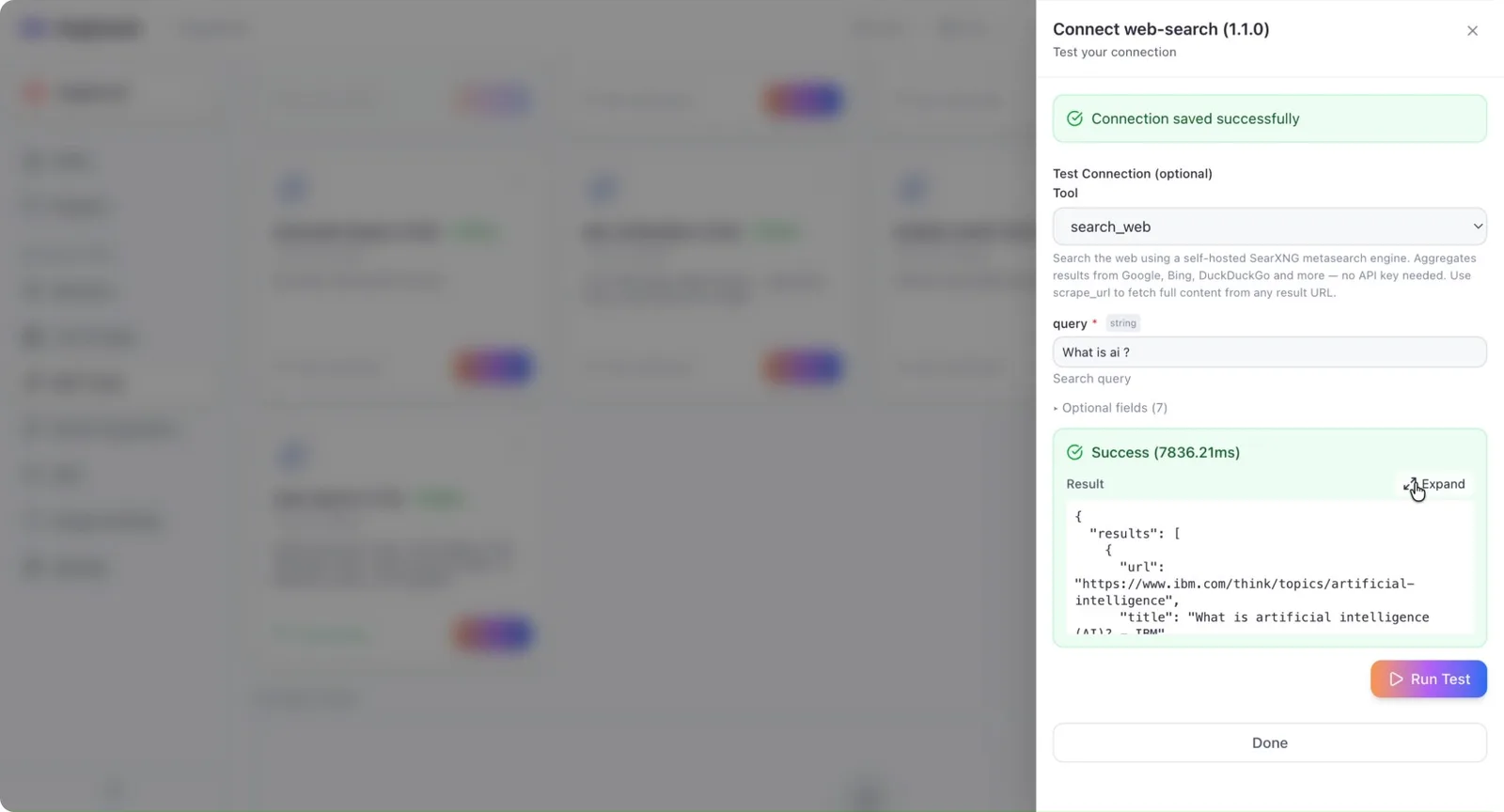
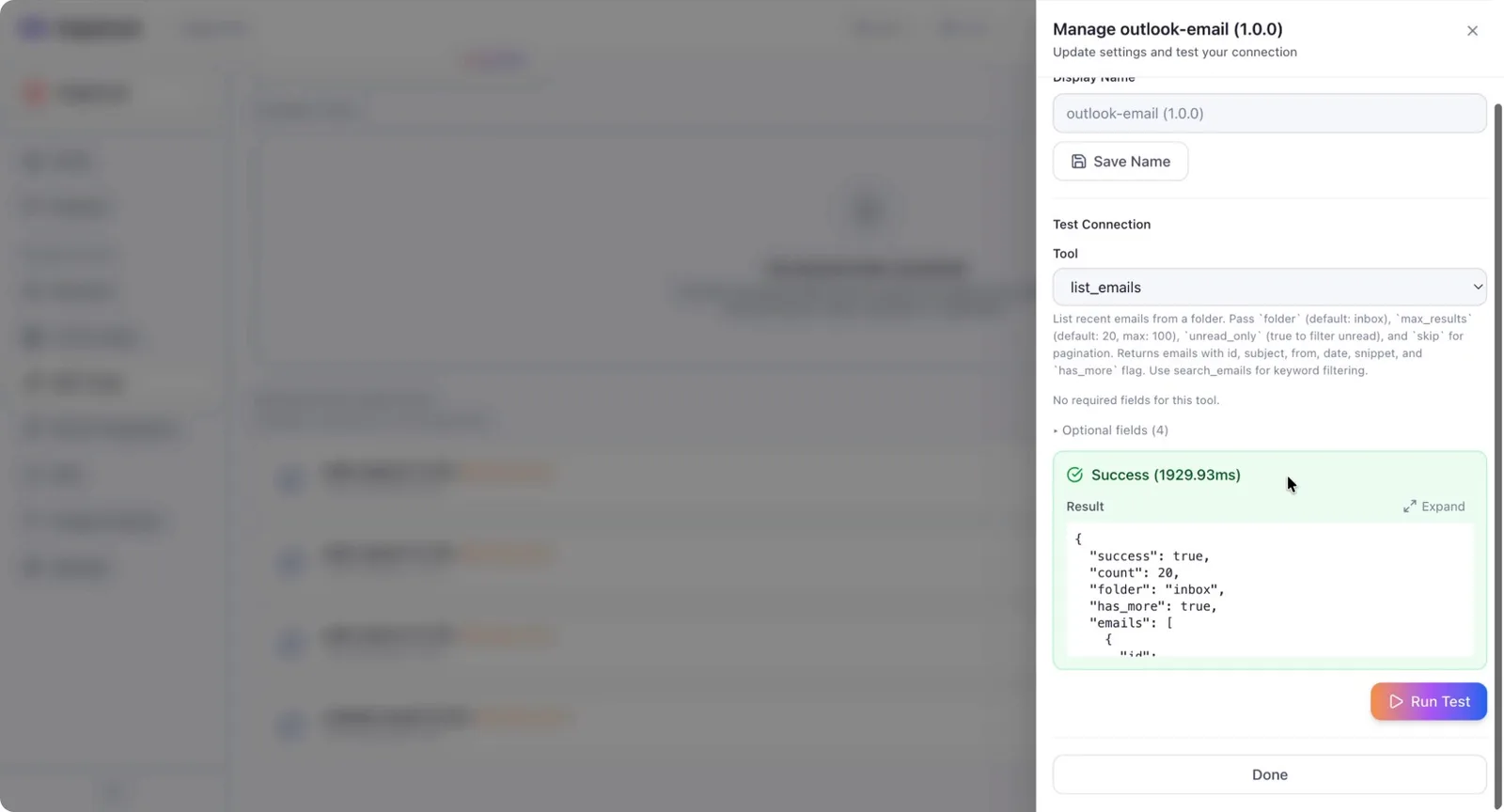
- Using the tool test form to run a call and read the raw JSON before it ever enters a workflow
- Why debugging one tool call is far easier than debugging a workflow that contains one
Step by step guide
Step 1: Understand Tools and MCP Servers in MagOneAI
MagOneAI agents can converse, but they cannot search the web, access calendars, or send emails on their own. These capabilities come from tools, and tools are provided by MCP servers such as web search, Outlook mail, calendar, or SharePoint.
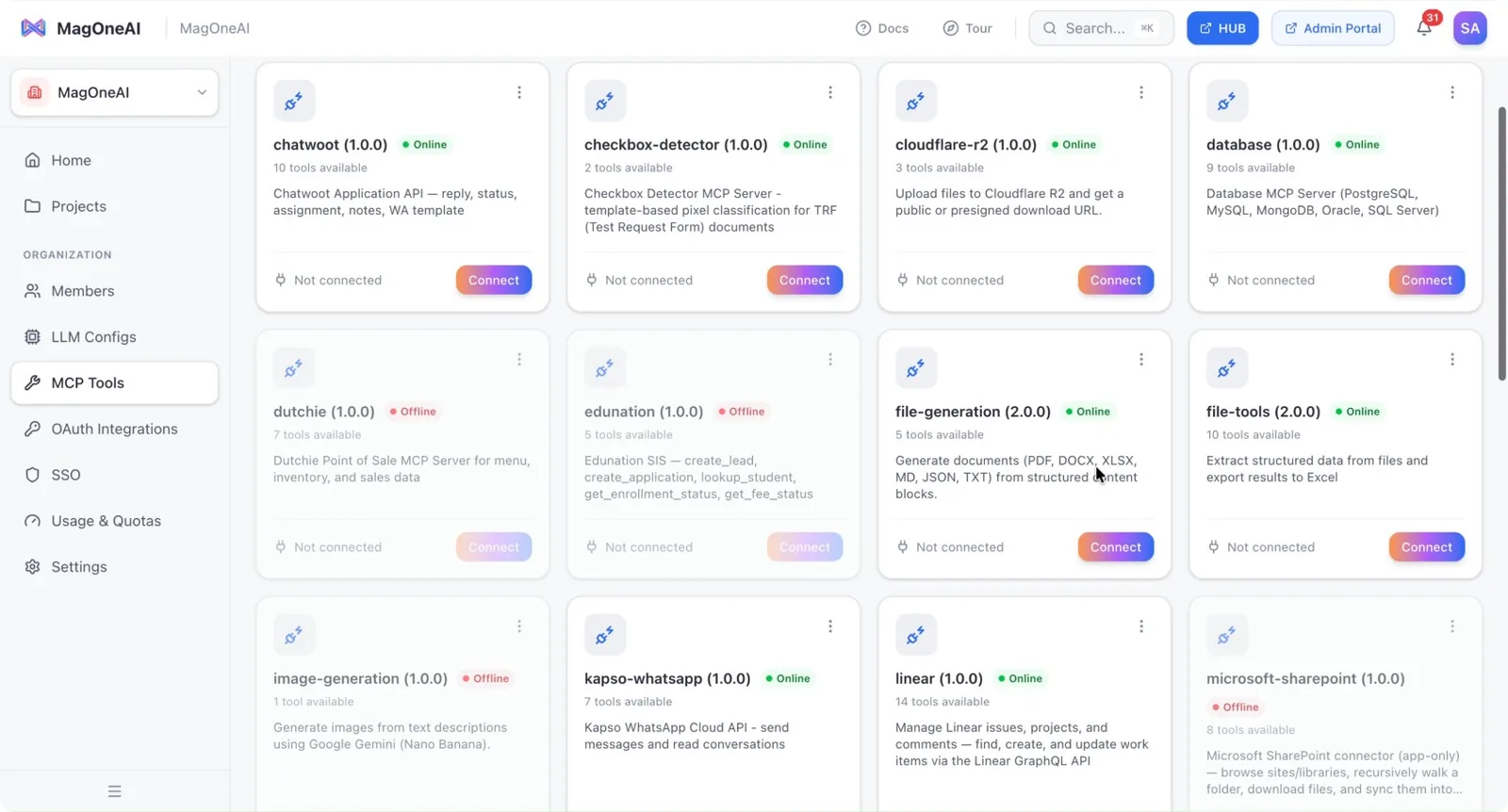
Before you run even a single workflow, you should always test any new tool first to confirm that it works as expected.
Step 2: Review Available MCP Servers and Their Live Status
MagOneAI displays a list of MCP servers such as web search, Outlook mail, calendar, SharePoint, and others. These servers register themselves with MagOneAI when they start and periodically send a heartbeat to indicate that they are online.
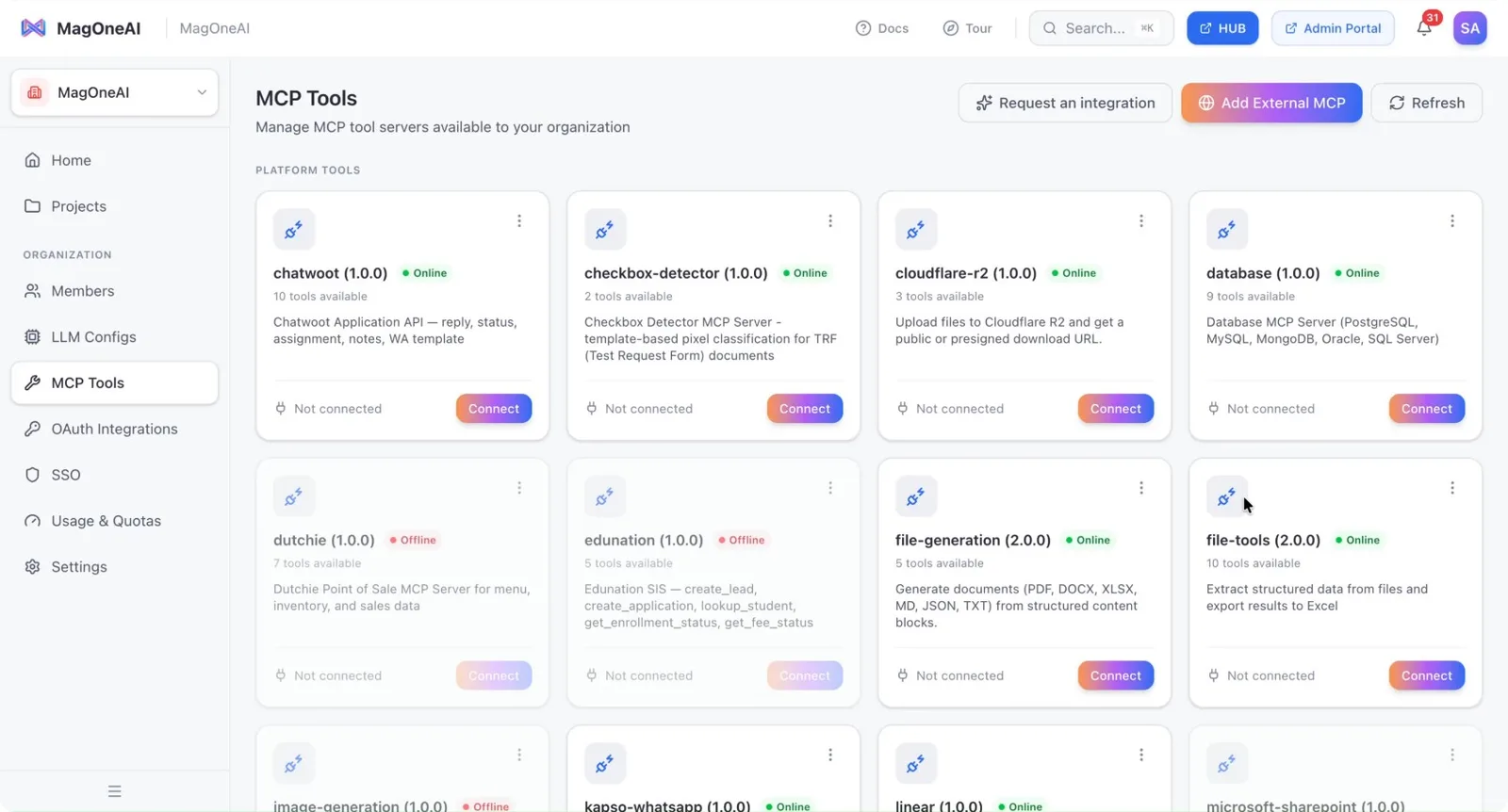
Because this list is based on live heartbeats, it is not a static configuration file that someone must manually update. If a server appears greyed out or marked offline, it means that server has stopped heart beating. In that case, there is nothing to fix in your MagOneAI workflow; you must instead check and fix the underlying MCP server for that tool.
Step 3: Open a Server and Inspect Its Tools and Schemas
Open a specific MCP server to view all the tools it provides, along with each tool’s schema.
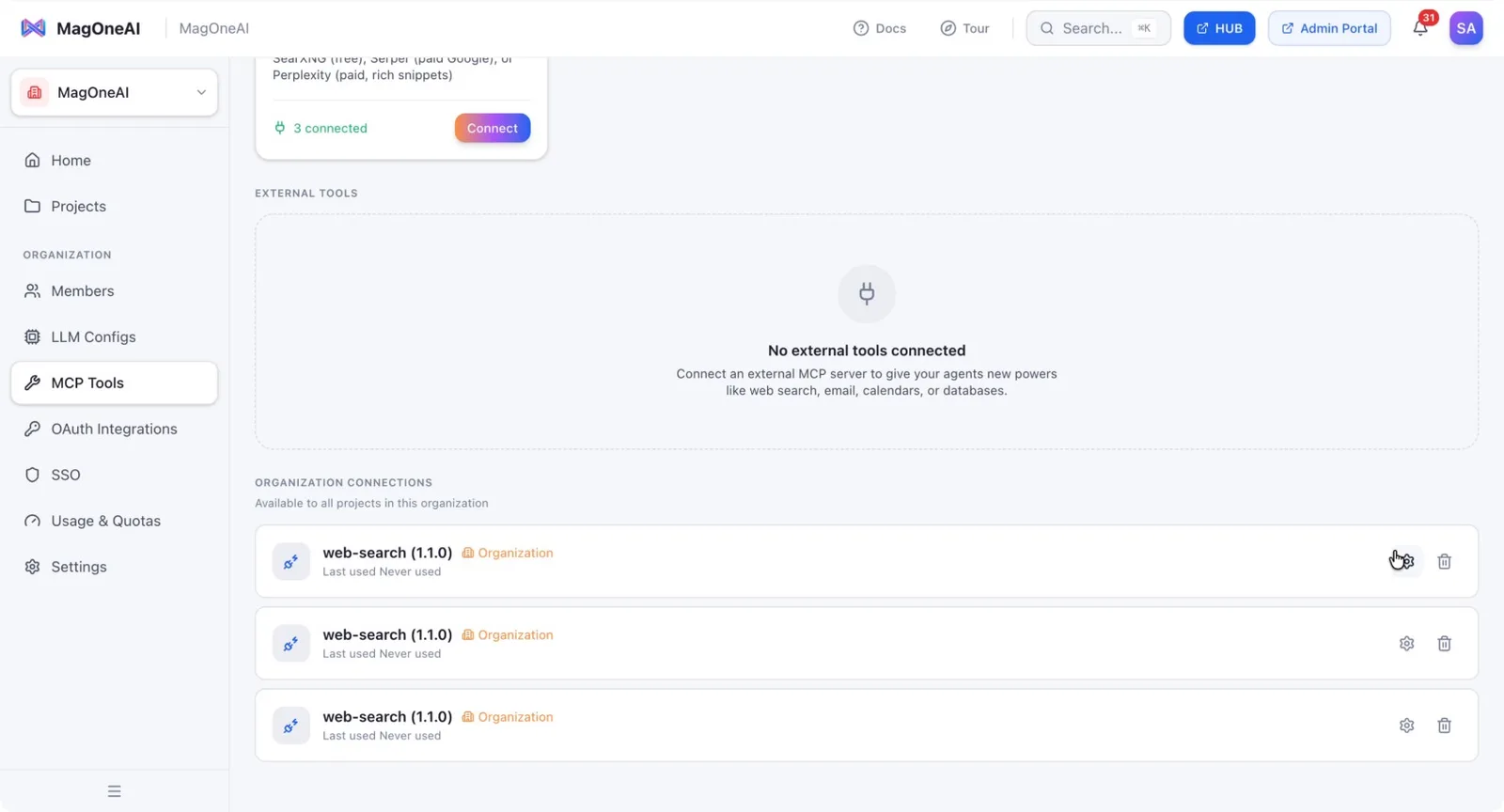
Carefully read the schema for each tool.
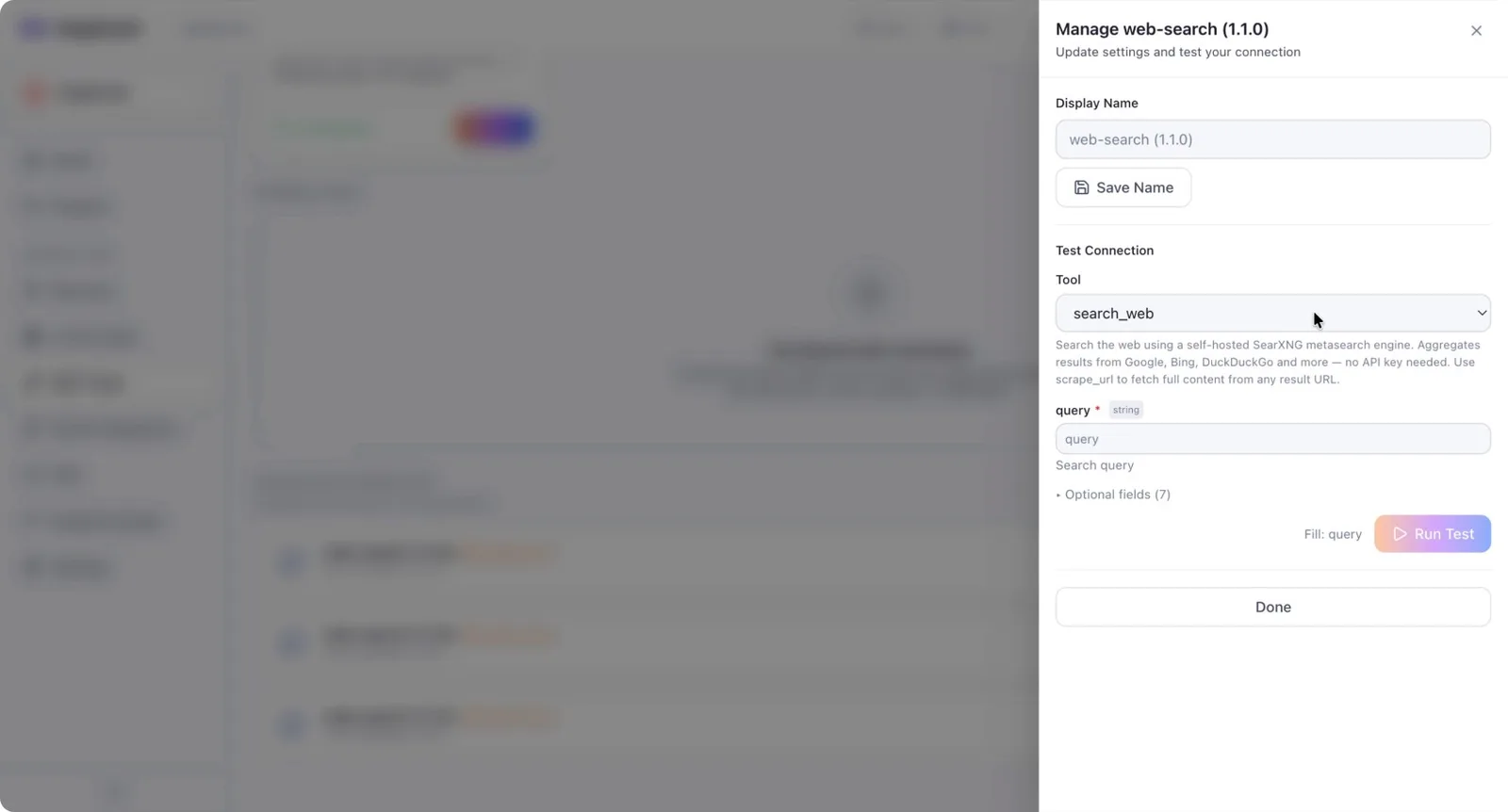
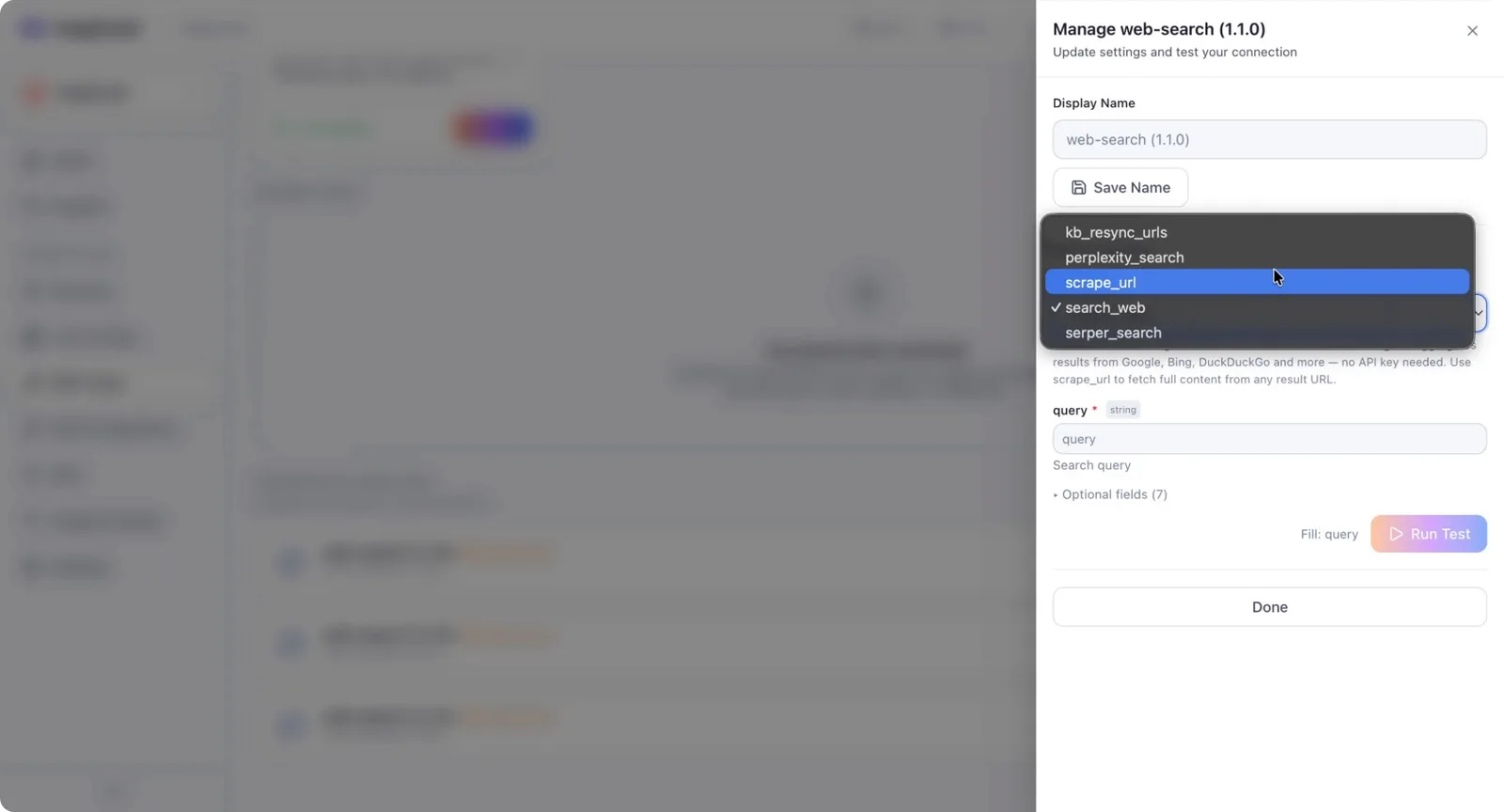
The schema you see here is exactly what the agent will see and use. If a tool has a vague or unclear description, the model is more likely to misuse it. This is a description and schema quality issue, not a model problem. Ensure descriptions are precise and informative.
Step 4: Review Authentication Requirements (API Key vs OAuth)
Different MCP servers may require different authentication methods. Some servers use a simple API key.
Others rely on OAuth-based authentication, which many people find more intimidating. In this example, you will connect to an Outlook email MCP server using OAuth.
Step 5: Connect the Outlook Email MCP Server via OAuth
Locate the Outlook email MCP server in the list and click Connect.
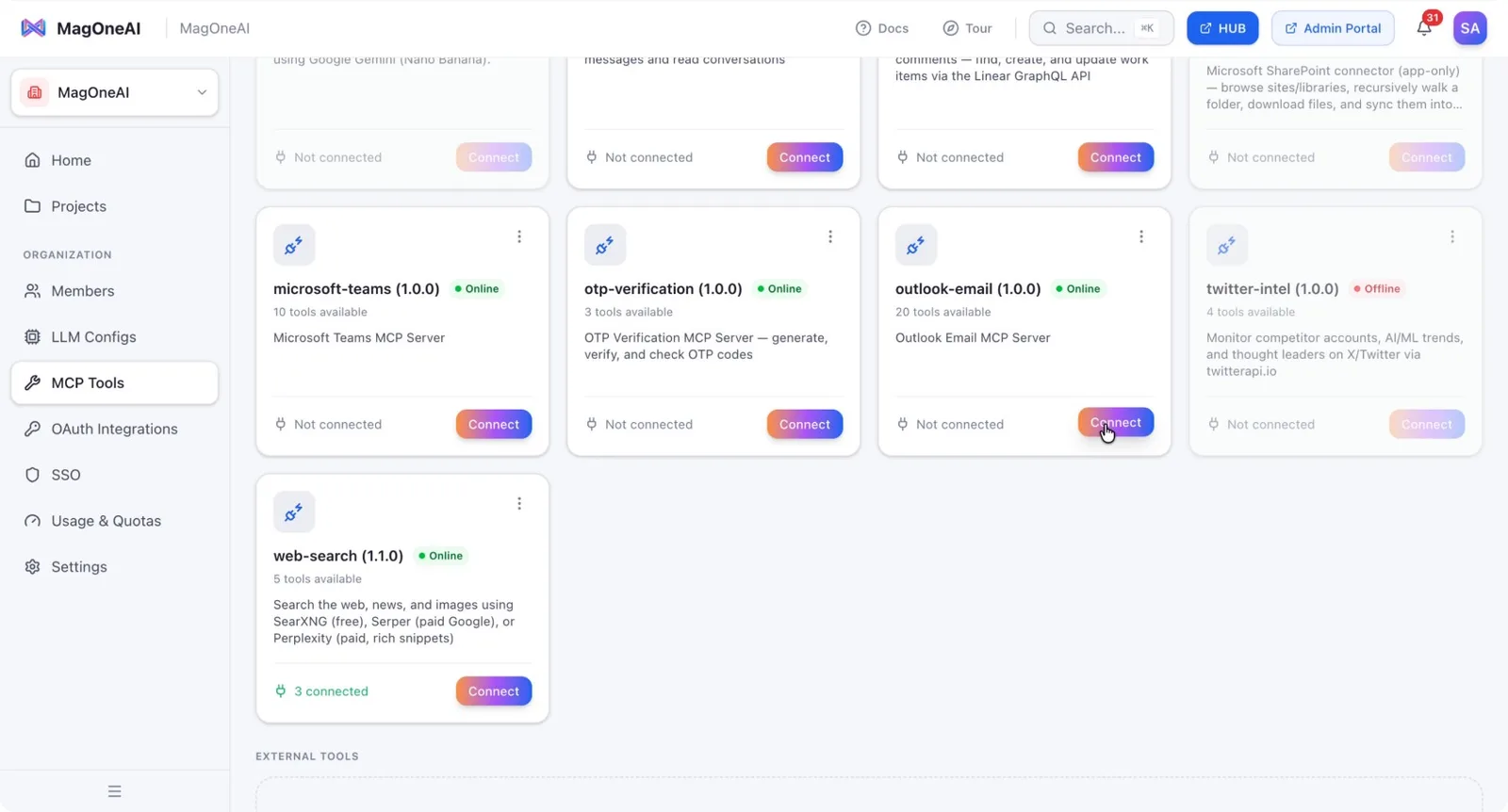
You will be redirected to Microsoft’s sign-in and consent flow.
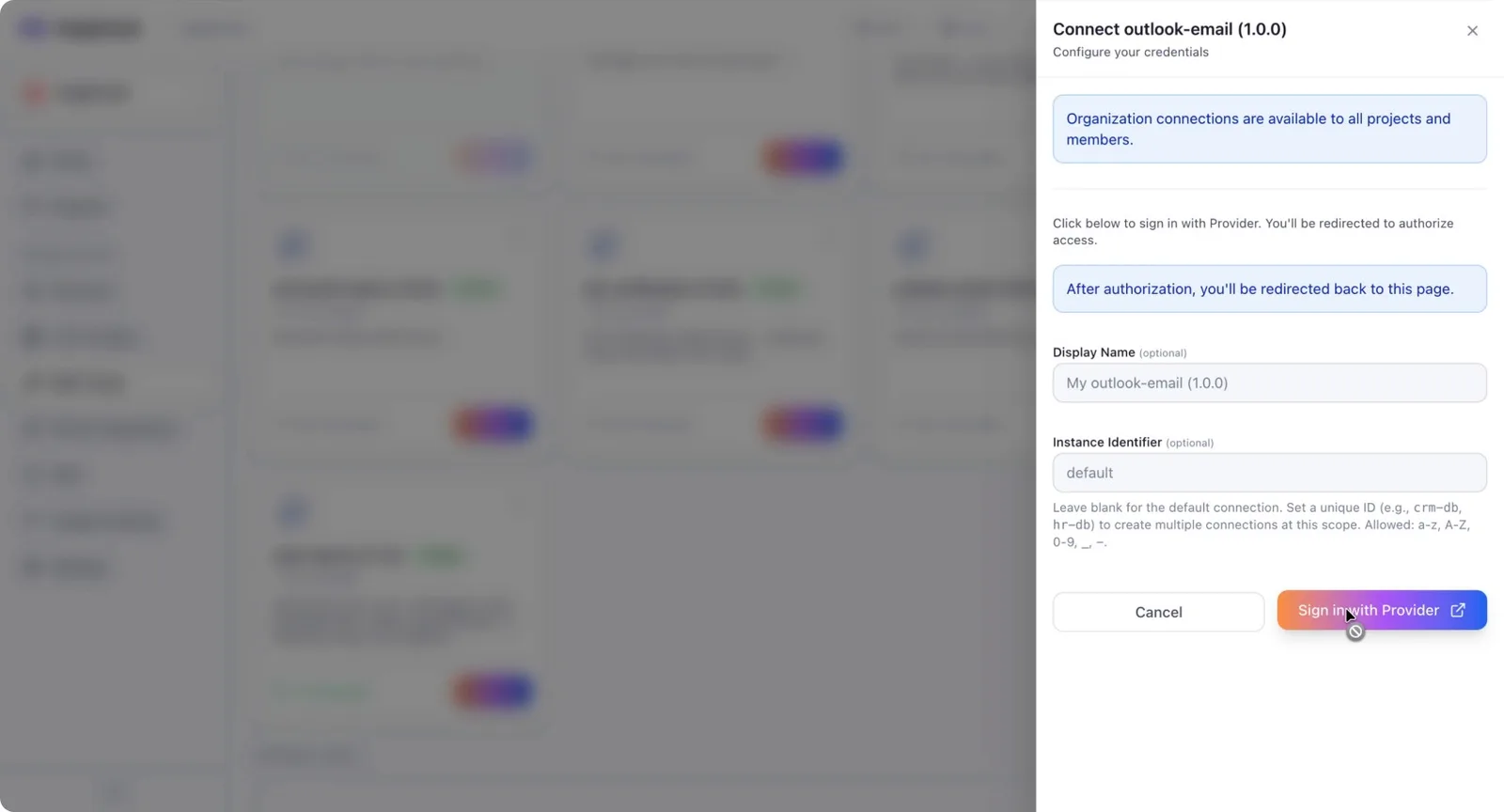
Sign in (if required), review the requested permissions, approve access, and complete the flow. When you are redirected back to MagOneAI, your Outlook email MCP server will be connected. No manual token entry or credential copy-paste is required.
Step 6: Configure Tool Parameters and Run a Test Call
After connecting, open the Outlook email tool interface. Fill in the required fields and parameters for the tool you want to test (for example, specifying recipients, subject, or search criteria, depending on the tool).
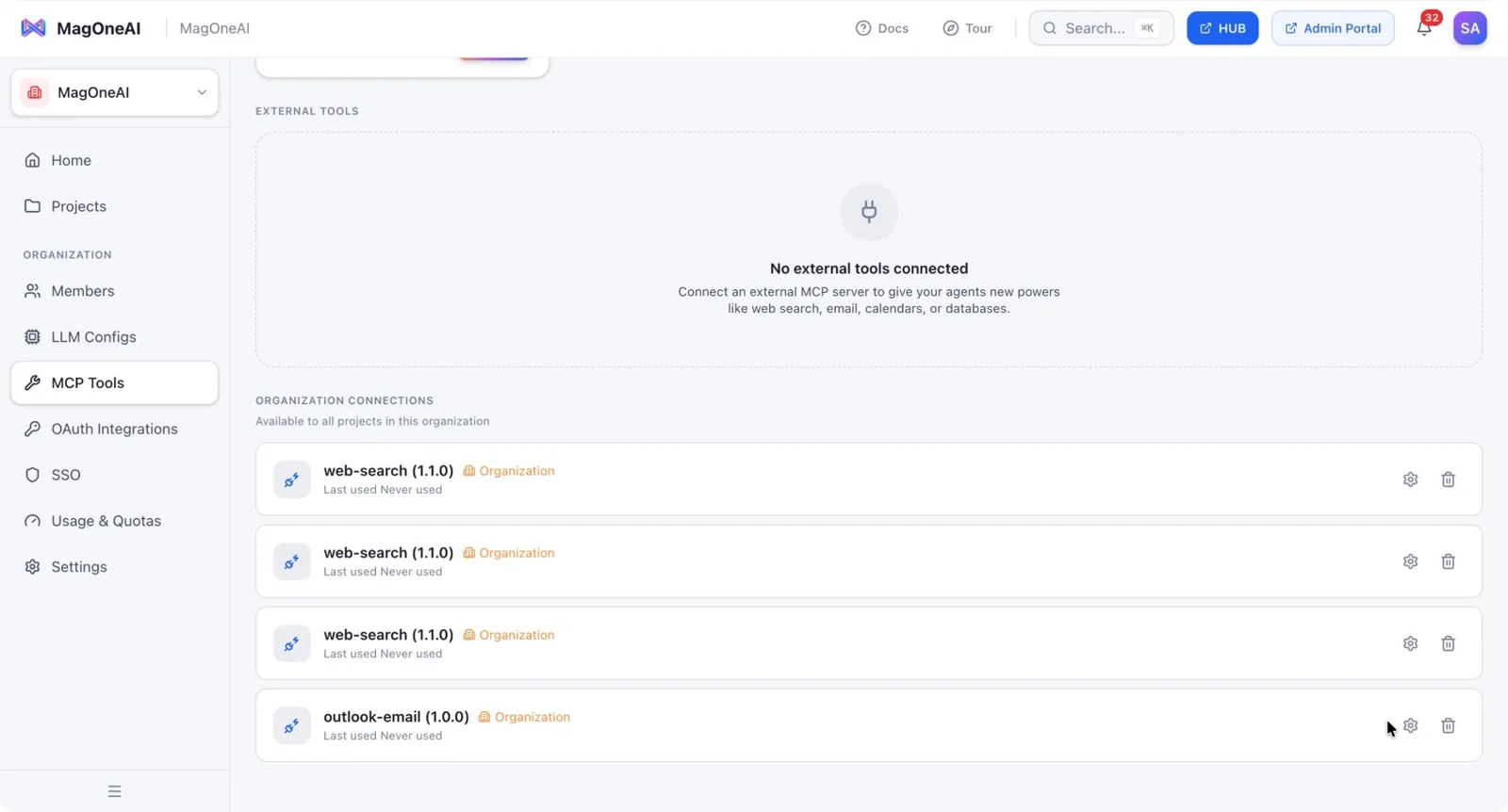
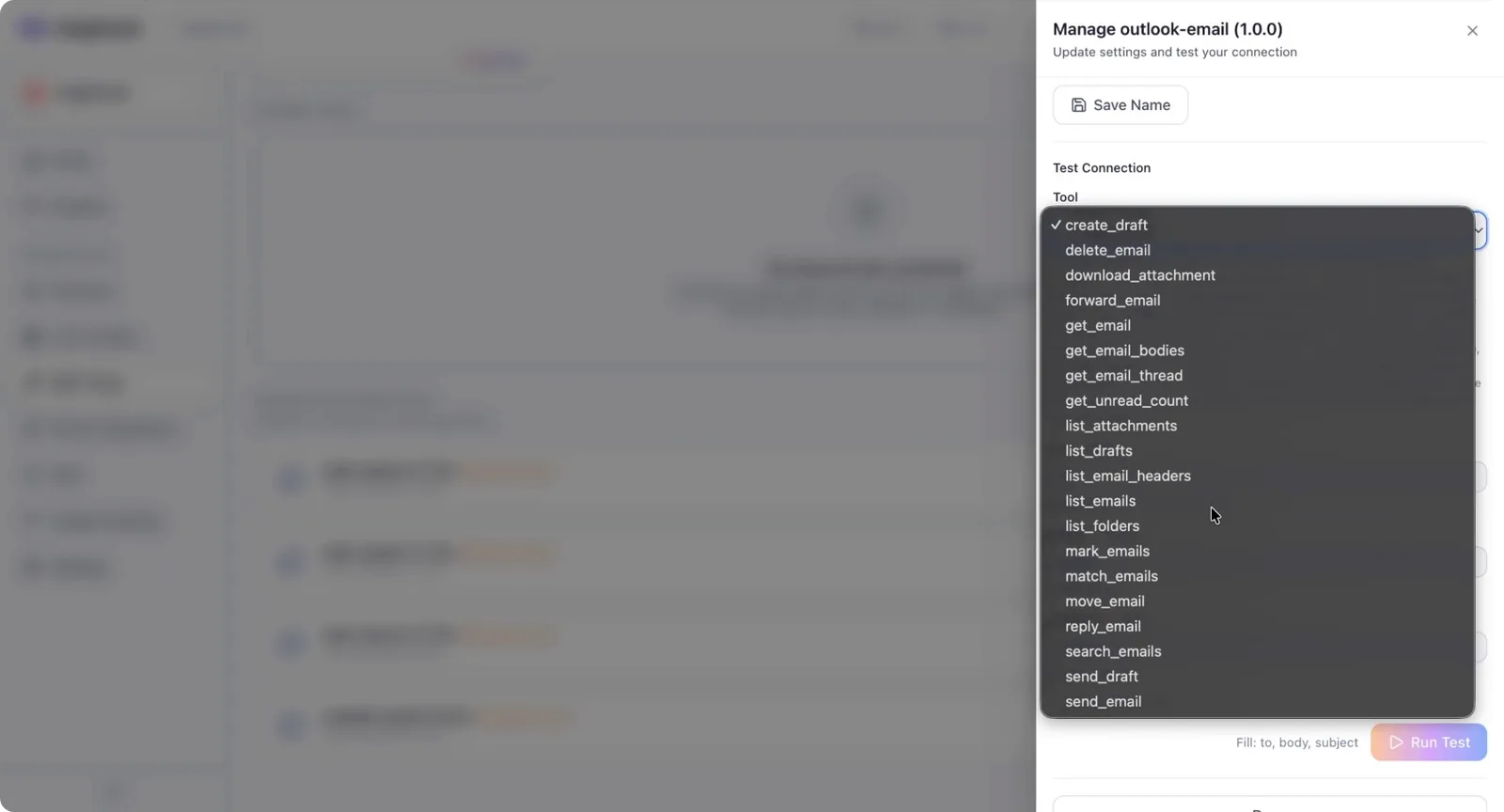
Once the parameters are set, run the tool to test it.
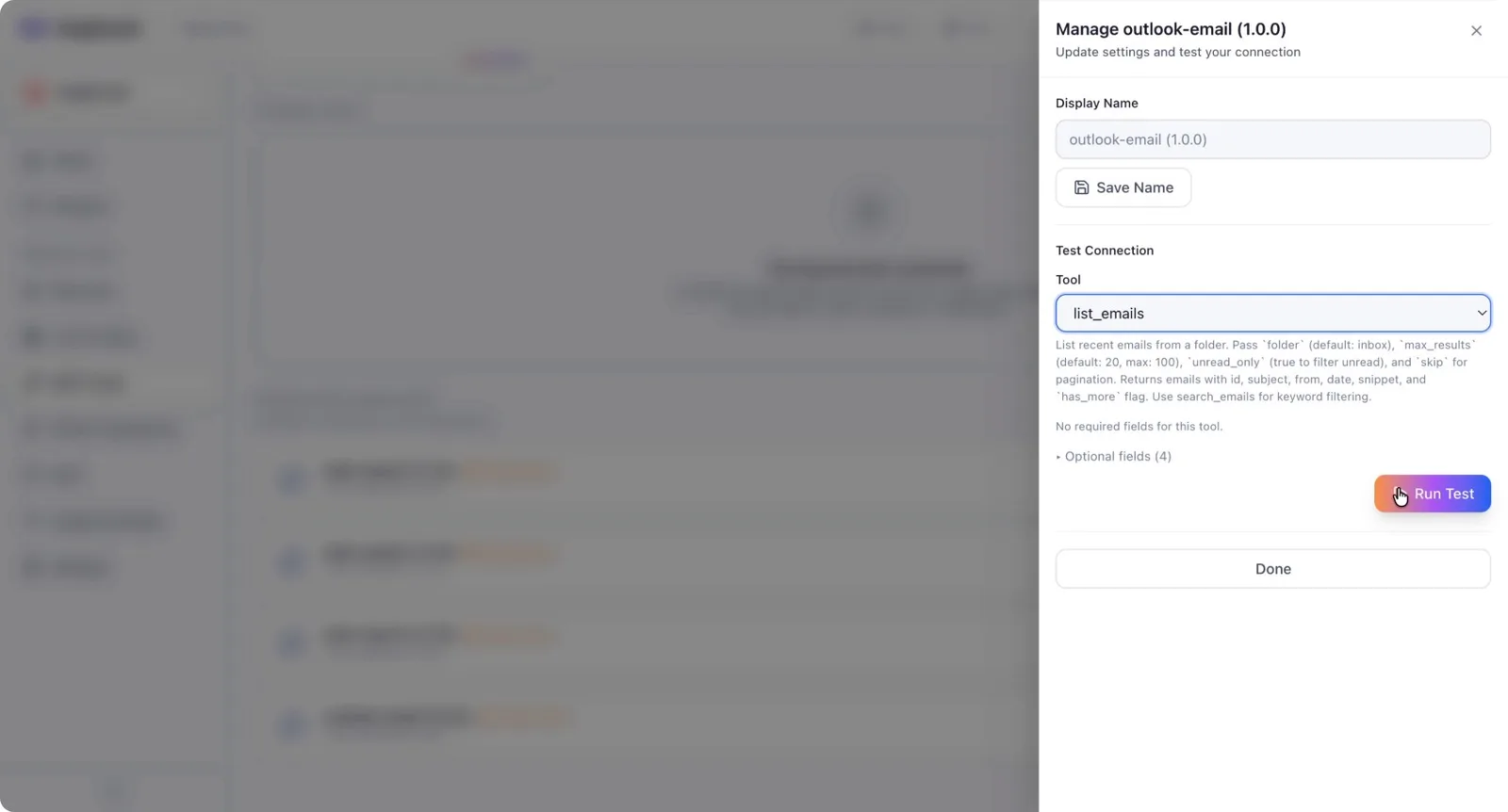
If the tool call fails here, it will also fail inside any workflow that uses it. Debugging a single tool in this testing interface is much easier than troubleshooting a full workflow that contains that tool. Always test first and build workflows second.
Step 7: Prepare for Advanced Topics
After successfully connecting and testing your MCP tools, you are ready to move on to more advanced topics such as credential scoping and configuring workflows to act as the correct user or “right person” for each action.