

How-to · Lesson 10 of 19
Prompt Debugging and Execution Tracing
When an agent answers oddly, stop guessing. Open the execution and read the exact prompt that went out, every variable already filled in, alongside the raw output that came back.
What You Will Learn
- Why every agent step keeps the final prompt exactly as it went out, every variable already filled in
- Reading the assembled sections in order: instructions, retrieved passages, tool definitions, output contract
- Spotting an empty variable mid-prompt, the single most common invisible failure
- Comparing a broken run's prompt with a working run's, section by section
- Why the difference in the input is almost always the entire difference in the output
- The habit to build: read the prompt before you swap the model or rewrite the instructions
Step by step guide
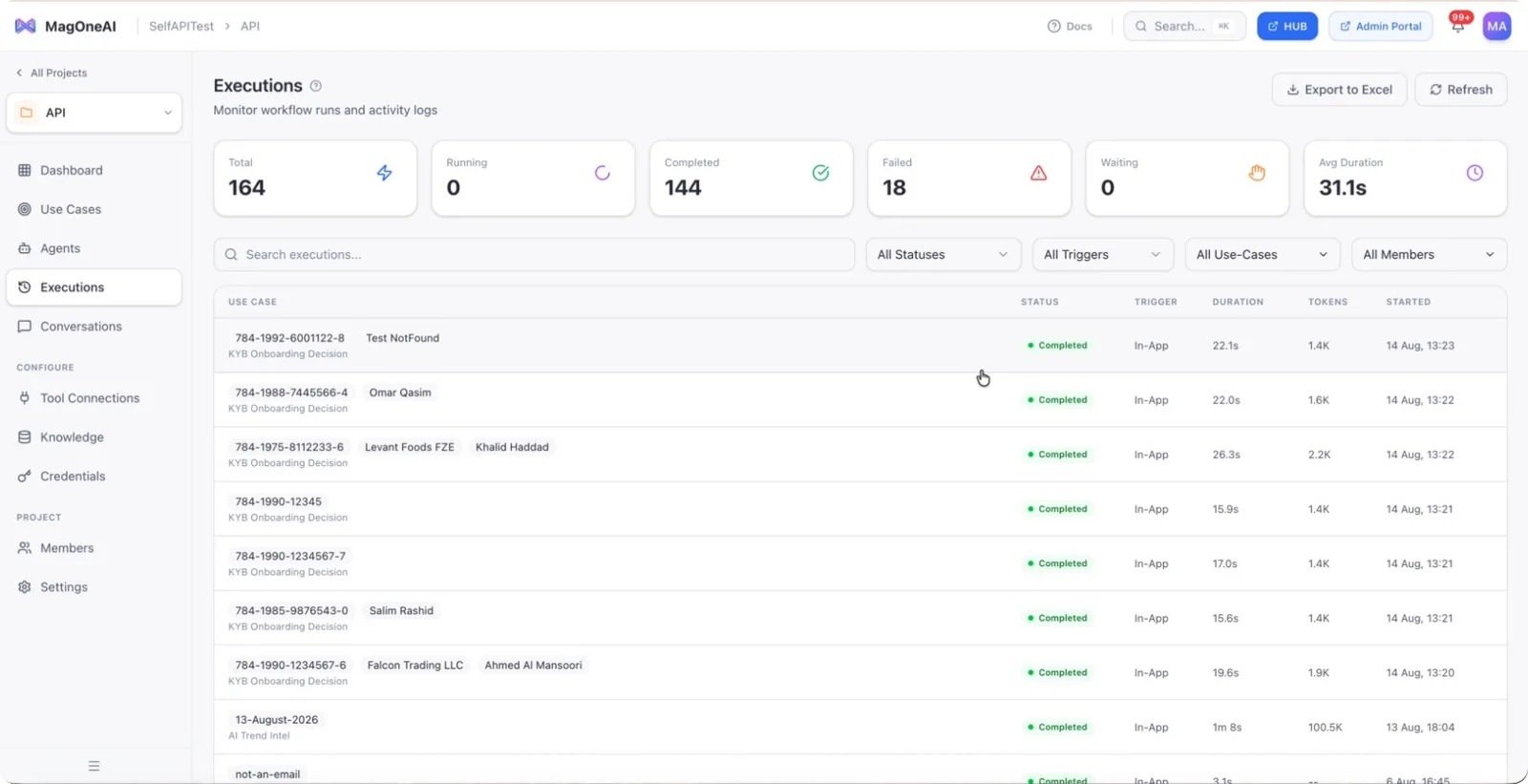
Step 1: Open the Executions Section
Go to the Executions section in your workspace to begin inspecting a specific run.
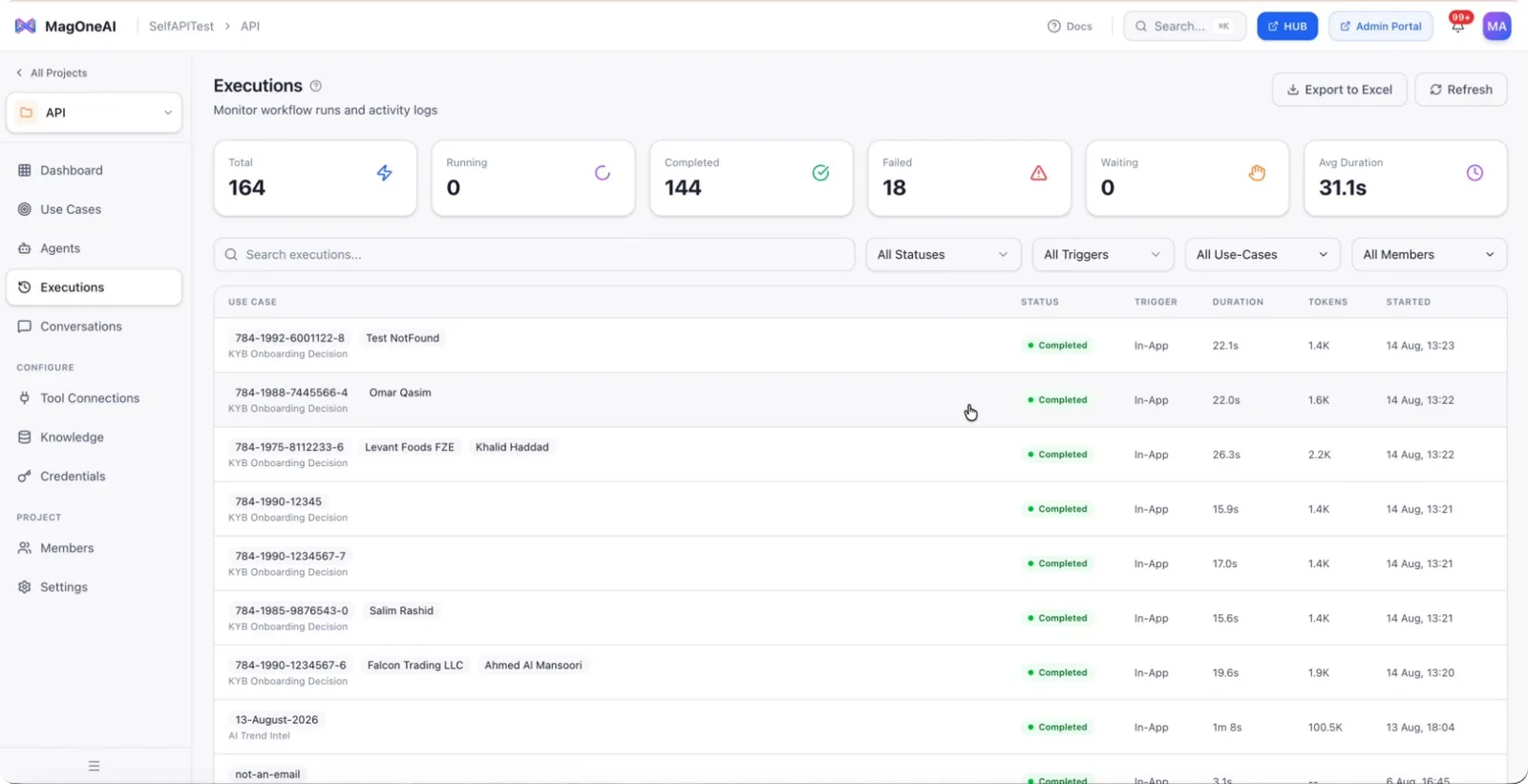
Step 2: Select a Specific Execution
From the Executions list, open one of the executions you want to inspect.
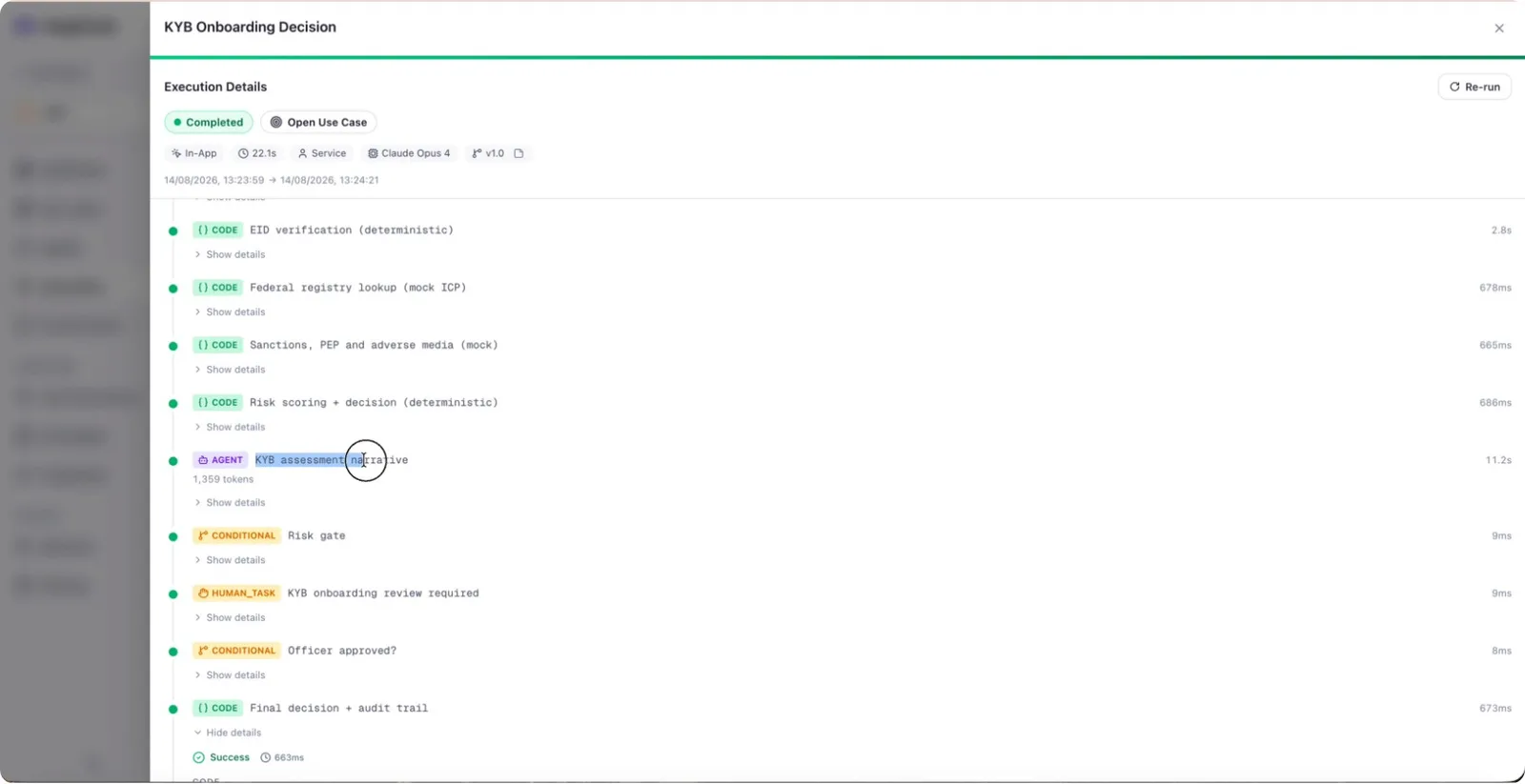
Step 3: Review Nodes and Their Status
Within the selected execution, review all the nodes along with their input and output mappings to understand whether each node was successful or not. If you see an Agent node in the list, locate it for further inspection.
Step 4: Open the Prompt Sent to the LLM
In the Agent node details, find the section labeled Prompt sent to LLM.
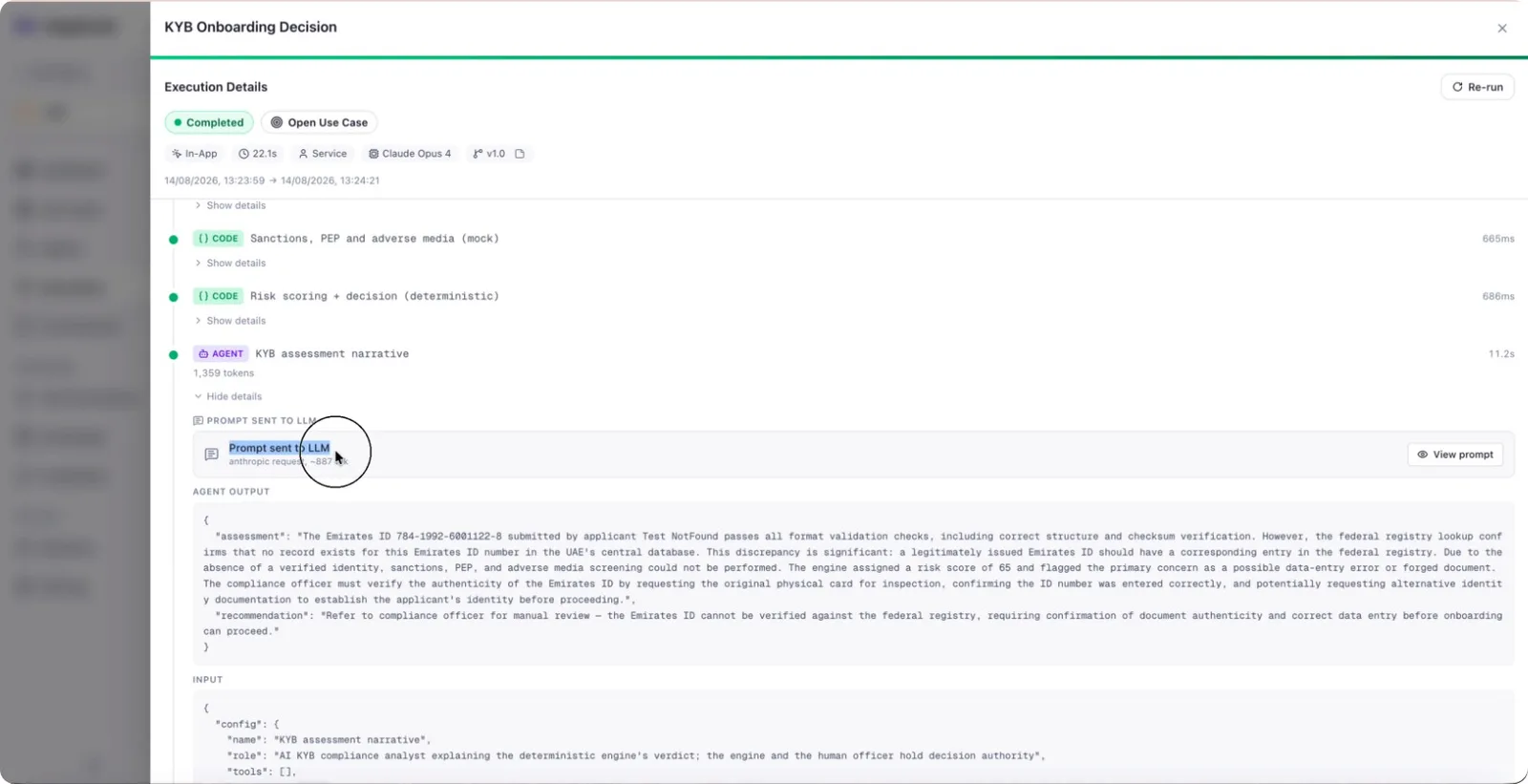
Click View Prompt to open the full prompt content.
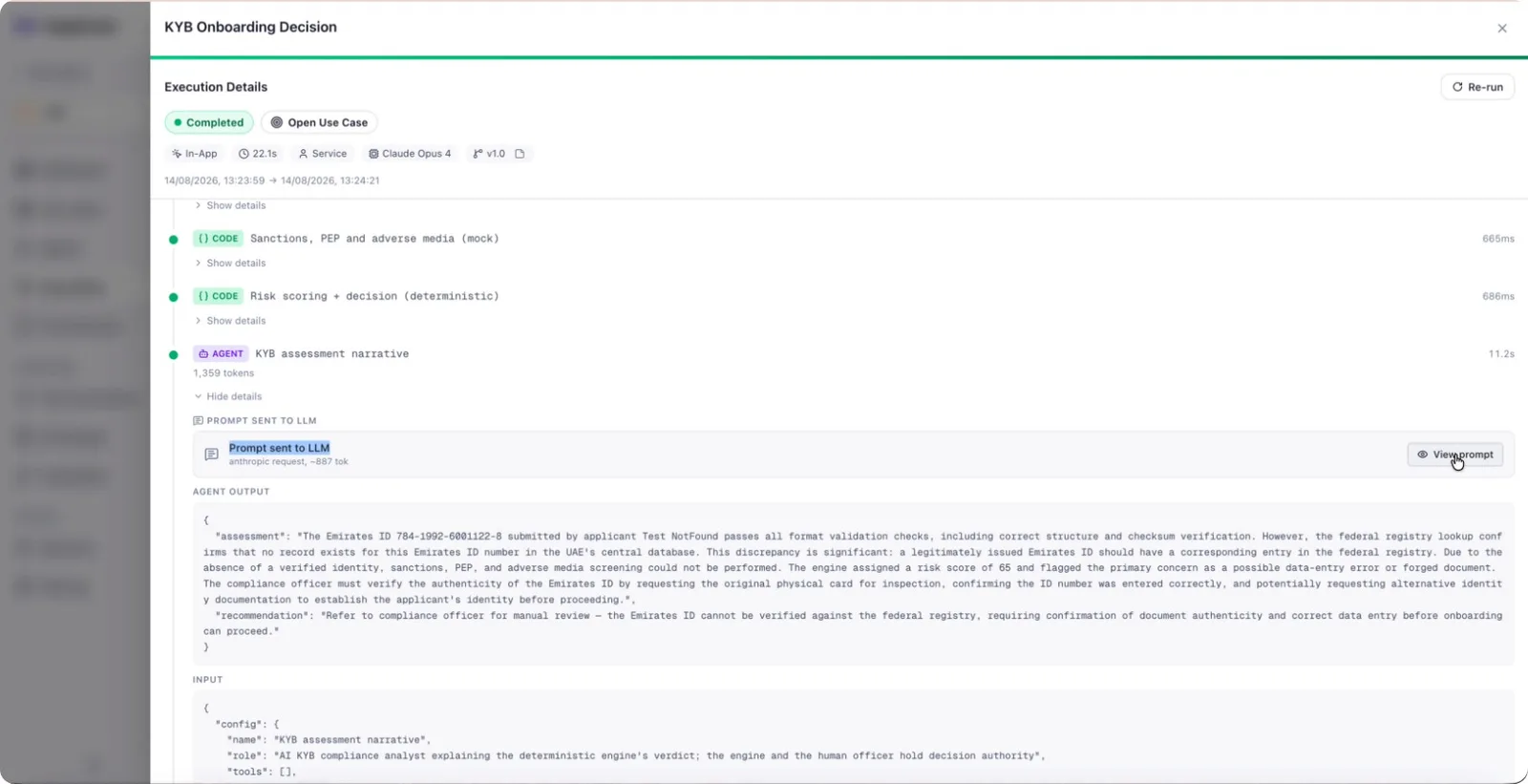
Step 5: Inspect the Full Prompt and Agent Output
Review the displayed information, including:
- The complete system prompt
- The prompt you authored (user or task prompt)
- The template being used
- The max tokens and other configuration details
- The exact raw agent output before it is passed back into the workflow
If your execution contains multiple Agent nodes, you can repeat these steps for each Agent. If there is only one Agent, you will see just that single prompt and its corresponding output.