
How-to · Lesson 14 of 19
Scheduled Workflow Execution
A schedule is a trigger with the workflow's inputs already filled in, because there is nobody there to fill in the form. Set when a run happens, bake in the values it needs, and manage every schedule from one view.
What You Will Learn
- Why a schedule is a trigger with the workflow's inputs baked in, since there is no person to fill in a form
- Writing a schedule in plain language instead of remembering cron syntax
- Reading the next-run preview before you trust a schedule
- The org-wide schedules view: workflow, cron, last run, next run, enabled state
- Disabling a schedule from that same view, the switch your operations team will actually use
- Why scheduled runs count against quota exactly like any other run
Step by step guide
Step 1: Open the Workflow to Be Scheduled
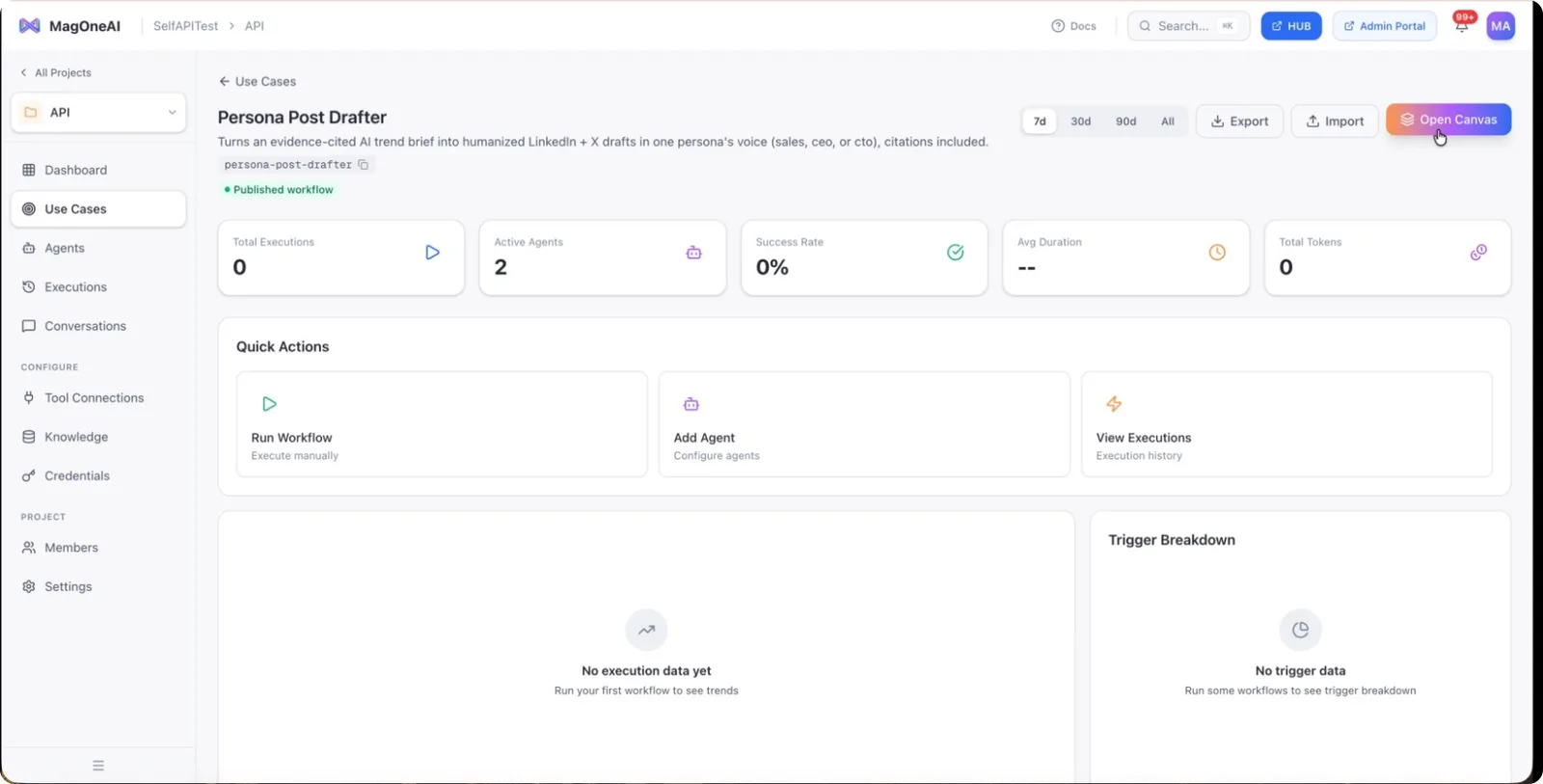
Open the workflow you want to run on a schedule, such as the “Post Drafter” workflow that generates posts based on a persona, topic focus, and trend brief.
Step 2: Navigate to the Schedule Section
Return to the main workflow view if needed.
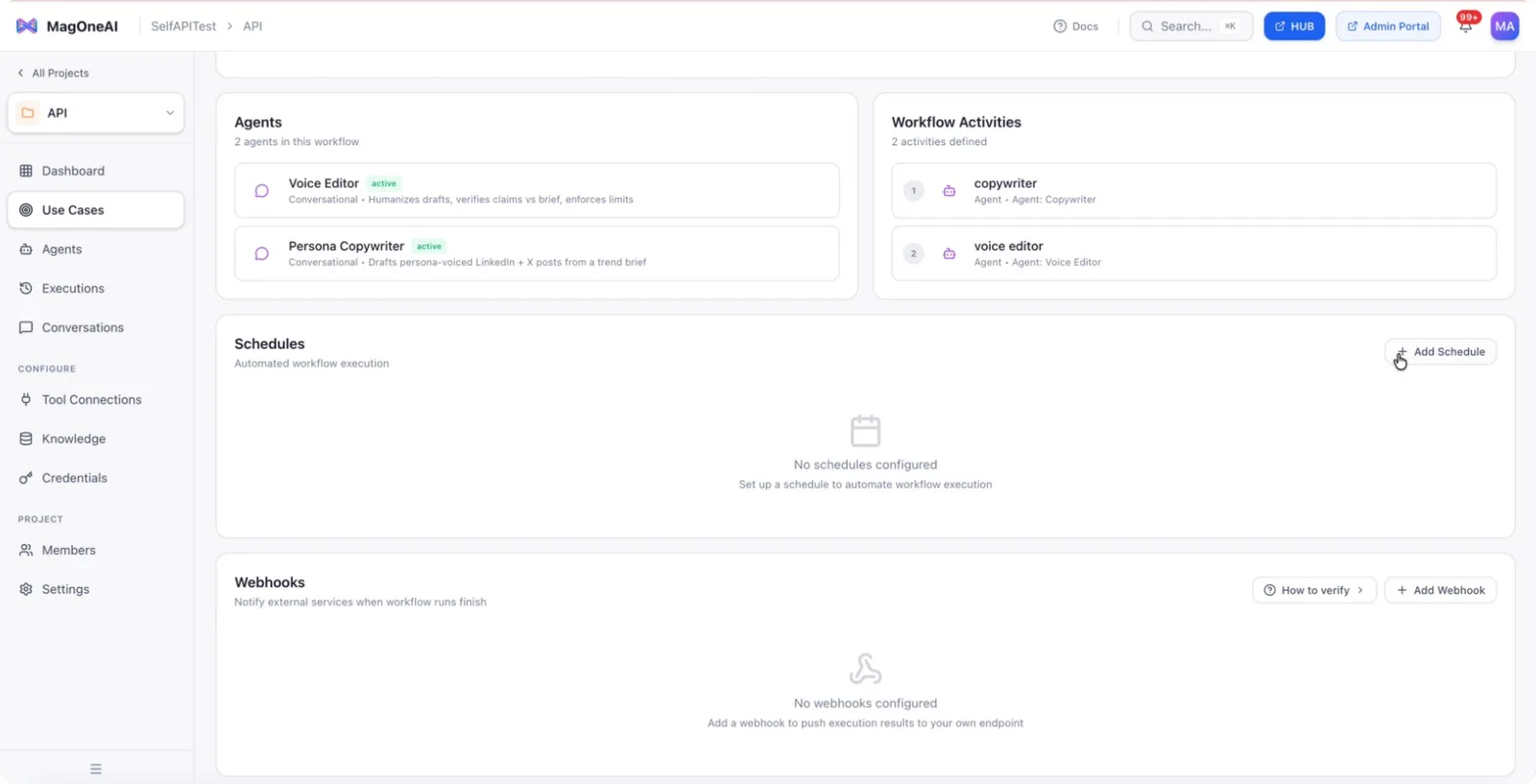
Scroll down within the workflow configuration until you find the Schedule section.
Step 3: Start Creating a New Schedule
In the Schedule section, click Add Schedule to begin configuring a new scheduled run for this workflow.
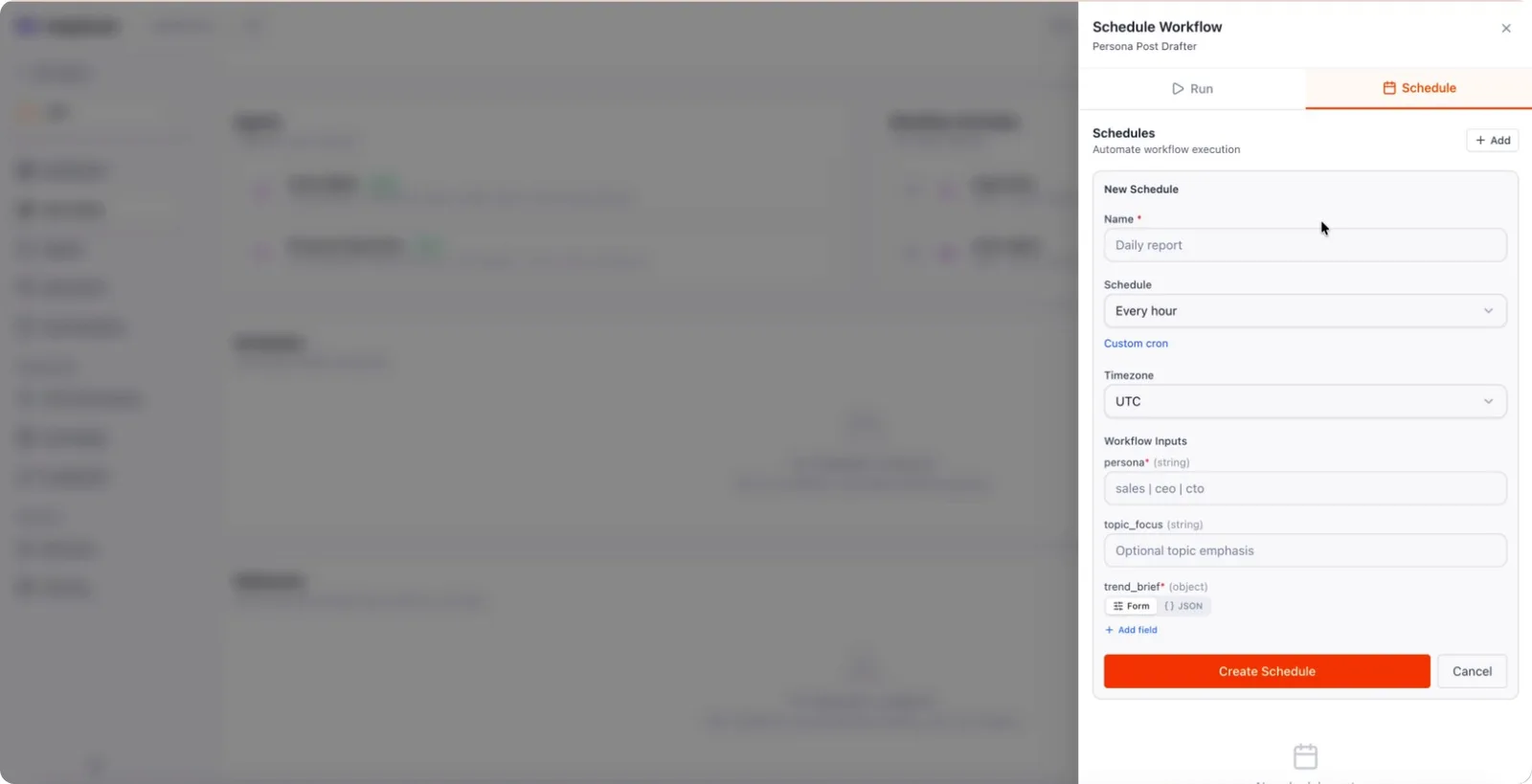
This opens the schedule configuration form.
Step 4: Name and Time Your Schedule
- Provide a clear name for the schedule, for example, Daily Post Drafting.
- Set when the workflow should run, such as every day at 9:00 AM.
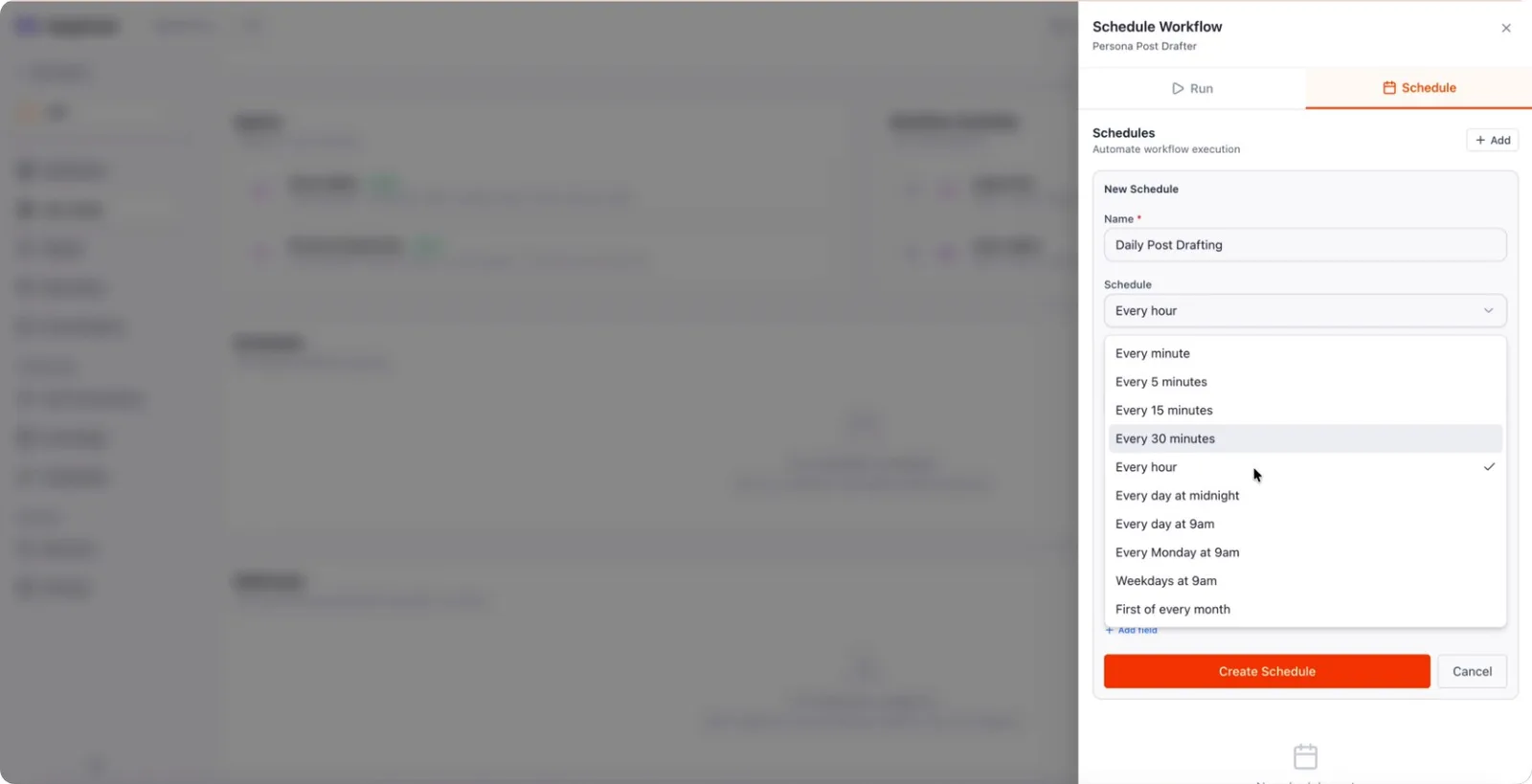
Step 5: Select the Persona
Choose the persona under which the content should be generated. For example, select Sales Head as the persona to tailor the tone and content accordingly.
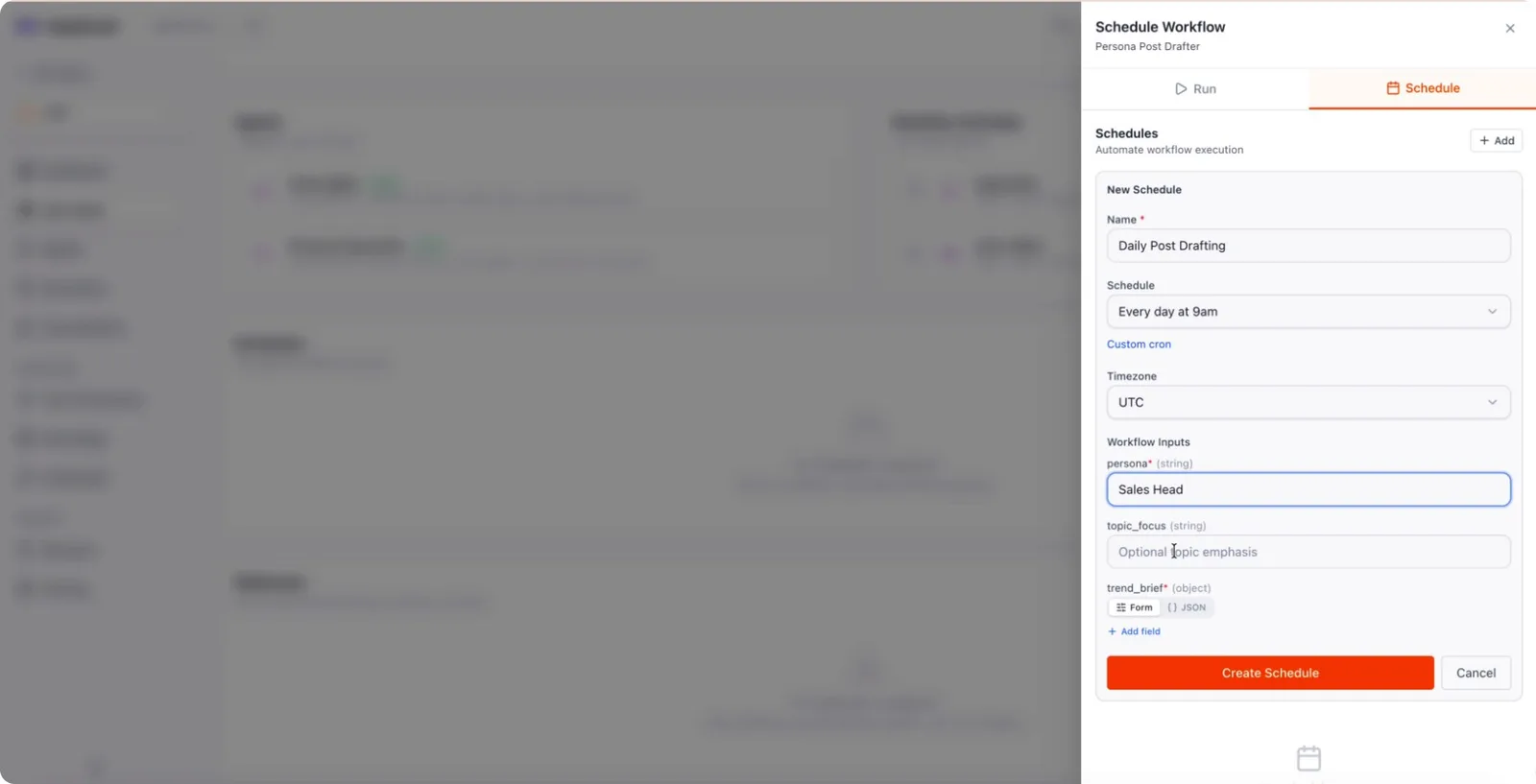
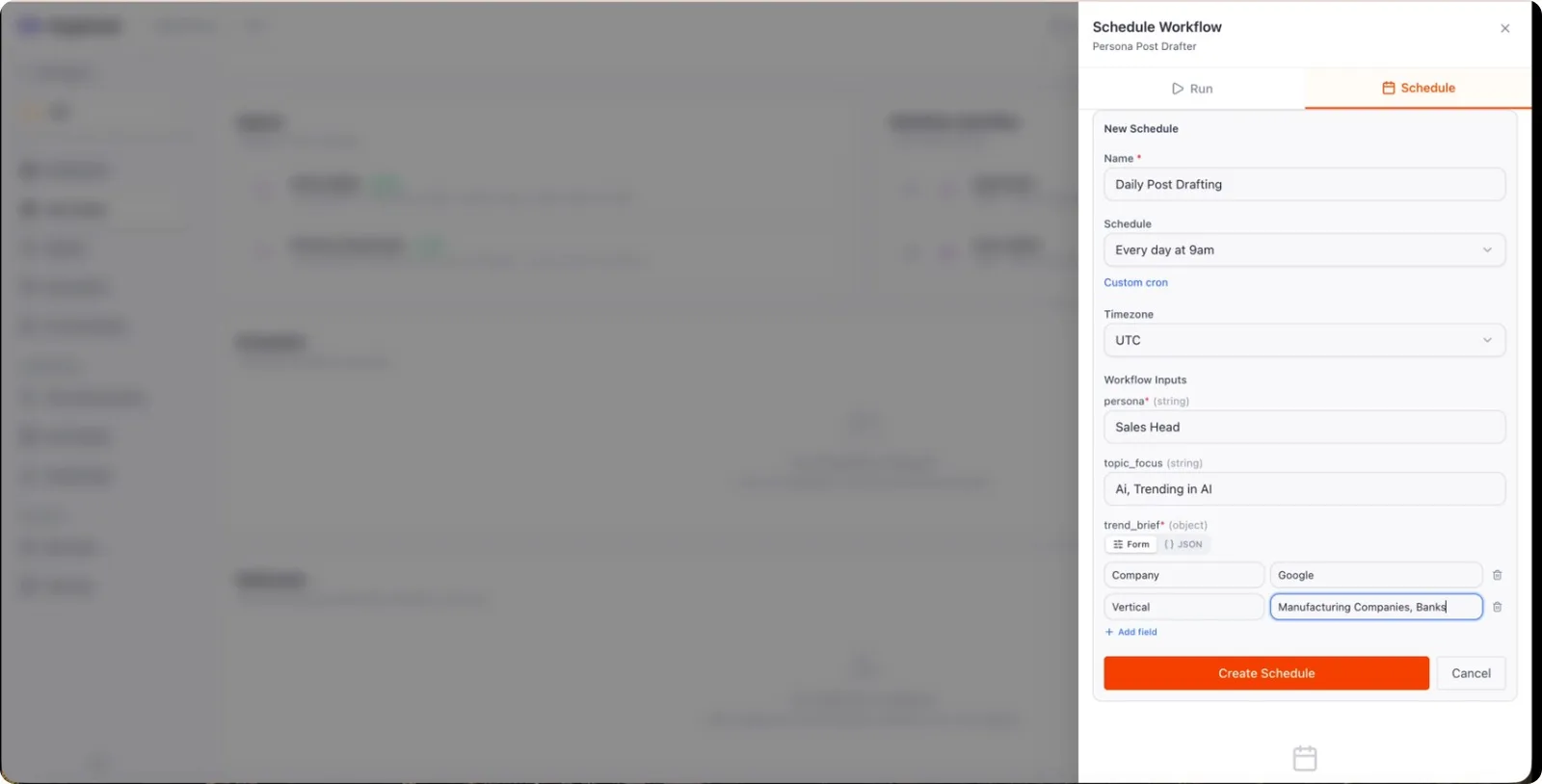
Step 6: Define Topic Focus and Trend Brief
- Enter the primary topic you want the workflow to focus on, such as AI or Trending in AI.
- Add a trend brief to further refine the output.
- Use form fields to specify filters or examples. For instance, you might specify a company field: E.g., Google
- You can also define a vertical field: Set the vertical to manufacturing companies or banks, depending on your target audience.
Step 7: Create and Manage the Schedule
Once all details are configured, click Create Schedule to save it.
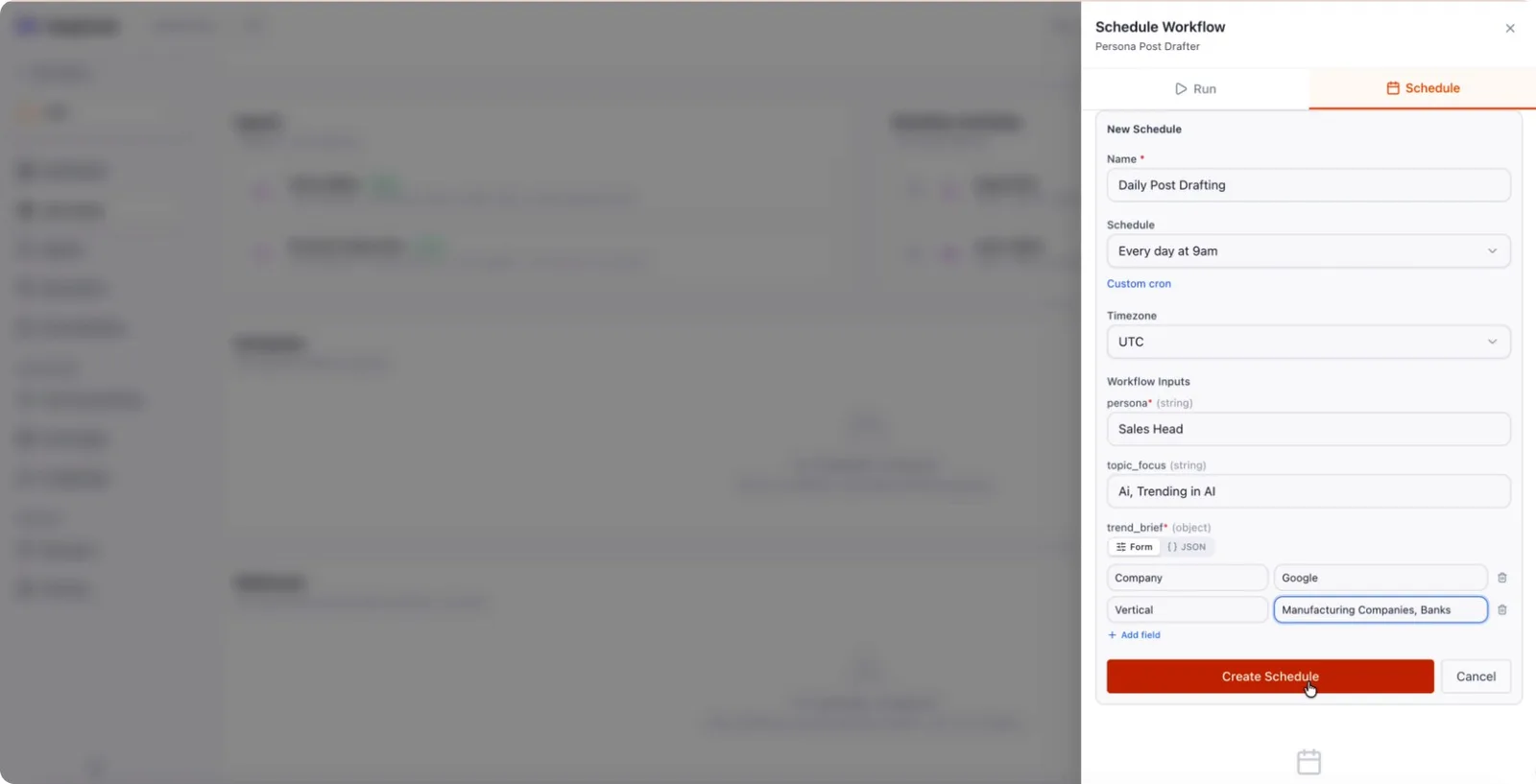
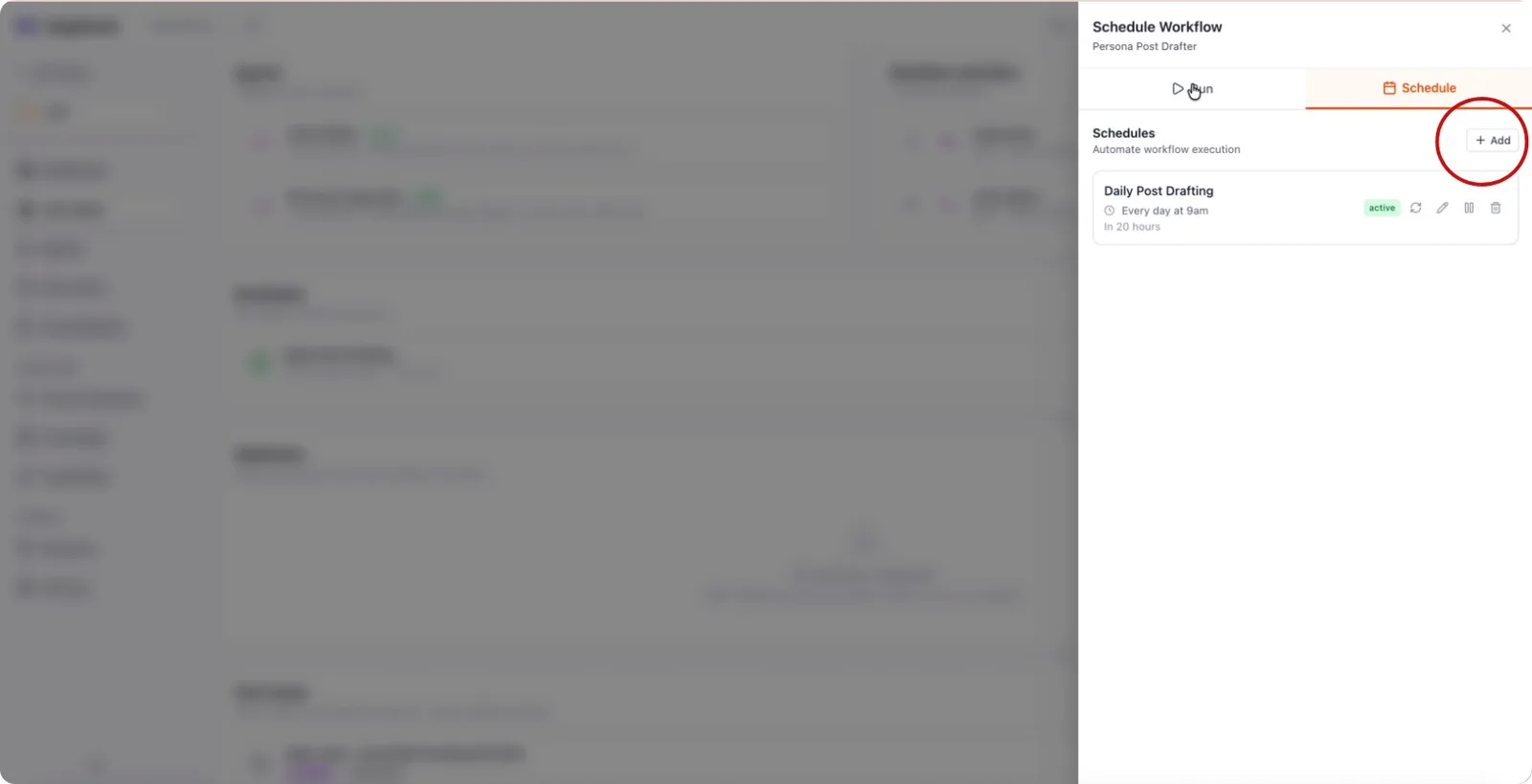
The workflow will now run automatically every day at 9:00 AM UTC using the settings you specified. After creation, you can:
- Run the schedule immediately.
- Edit the schedule’s configuration.
- Pause the schedule to temporarily stop runs.
- Delete the schedule if it is no longer needed.
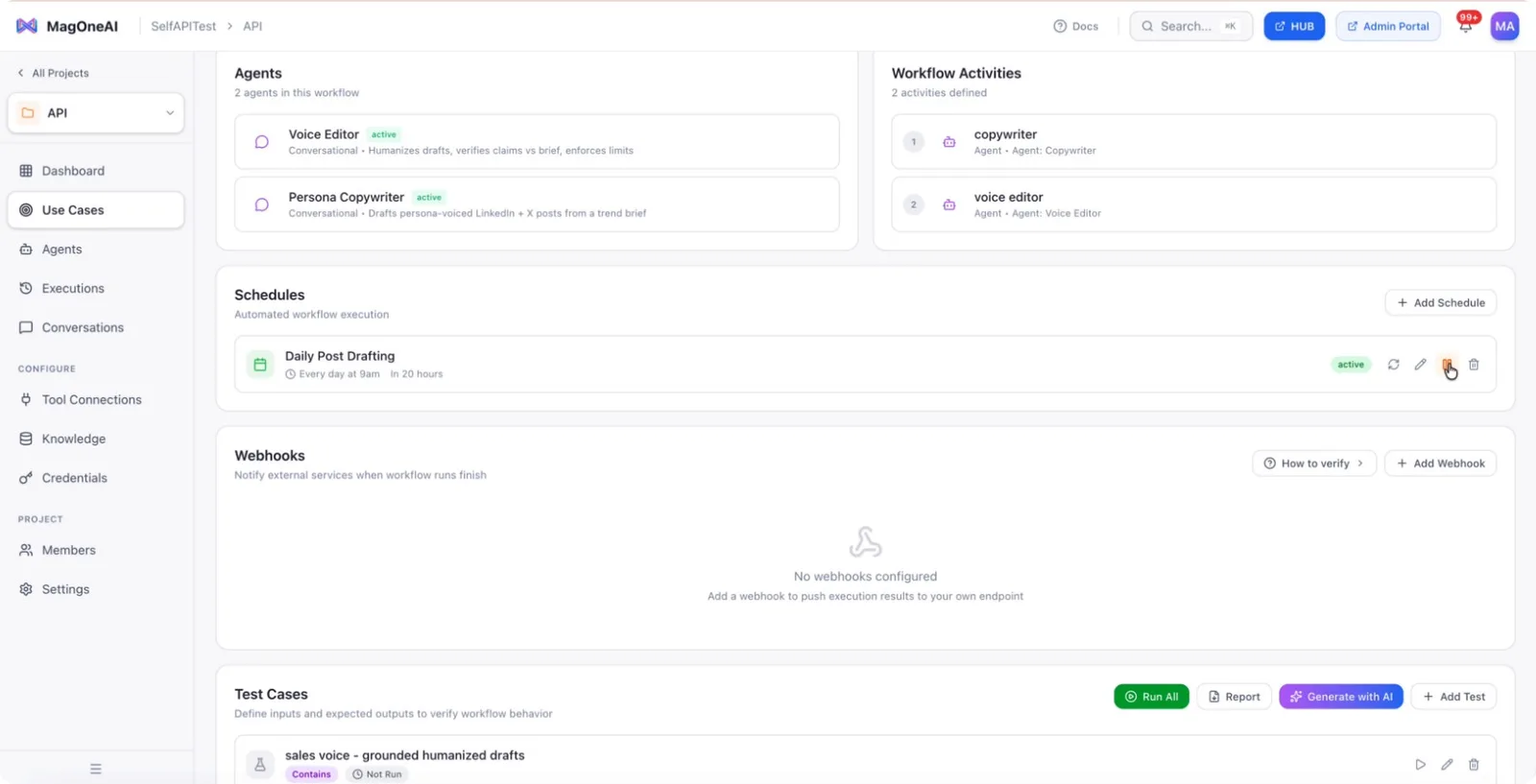
You can also add multiple schedules to the same workflow to support different times, personas, or topics as needed.