

How-to · Lesson 1 of 19
Role-Based Access: Projects, Roles and Permissions
Invite someone into your organization, put them on the right project, and give them a role that matches the job, then confirm it worked by running a workflow with their access.
What You Will Learn
- How to create a new project inside your organization
- How to name and describe a project so your team can find it
- How to add members to your organization and to a specific project
- How invitations work: new users get an invitation email, existing users accept a pending invite when they log in
- How to pick the right role for each teammate: Admin, Builder, Operator, or Viewer
- How to review pending invitations and manage members after setup
Step by step guide
Step 1: Open the Members Section in Your Organization
To start managing members in your Tech Magure organization, open your organization (e.g., “Tech Magure”) and navigate to the Members section.
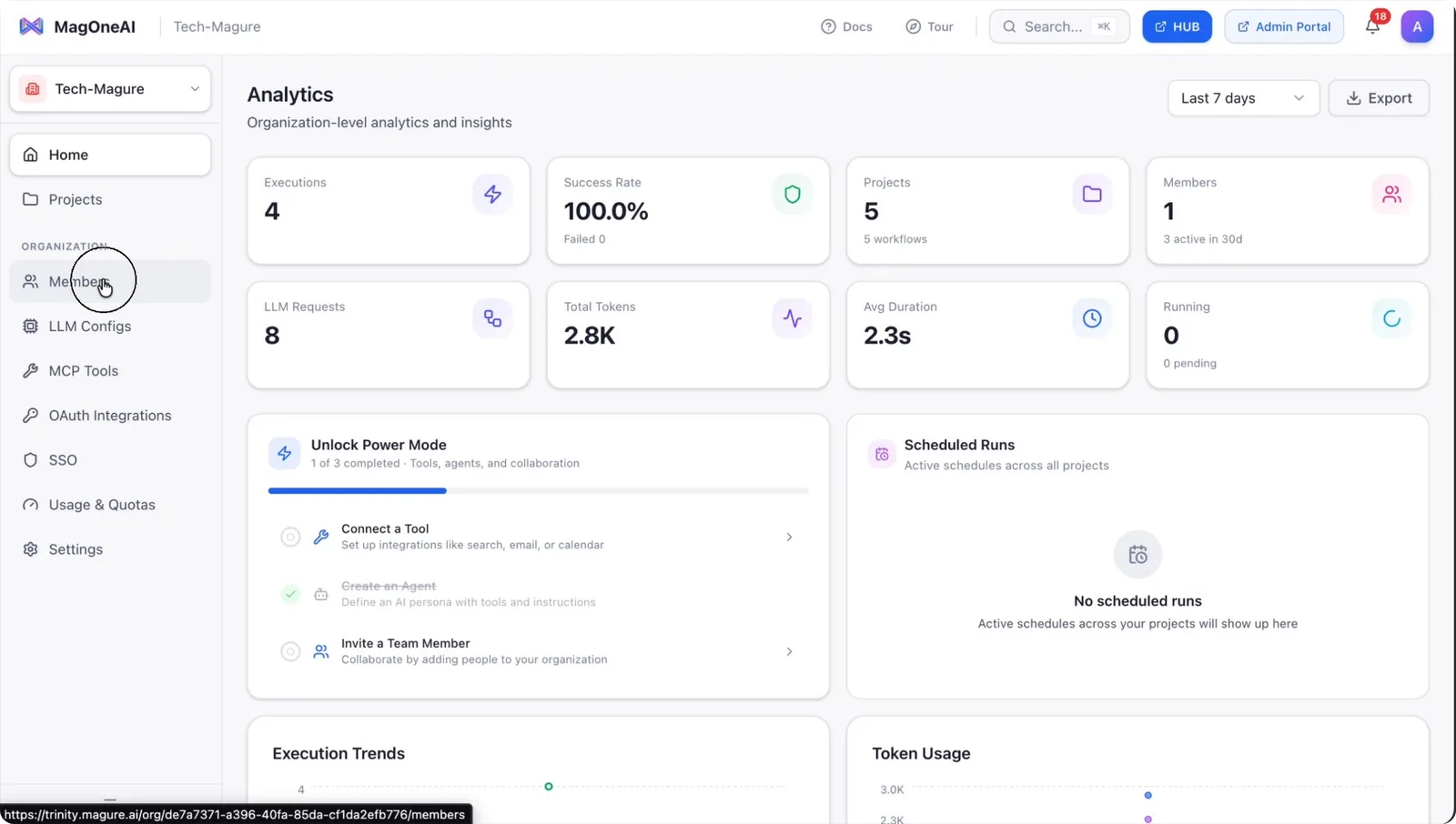
In the Members area, click Add Member.
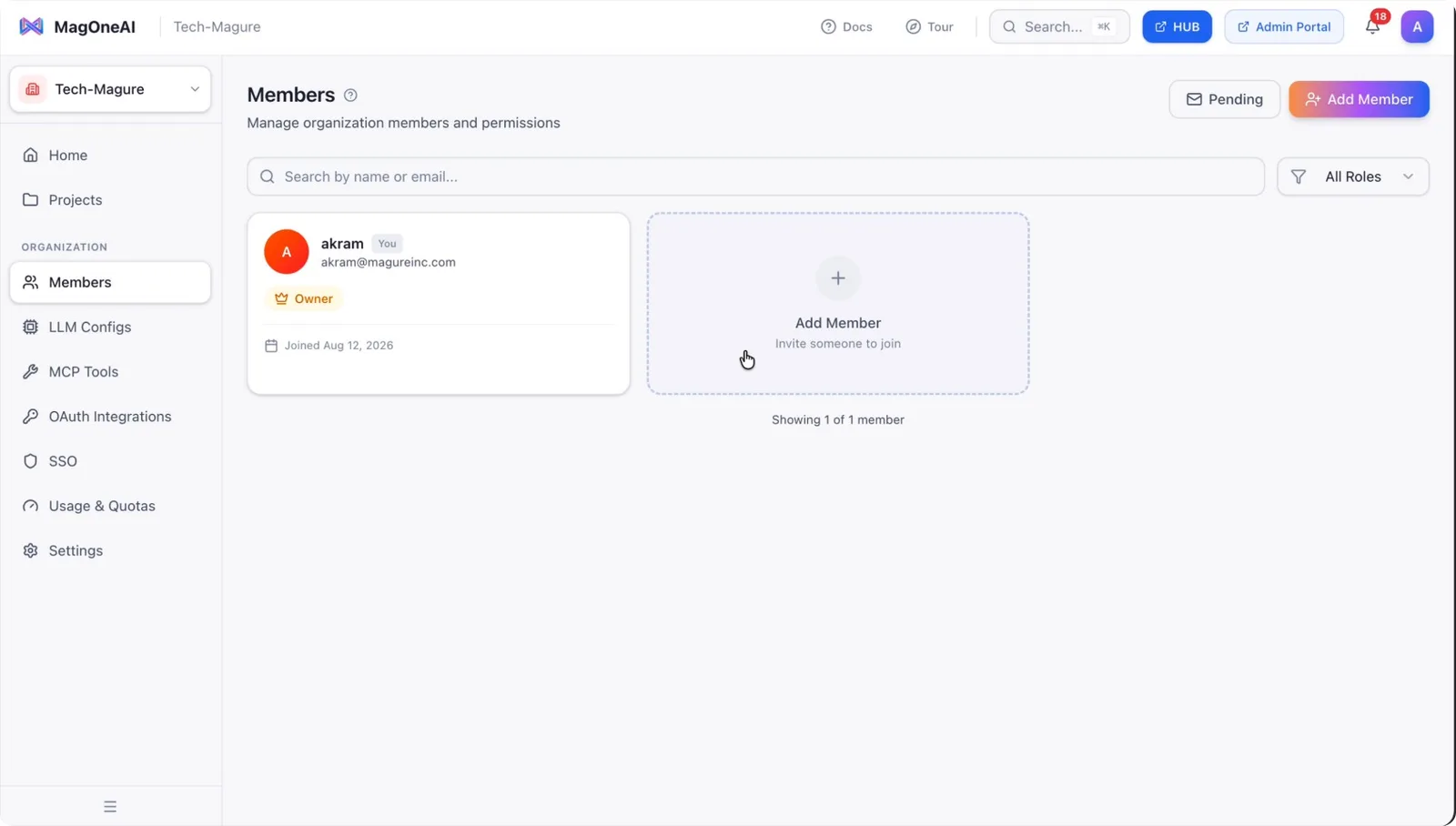
Step 2: Invite a Member and Assign an Organization Role
Paste the user’s email address into the email field.
At the organization level, you can assign one of three roles:
- Owner – Has access to LLM configuration, billing, and ownership transfer.
- Admin – Has access to members, projects, and organization settings.
- Member – Basic access at the organization level, without advanced administrative permissions.
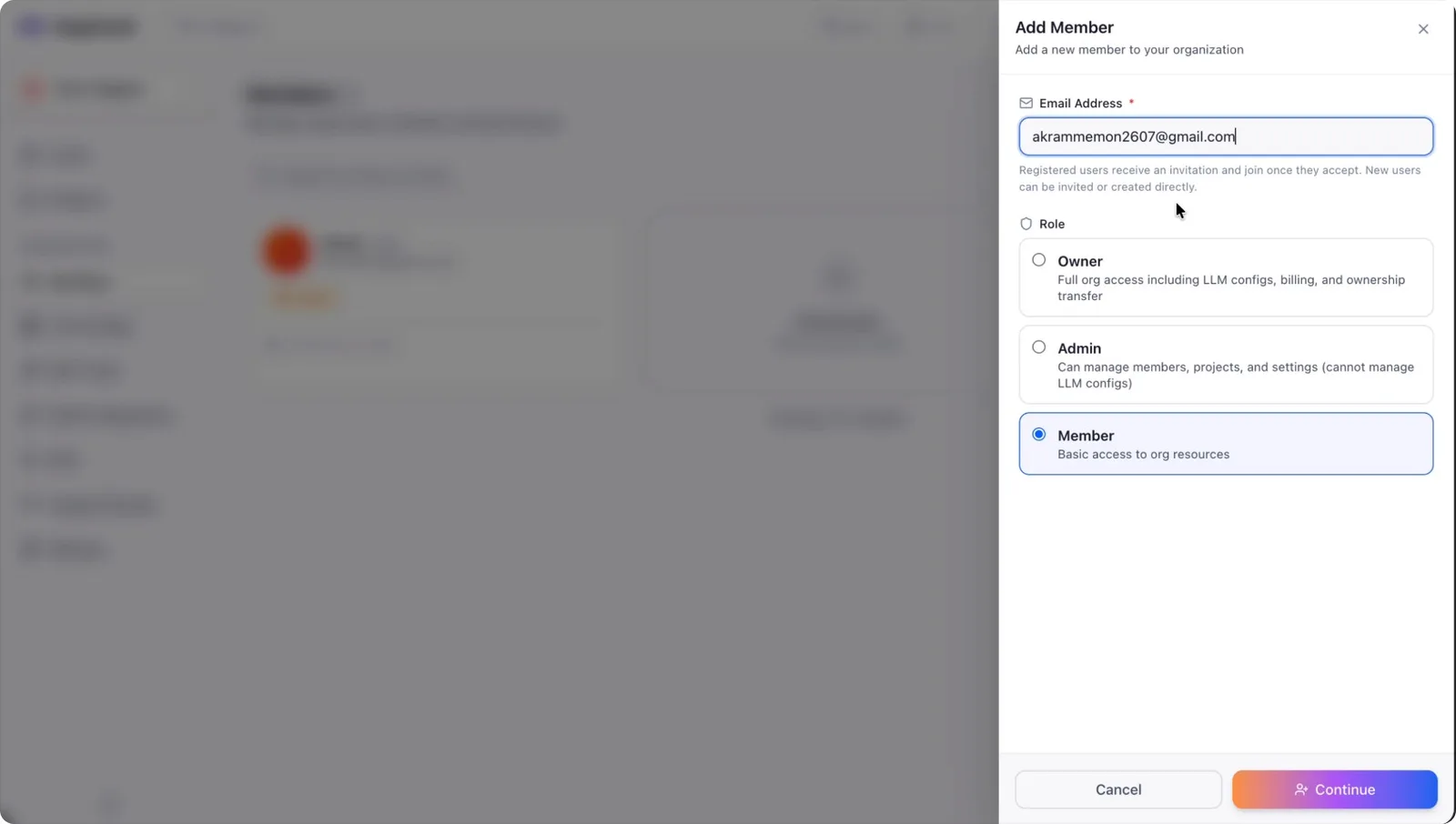
Select Member (or another appropriate role) for the new user.
Click Continue to send the invitation email to the specified address.
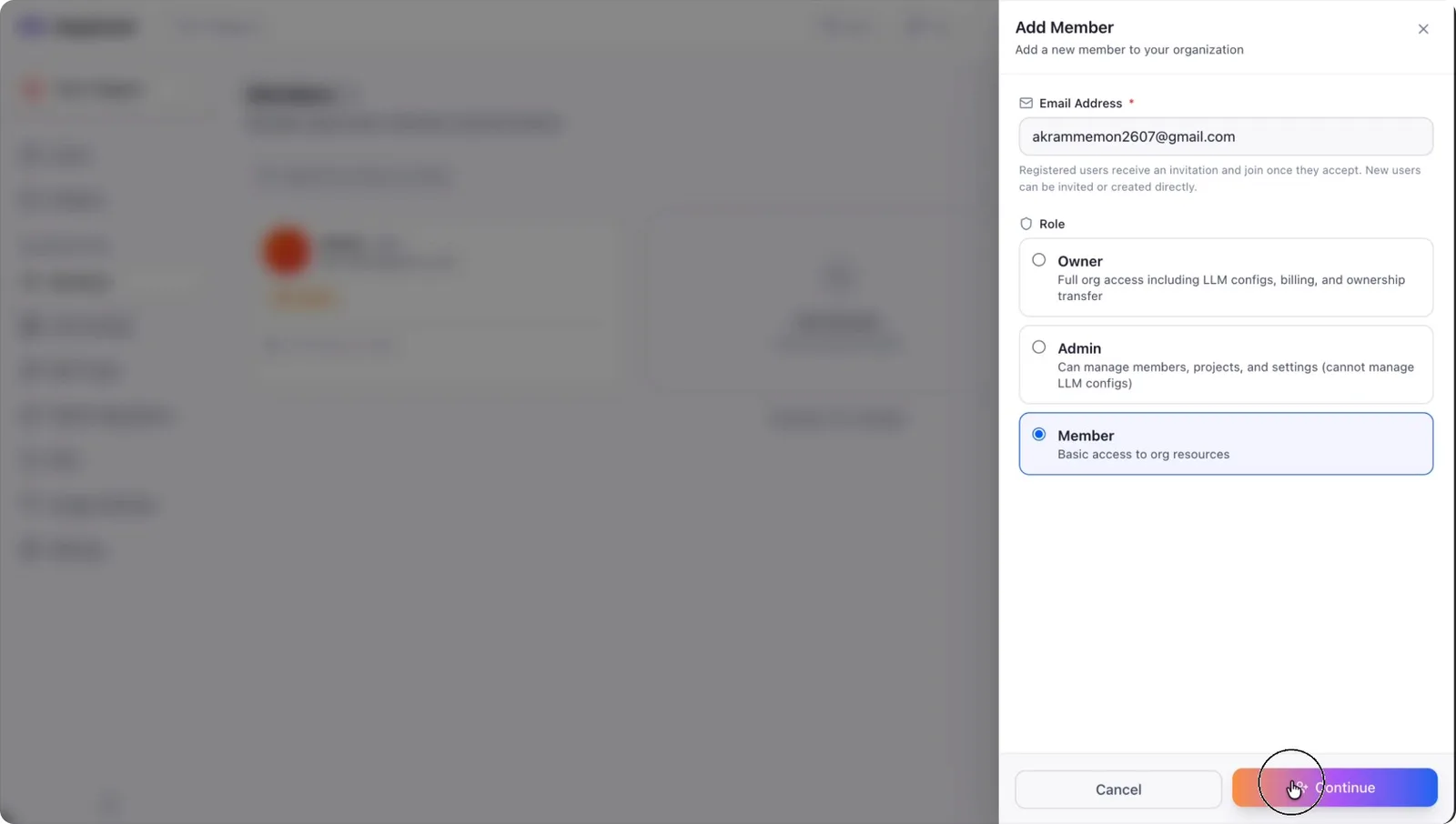
Step 3: Accept the Organization Invitation
Ask the invited user to check their email inbox. They will receive an invitation email to join the organization.
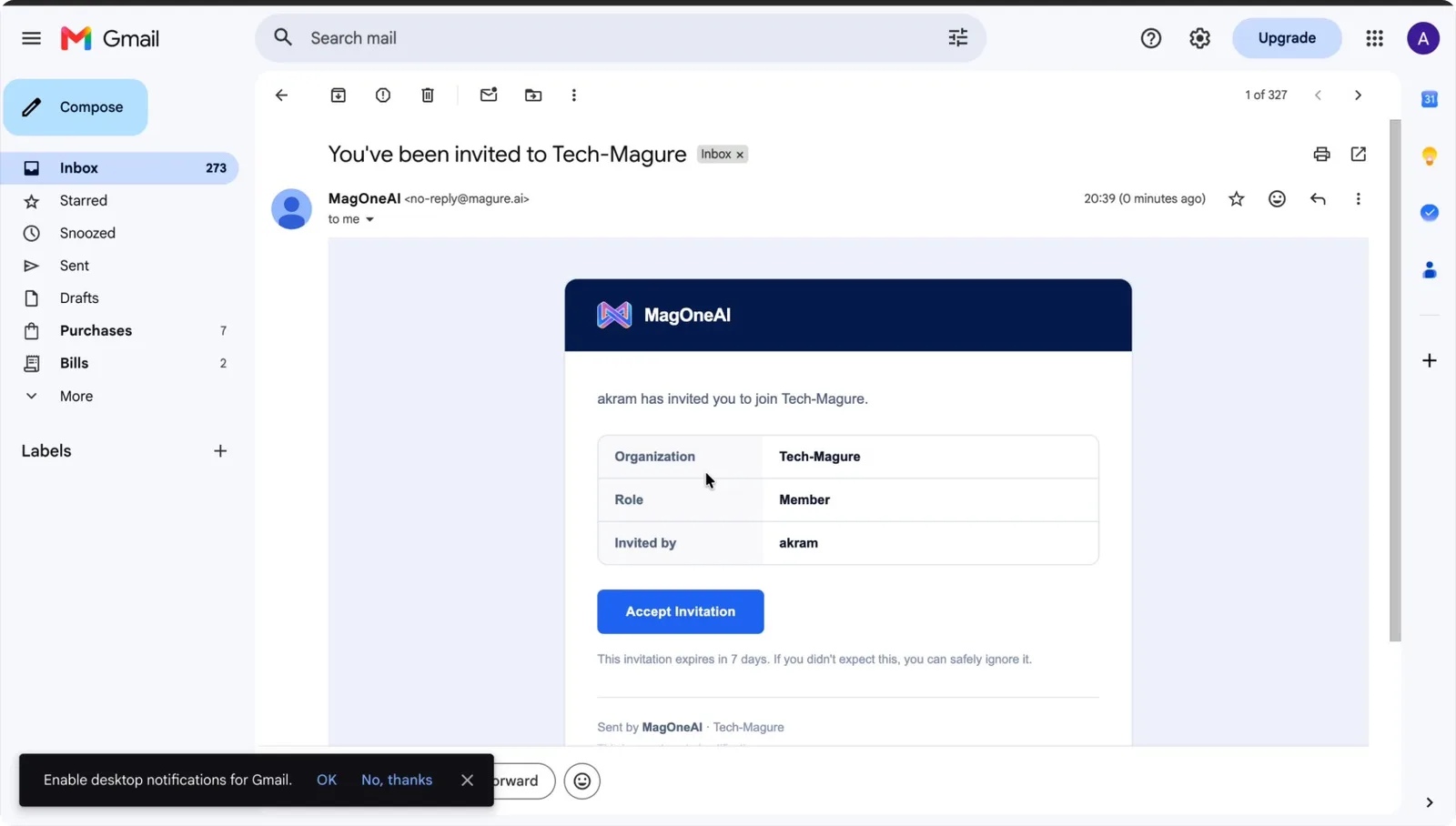
The user should open the invitation and click Accept to join.
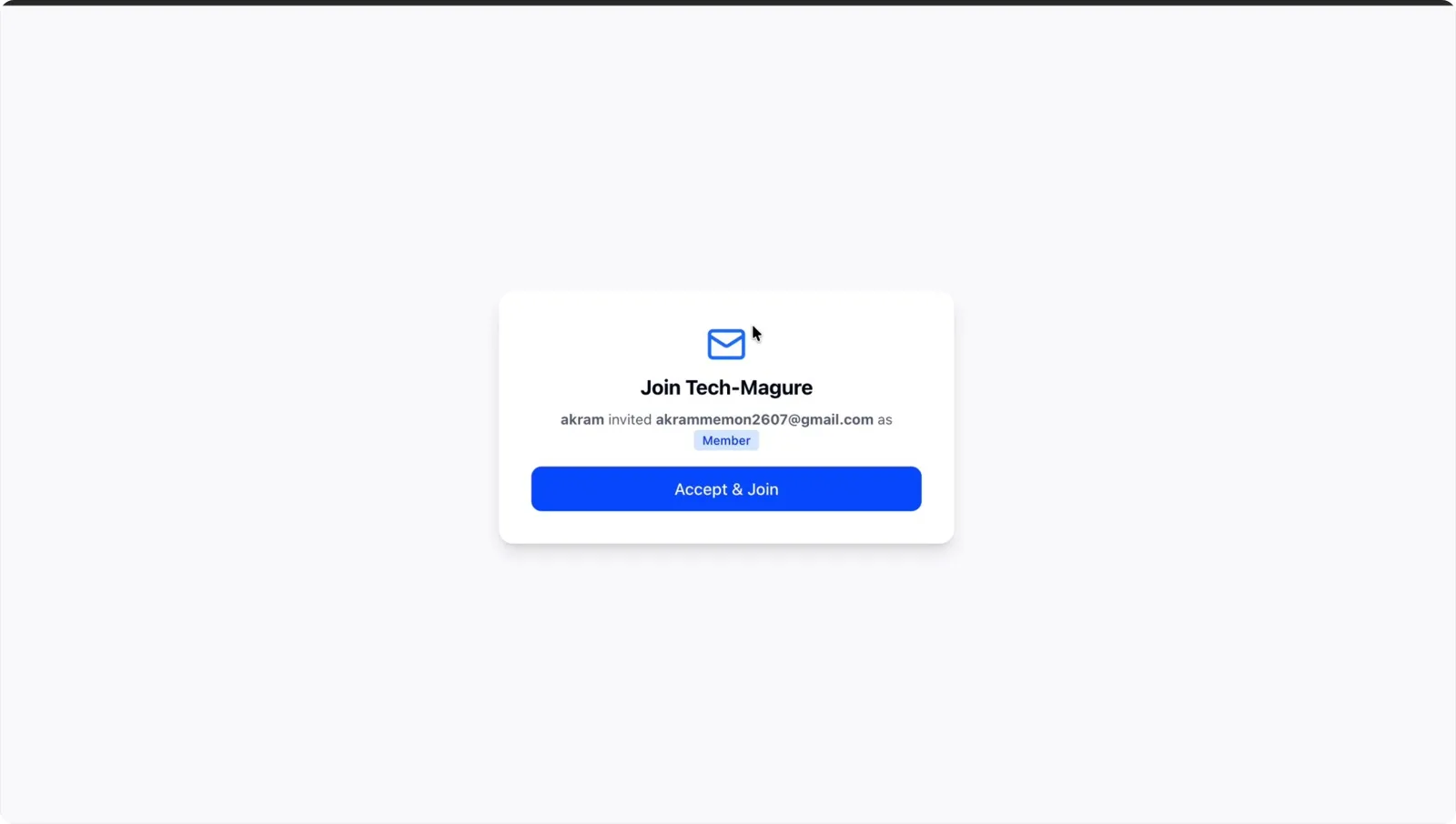
After accepting, the user will be granted access to the organization according to the assigned role.
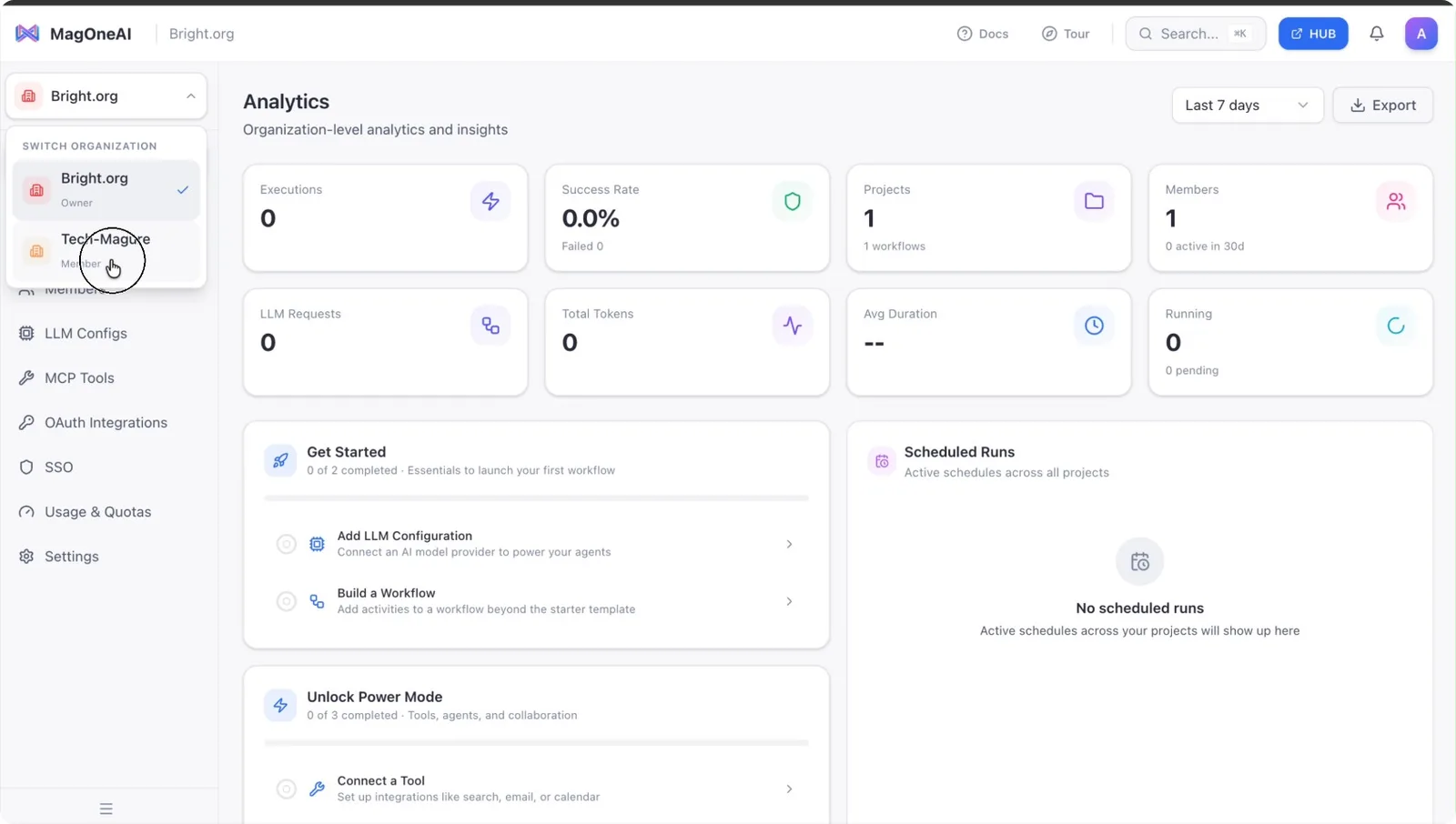
Step 4: Create a New Project
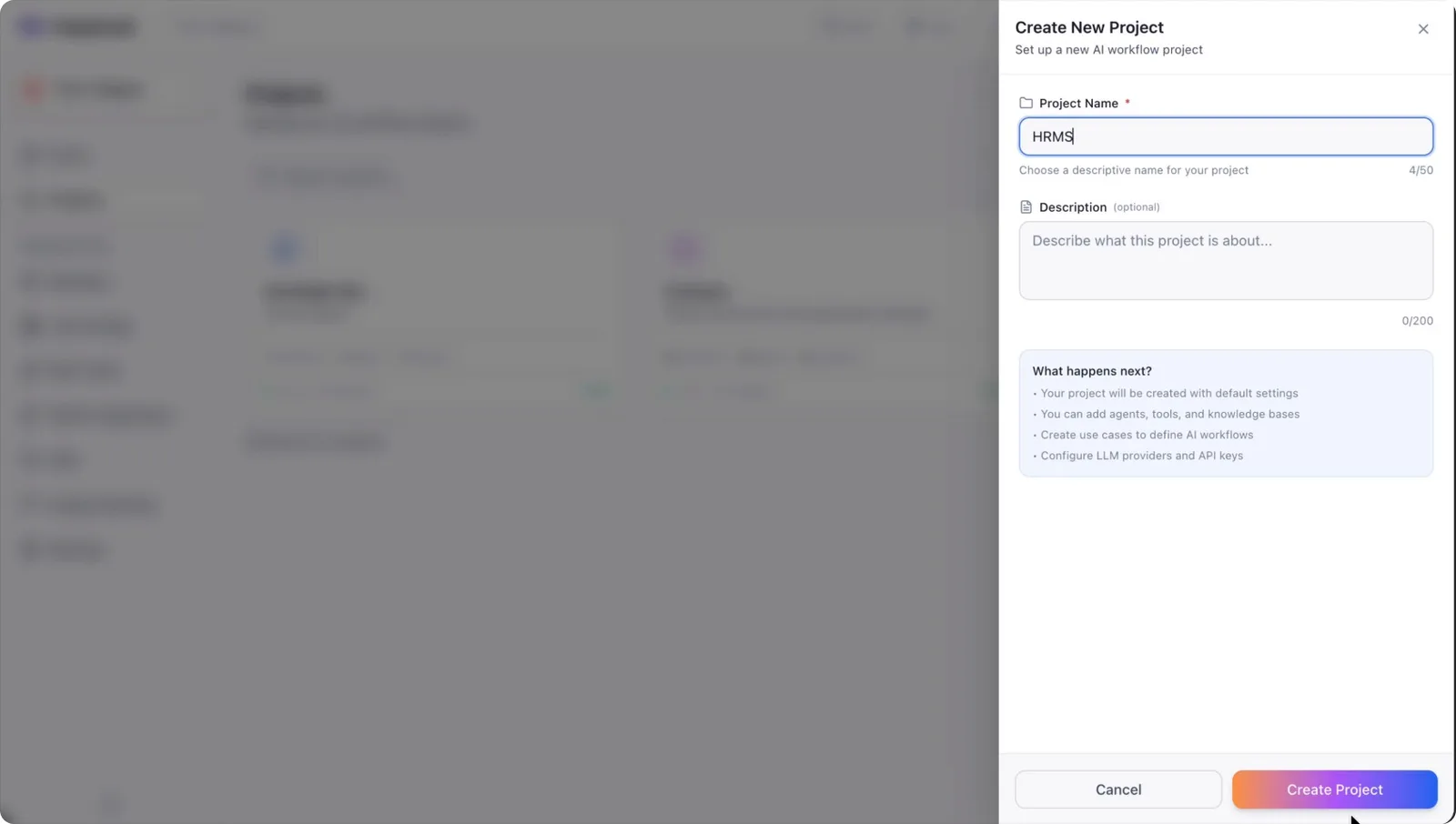
Within your organization, create a new project by clicking Create New Project.
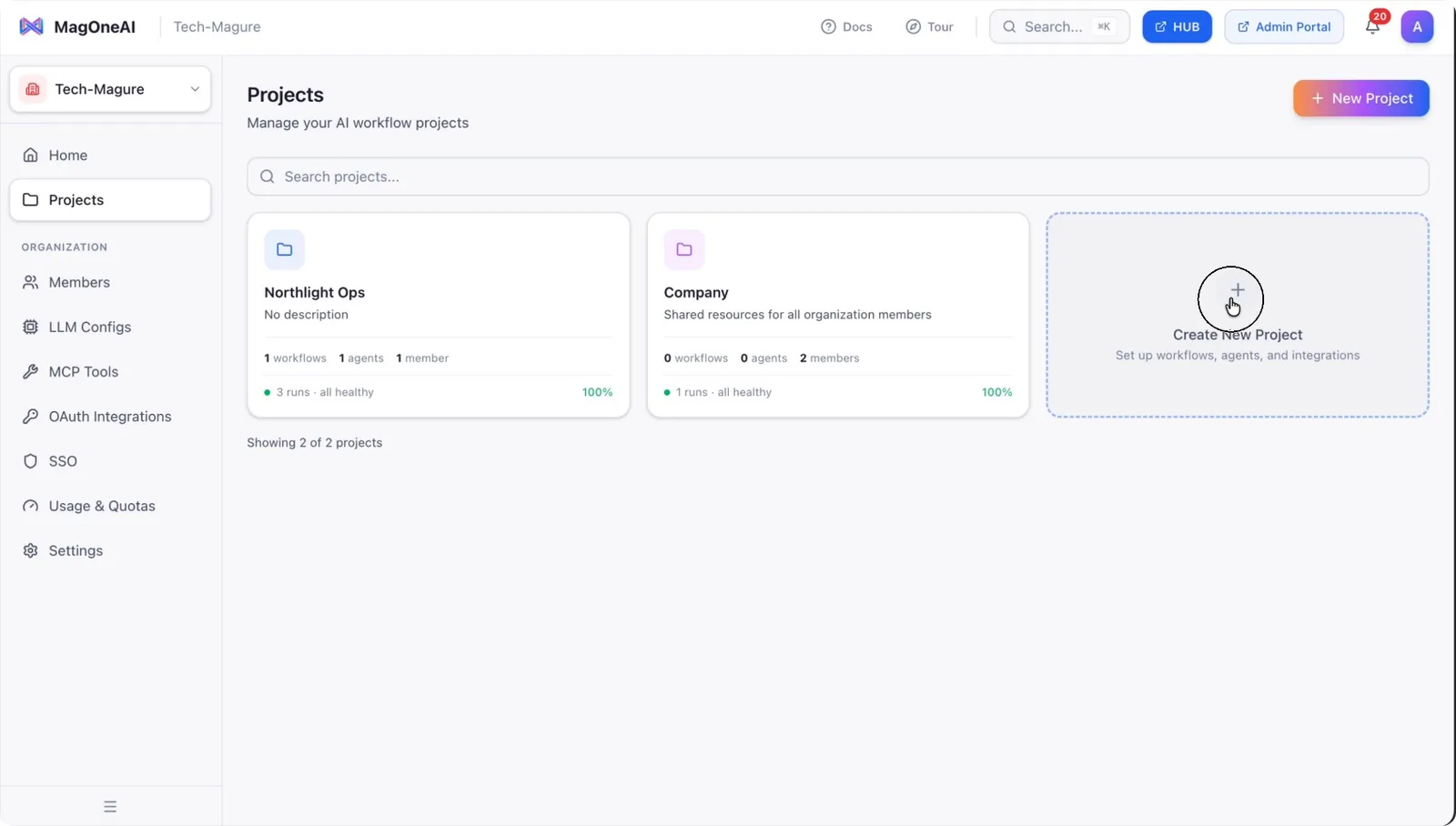
Enter a name for the project and confirm to create it.
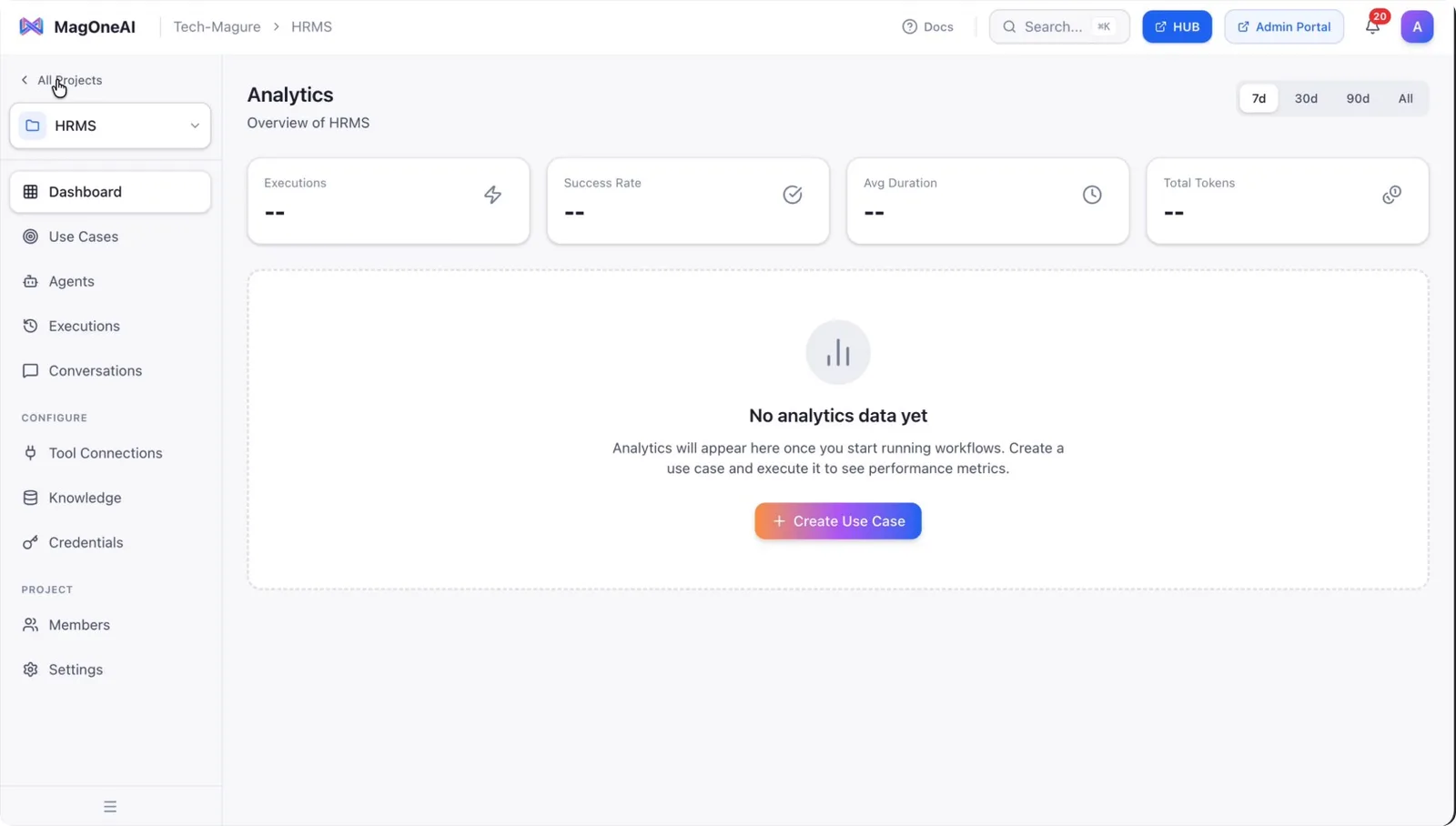
Step 5: Open Project Members and Start Adding a Member
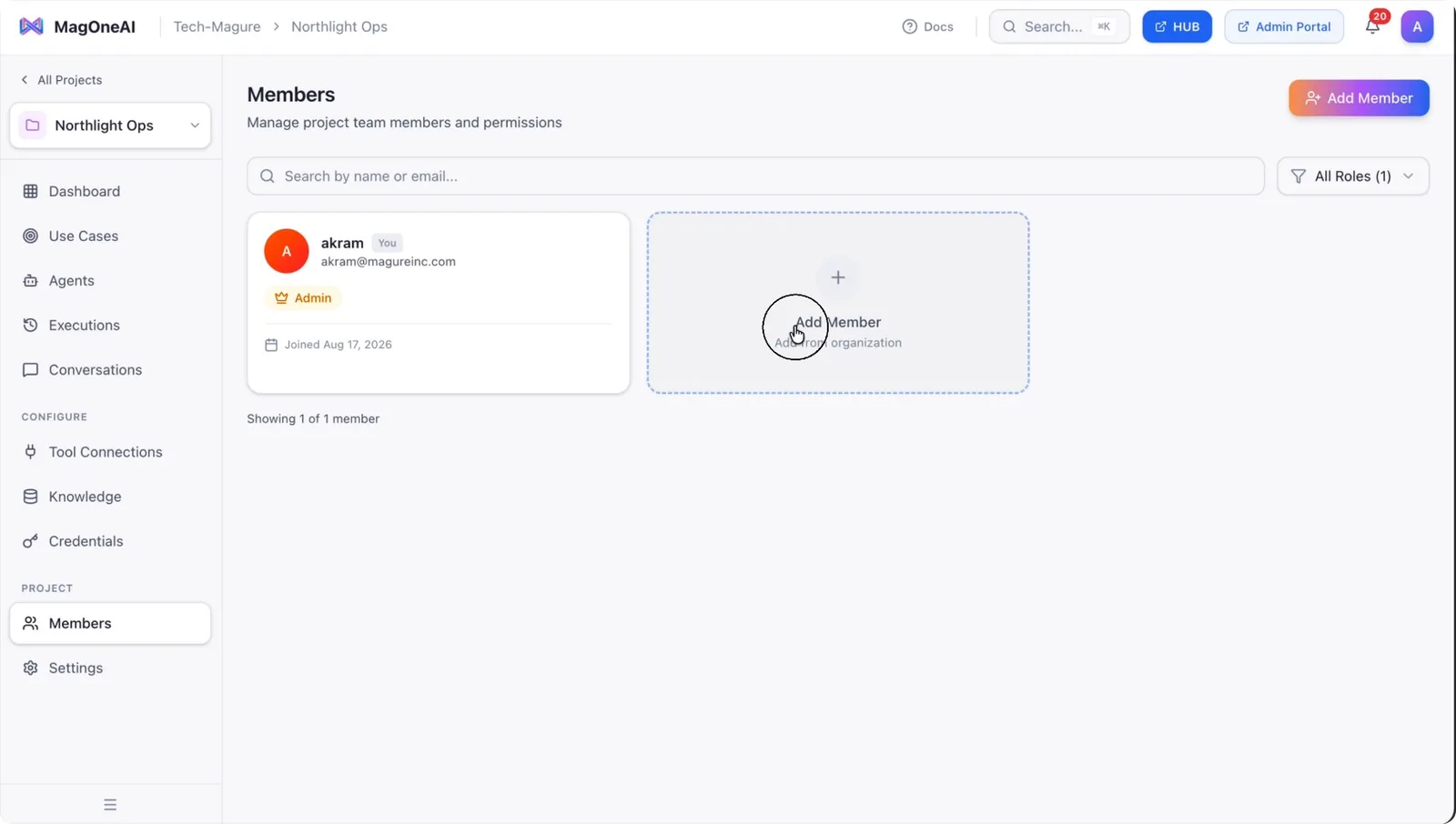
Inside the project, go to the Members tab to manage project-level access.
In the Members tab, click Add Members.
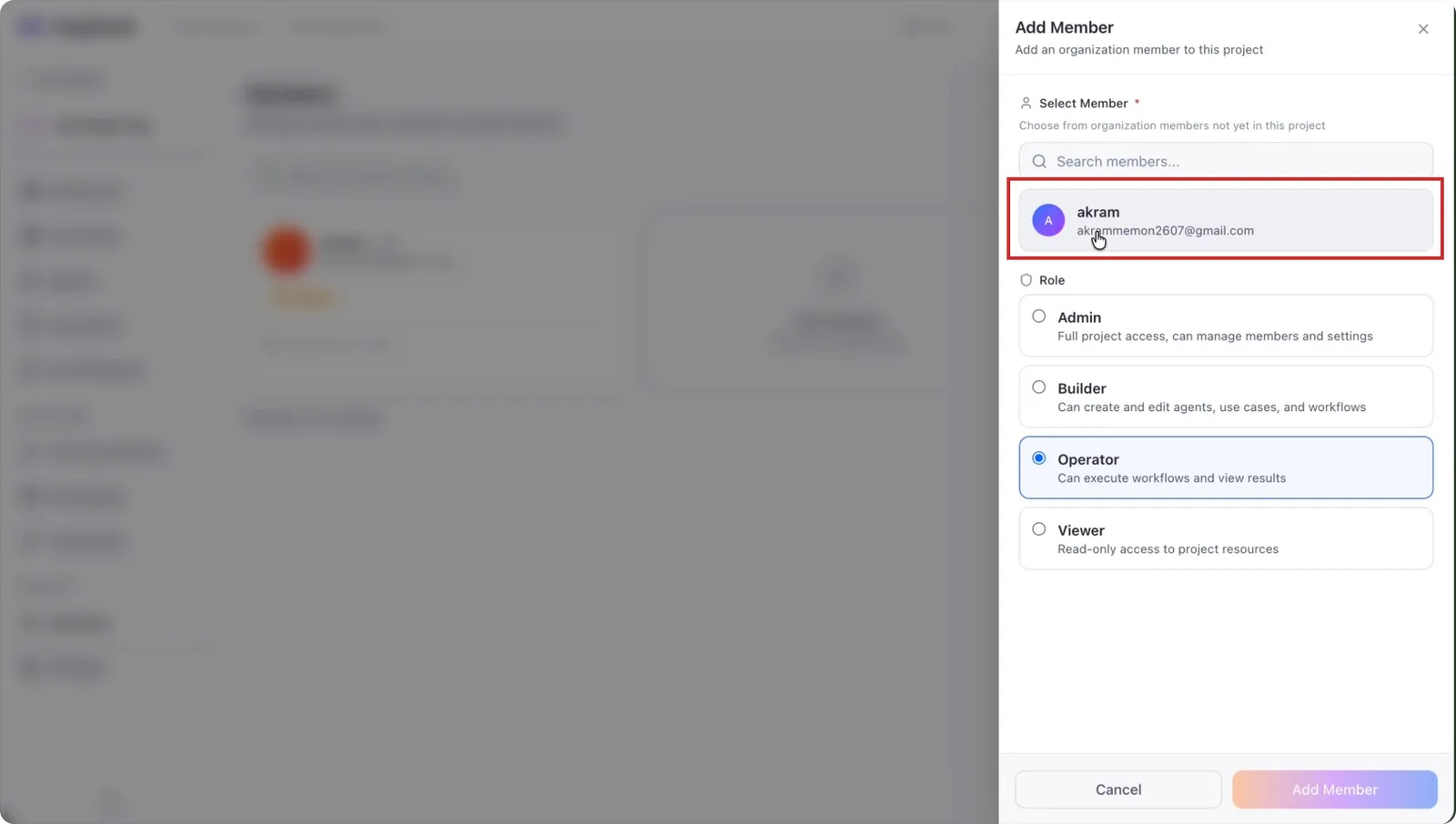
From the list of users, select the user you want to add to this project.
Step 6: Assign a Project Role and Add the Member
Choose one of the four available project roles:
- Admin – Full access to the project.
- Builder – Can create, update, and delete workflows.
- Operator – Can run workflows but typically cannot modify them.
- Viewer – Read-only access.
Select Operator to allow the user to run workflows in this project.
Click Add Member to finalize project access for the user.
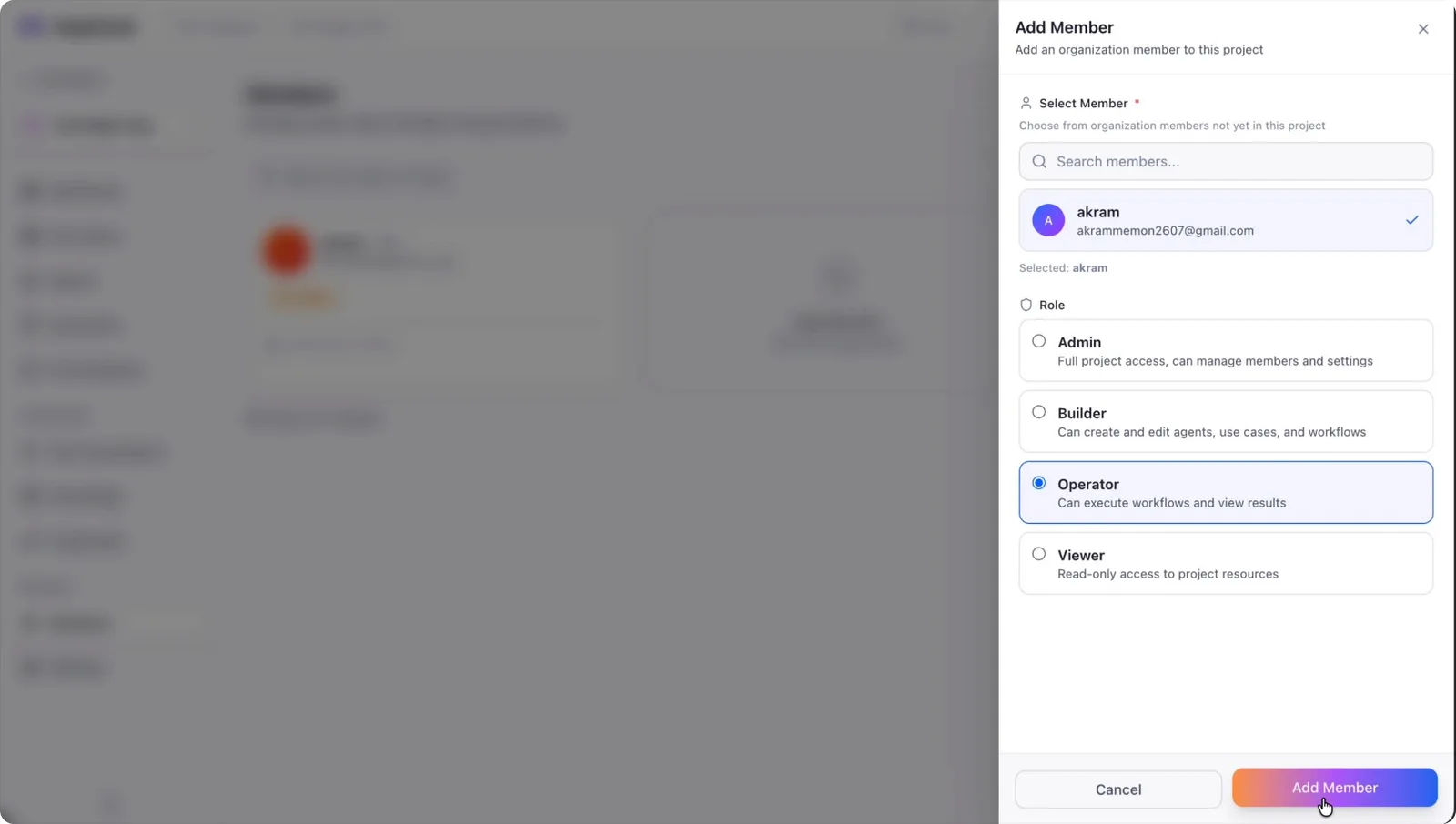
The user now has permission to run workflows in this project.
Step 7: Verify Access by Running a Workflow
From the project, go to the Hub section.
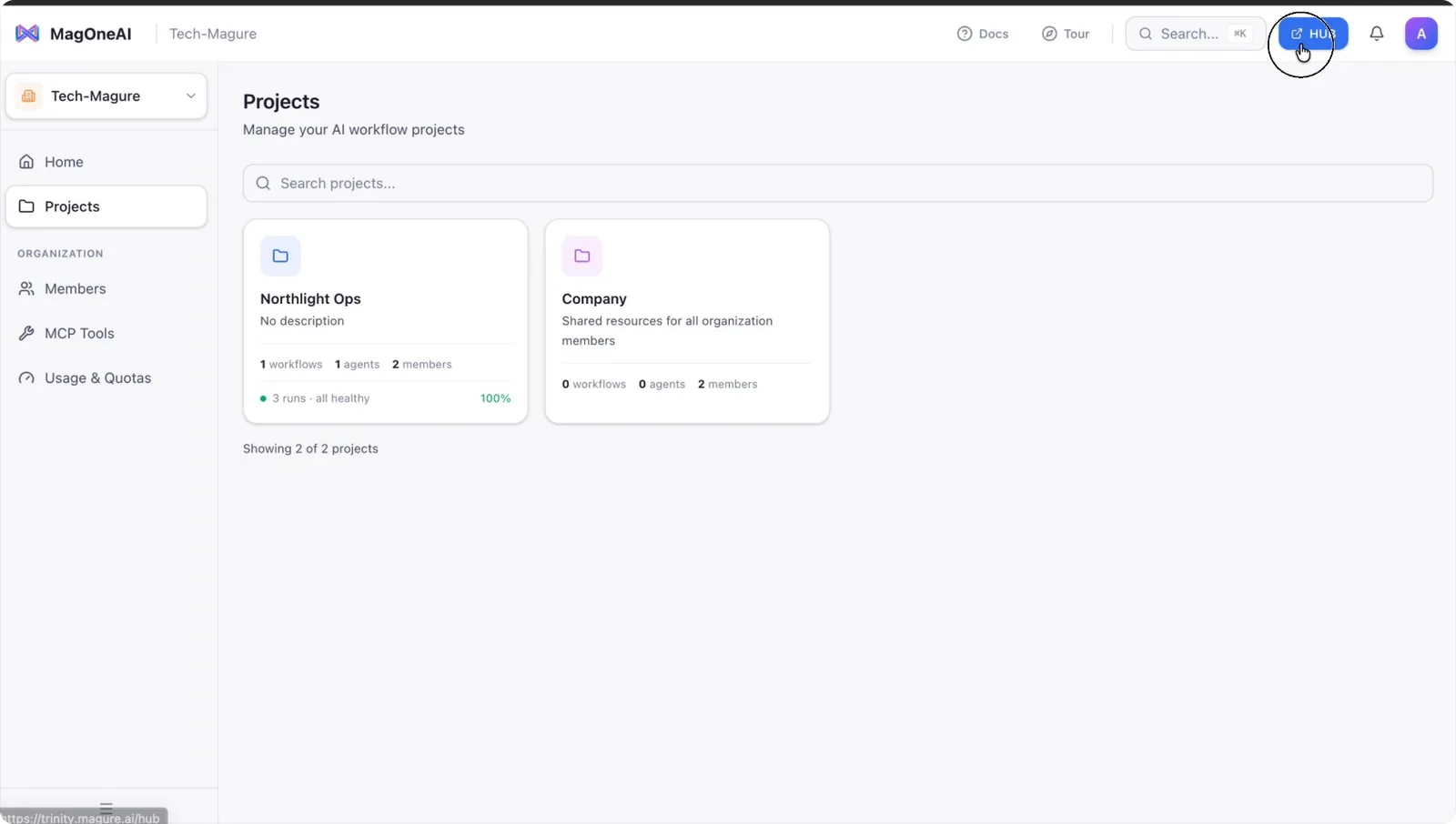
Locate the relevant asset (for example, a company chatbot that represents the project’s use case).
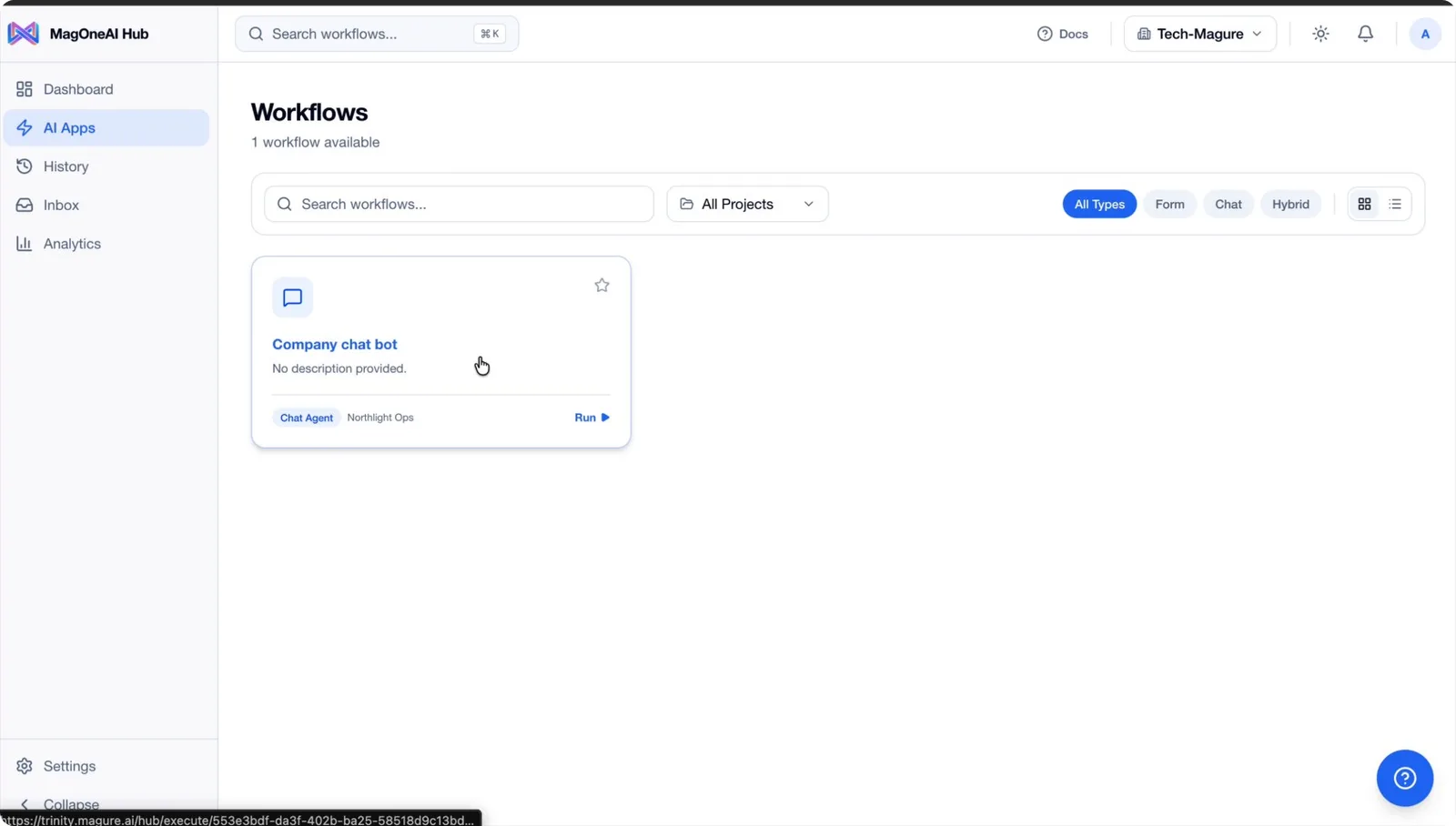
Send a simple message such as “hi” to confirm that the workflow can be executed with the assigned permissions.
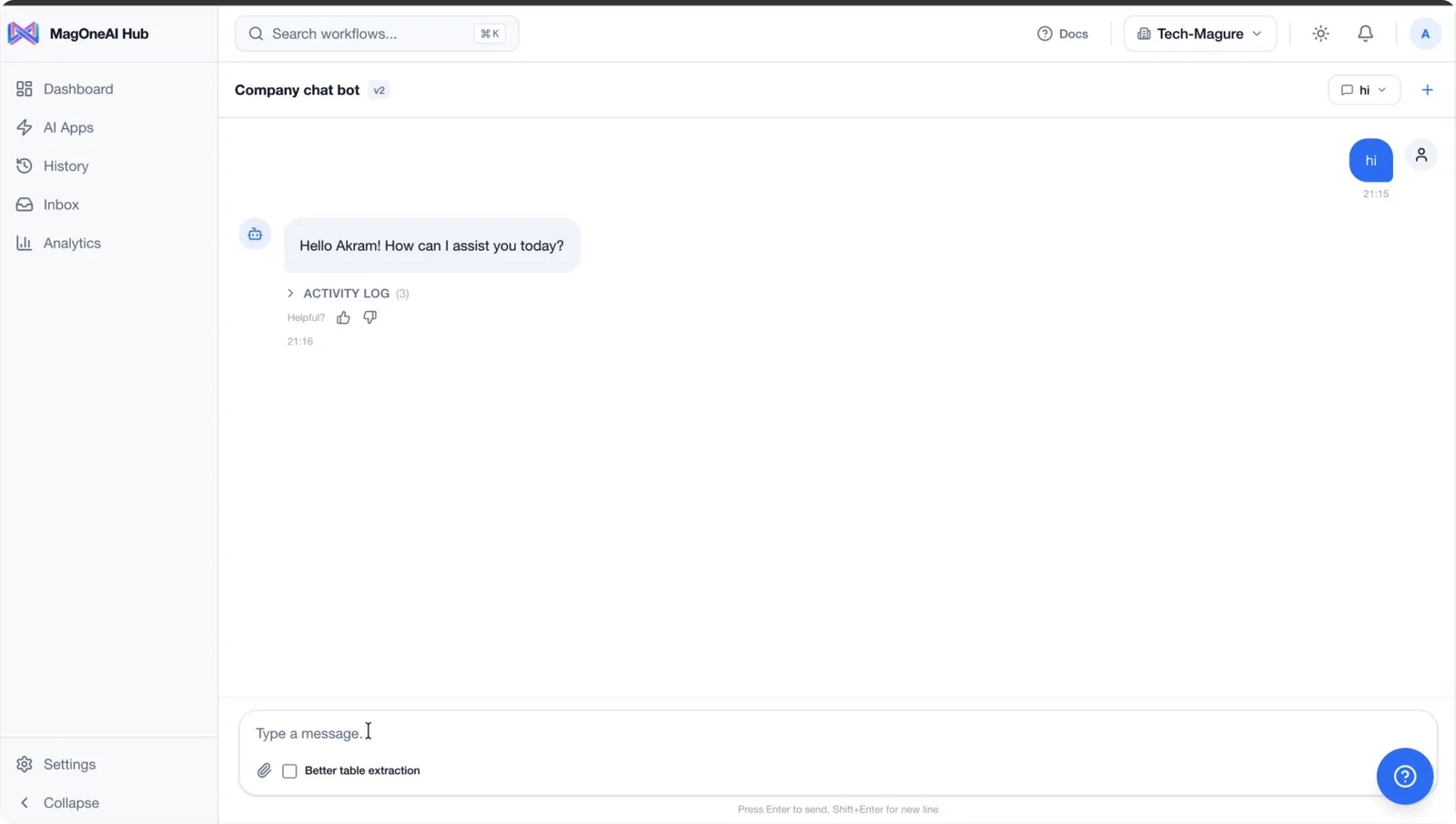
The platform should successfully send the “hi” message, confirming that the workflow is functioning as expected.