

How-to · Lesson 7 of 19
Enterprise RAG: Creating and Tuning a Knowledge Base
Create a knowledge base, configure how it chunks your documents, attach it to an agent, and tune retrieval until the agent answers from your own content instead of guessing.
What You Will Learn
- What a knowledge base is in MagOneAI: a permanent, project-scoped set of documents your agents can search at any time
- How large PDFs are extracted in page batches, so a nine-hundred-page document does not fall over, and resumes rather than restarting if it fails partway
- Two chunking strategies: sliding window versus small-to-big, and when each is right
- Contextual chunking, off by default, what it costs at ingest and what it pays back on every search
- Testing retrieval in the KB search box before attaching it to any agent
- Why hybrid search matters: exact product codes and acronyms still rank, which pure vector search famously gets wrong
Step by step guide
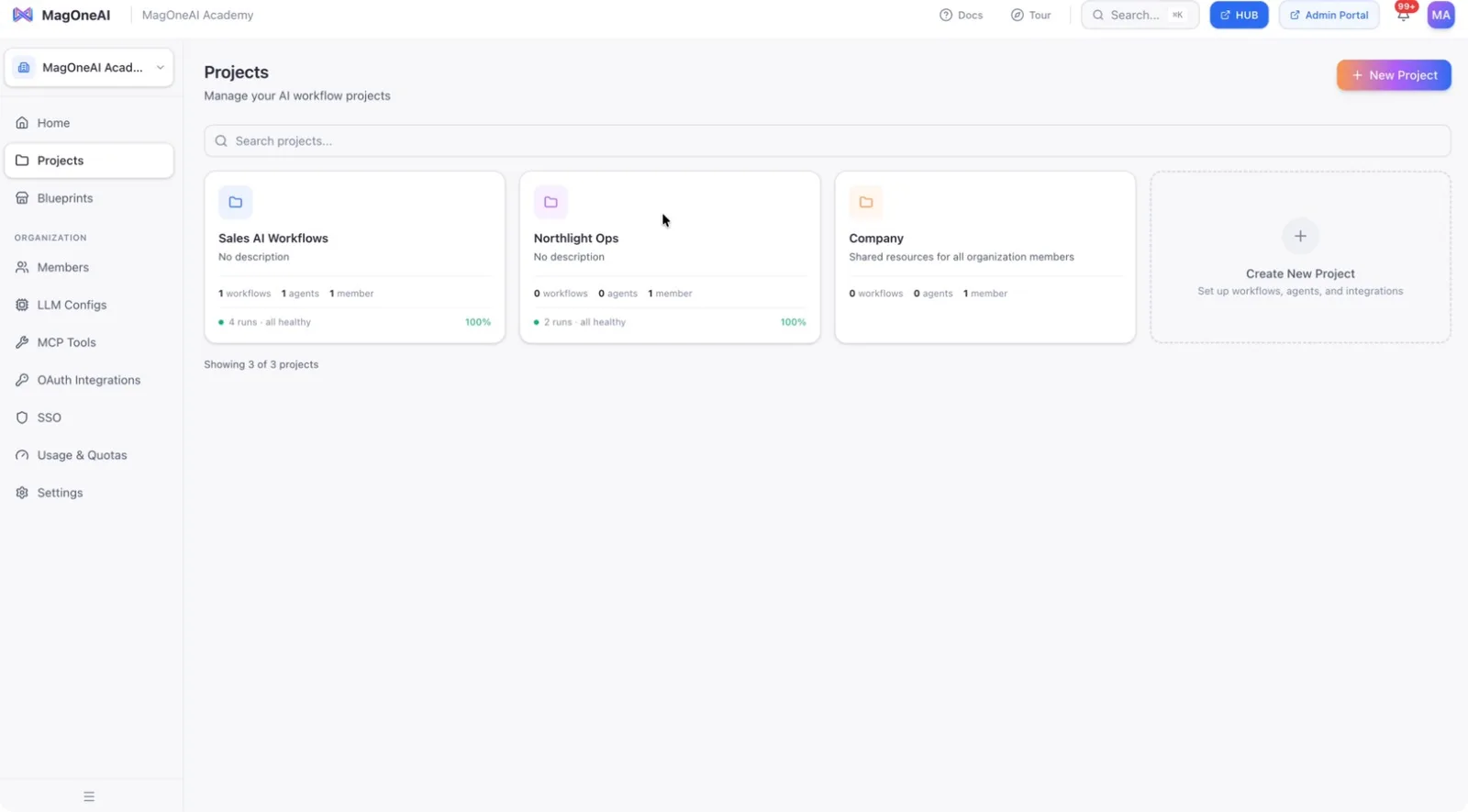
Step 1: Select or Create a Project
Choose the project in which you want to set up the knowledge base. You can either create a new project or open an existing one.
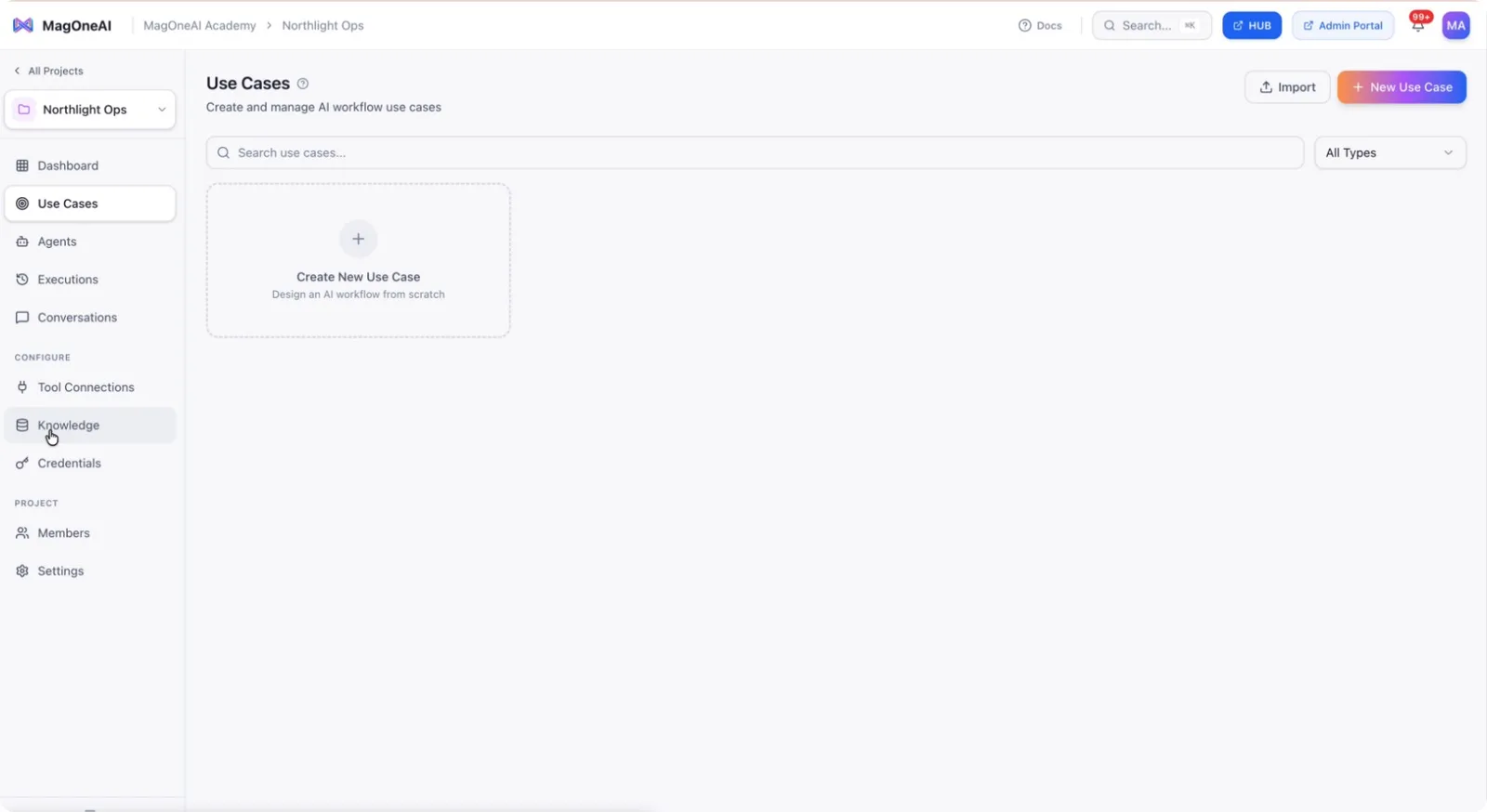
Step 2: Open the Knowledge Section and Create a Knowledge Base
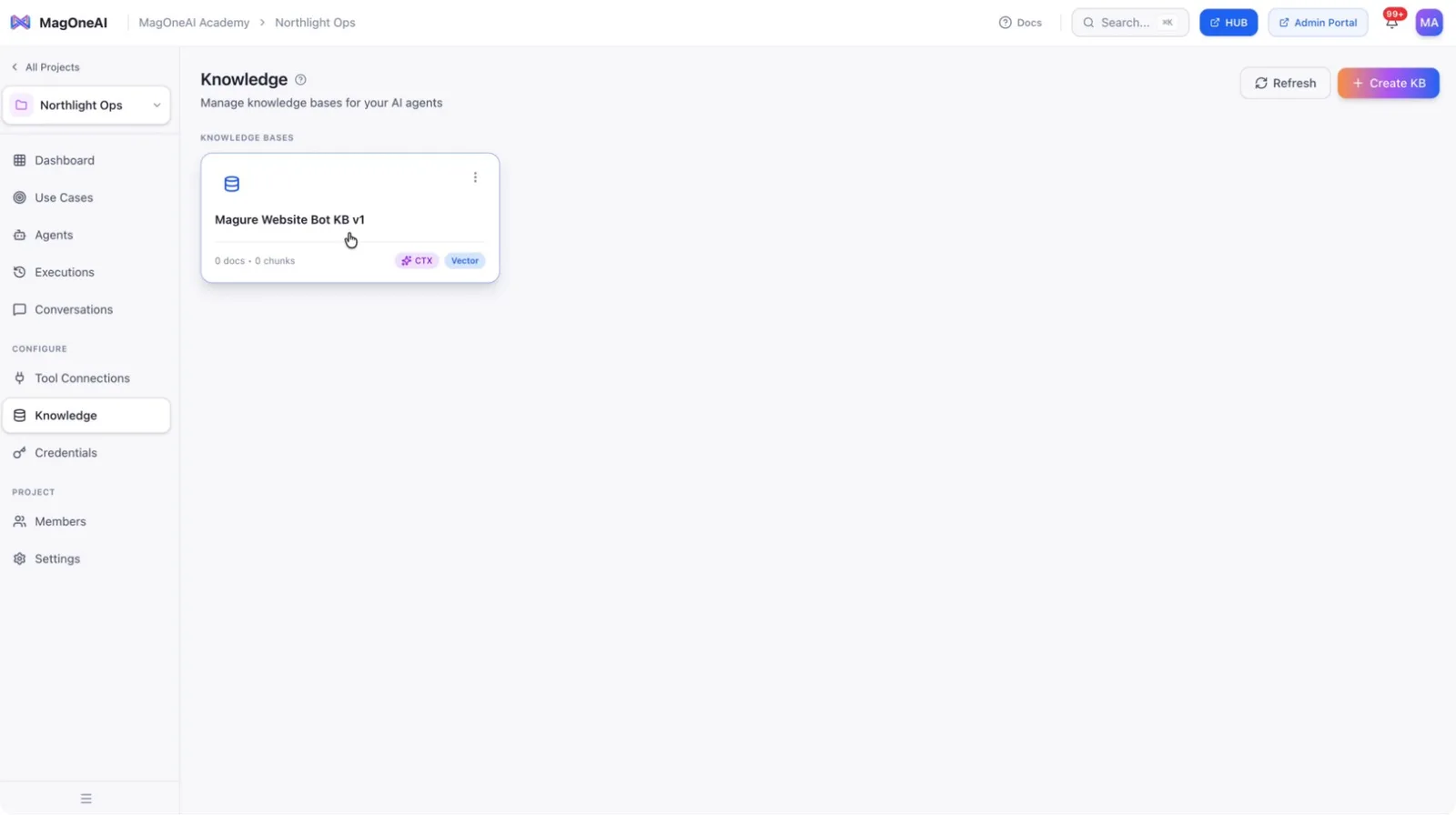
Navigate to the Knowledge section in your project and open it.
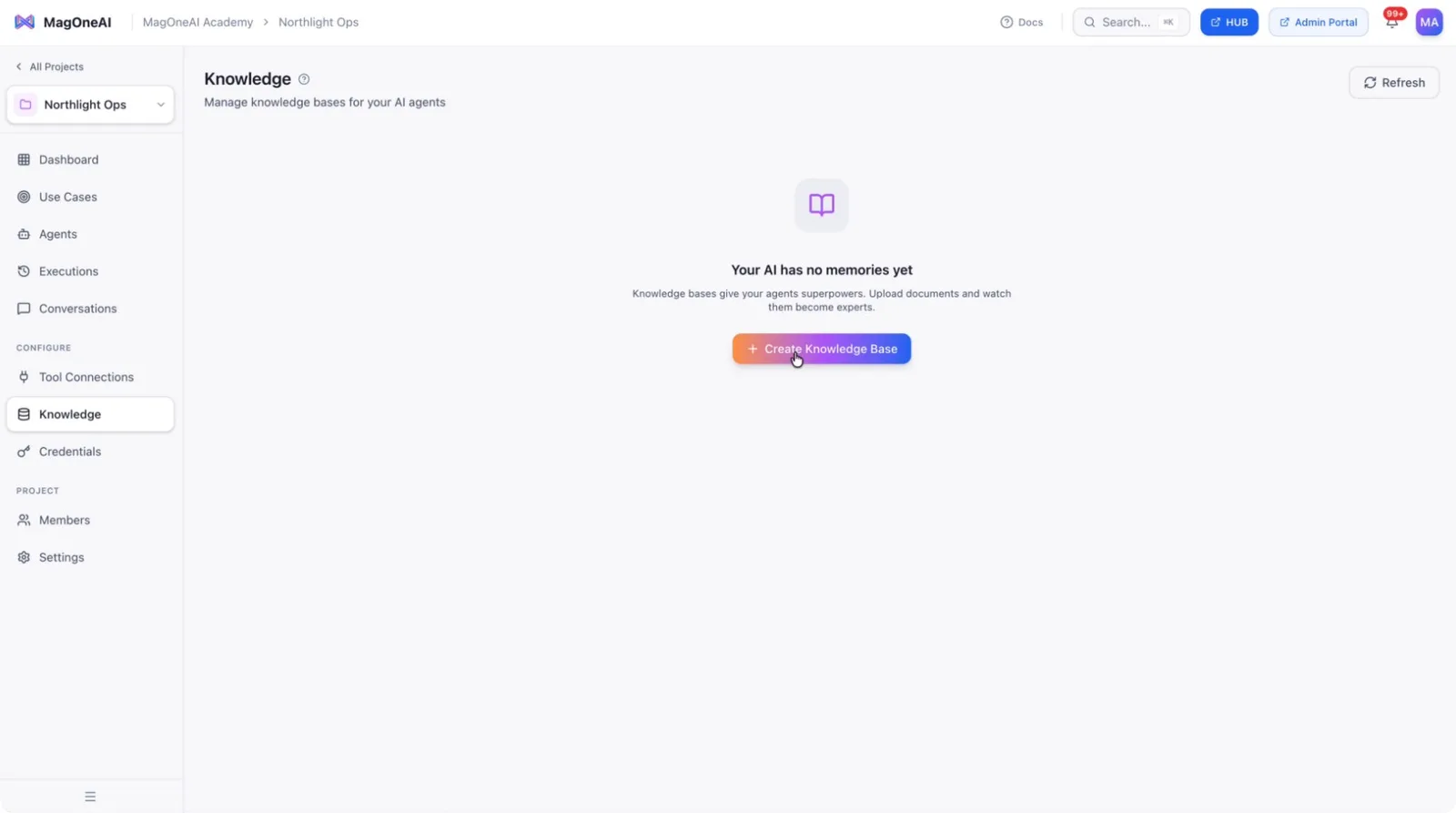
Create your first knowledge base entry.
Step 3: Configure the Knowledge Base Settings
Select an LLM config to be used for contextual chunking, if required.
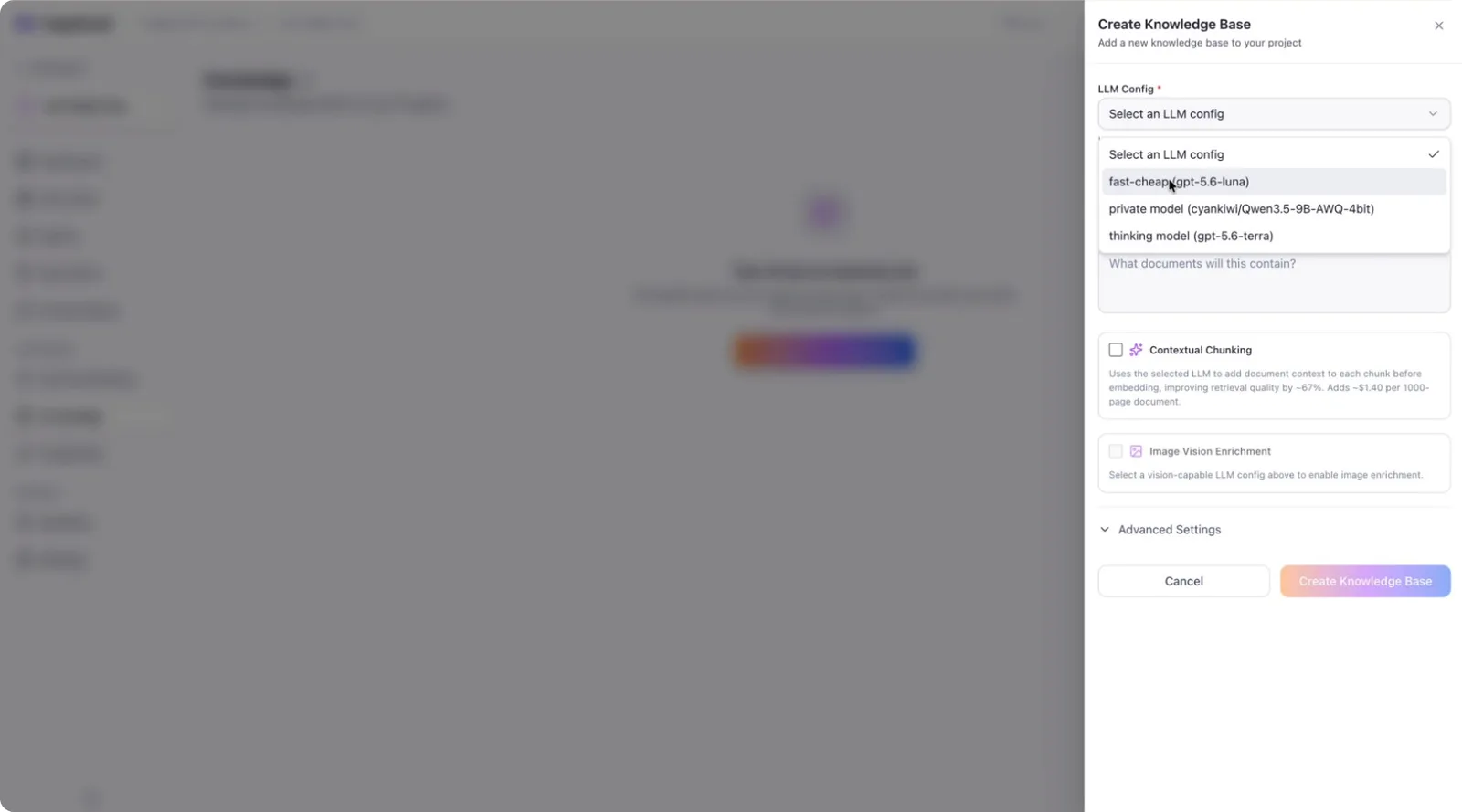
Name the knowledge base (for example, “Magure Website Bot Knowledge Base”) and ensure you include a version in the name.
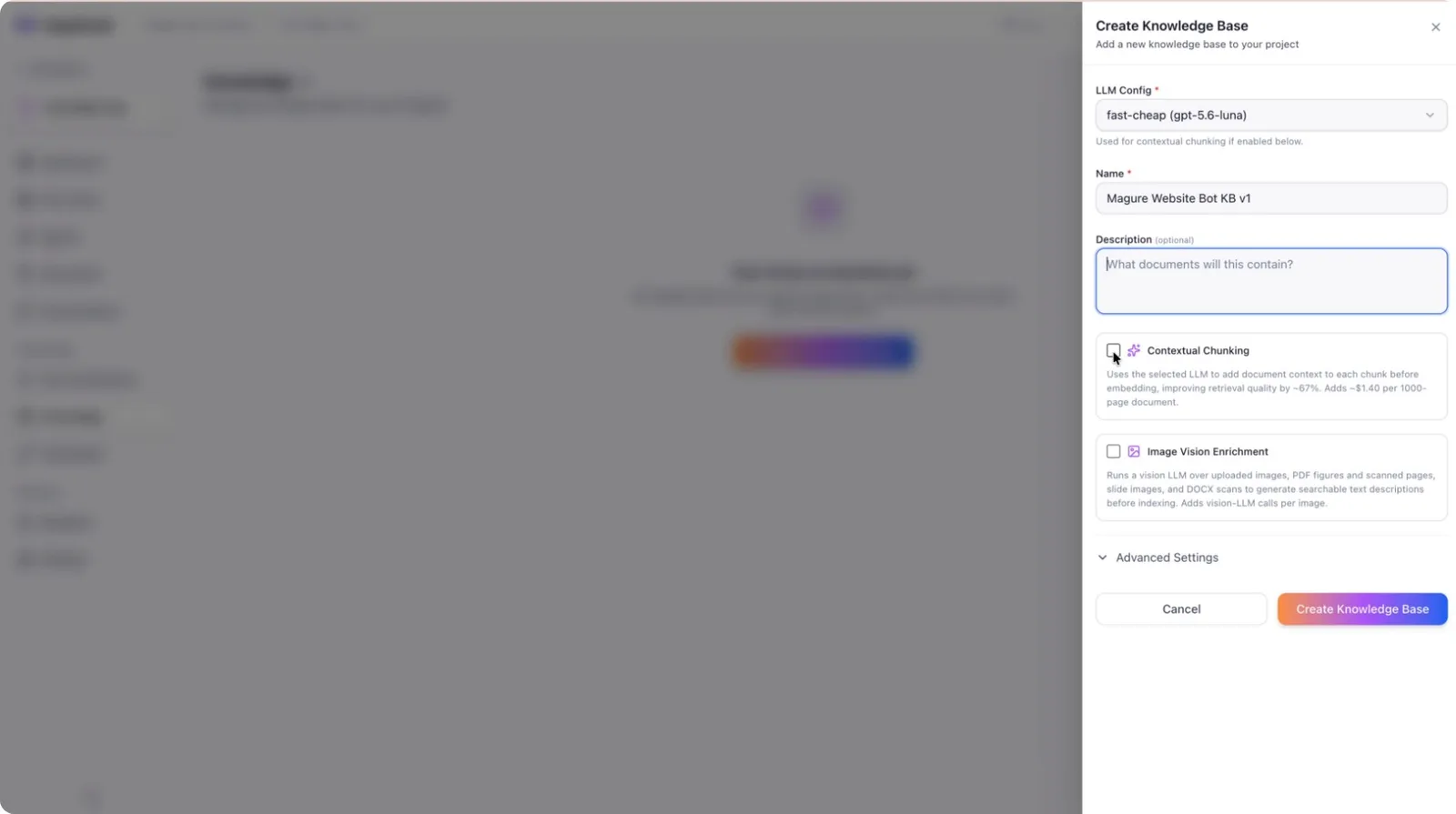
Add a description if needed, then choose whether to enable contextual chunking.
If enabled, contextual chunking will add surrounding context to each chunk when content is split.
Configure chunk size and chunk overlap, then click Create Knowledge Base.
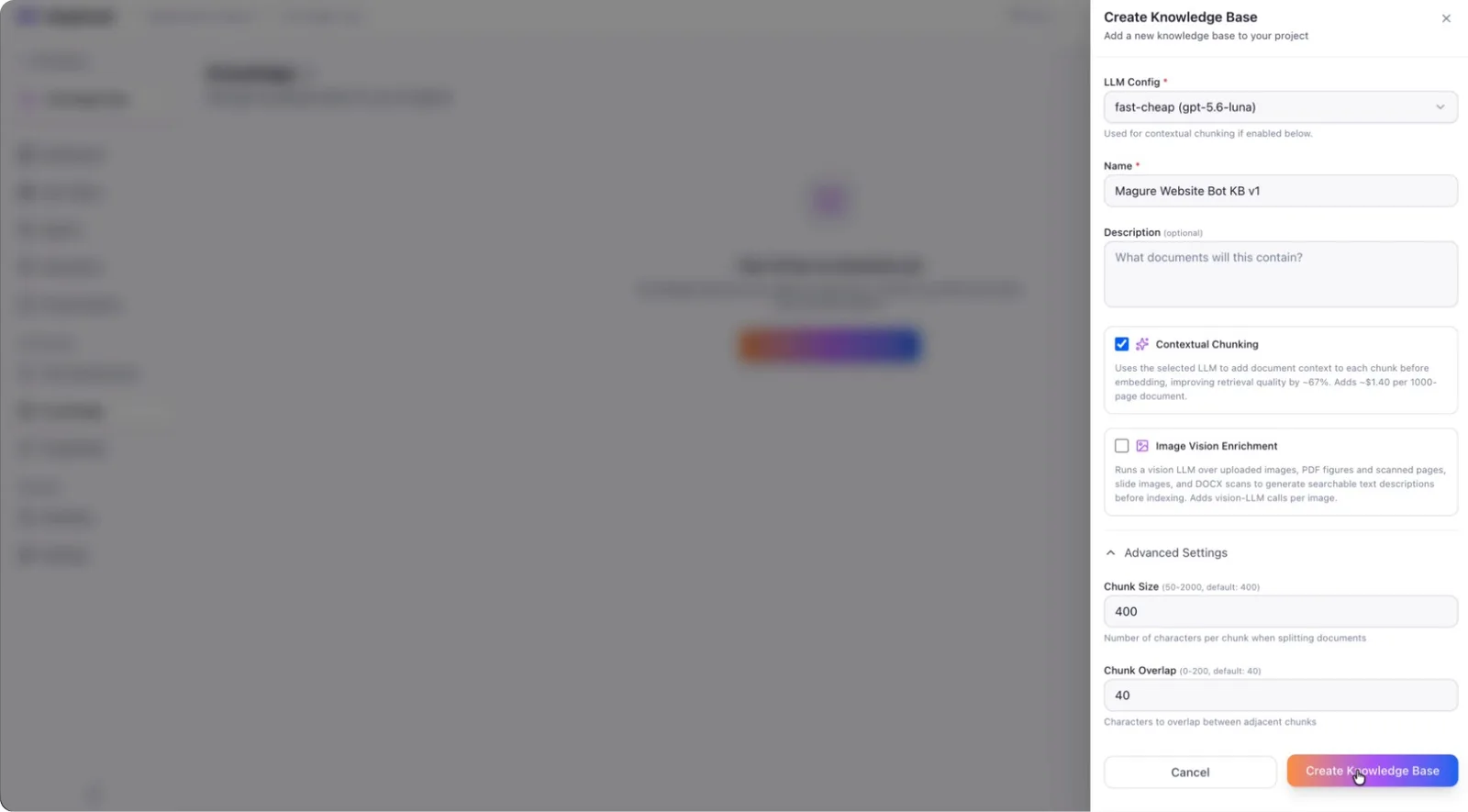
Step 4: Add Content to the Knowledge Base
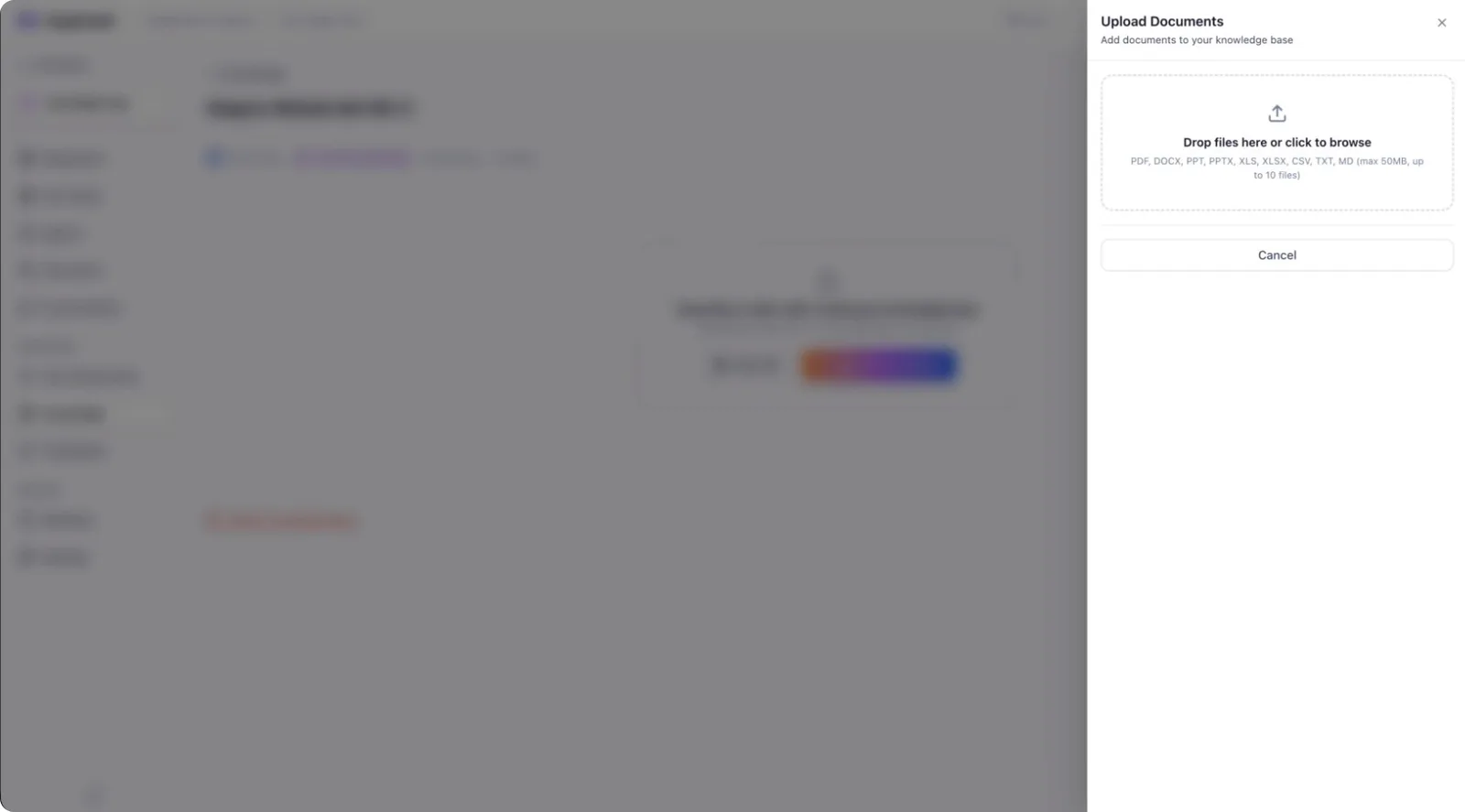
From the created knowledge base, choose how to add content: either by specifying a website URL or by uploading a document.
For this example, upload a document by dragging and dropping the file into the upload area.
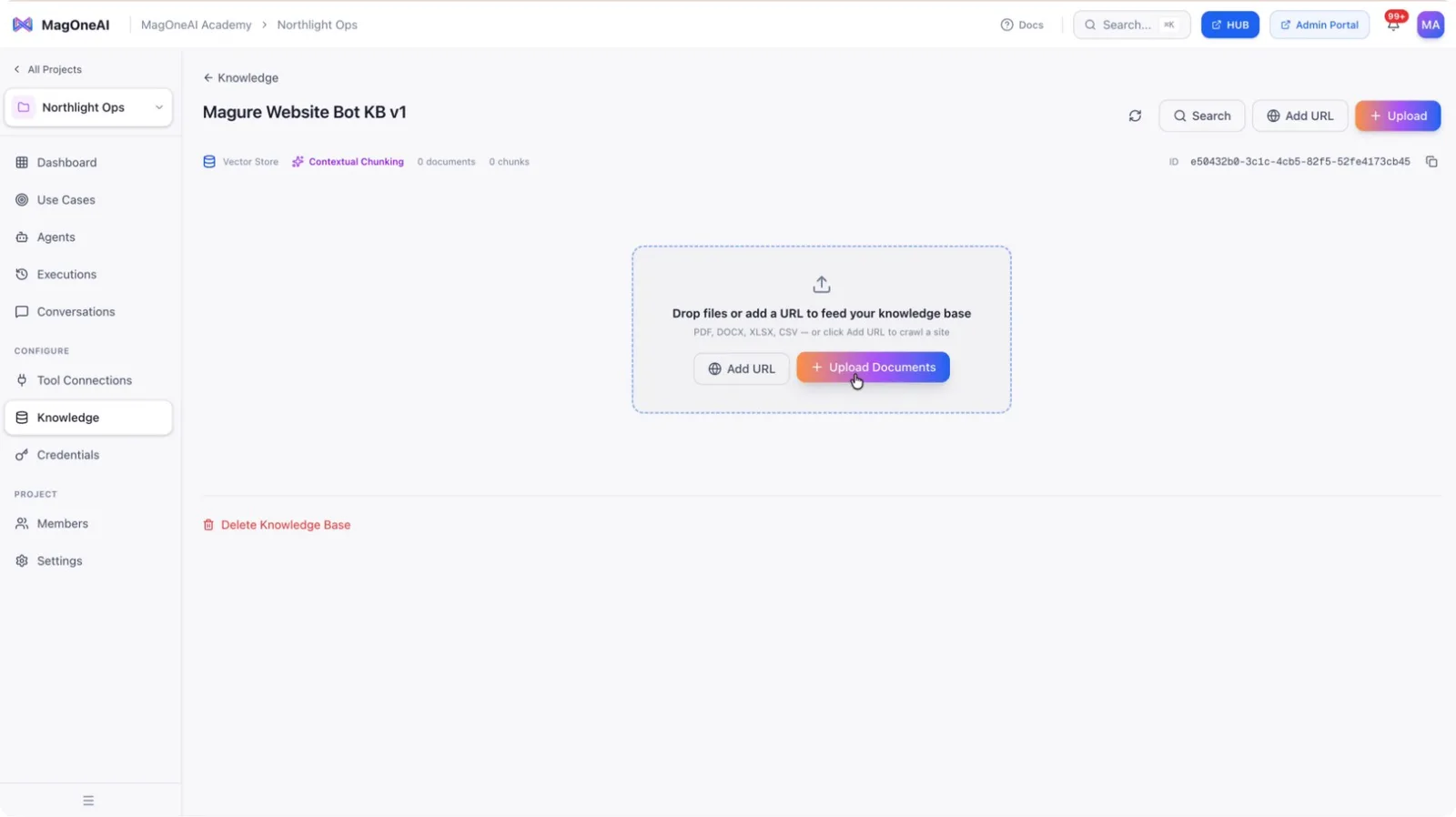
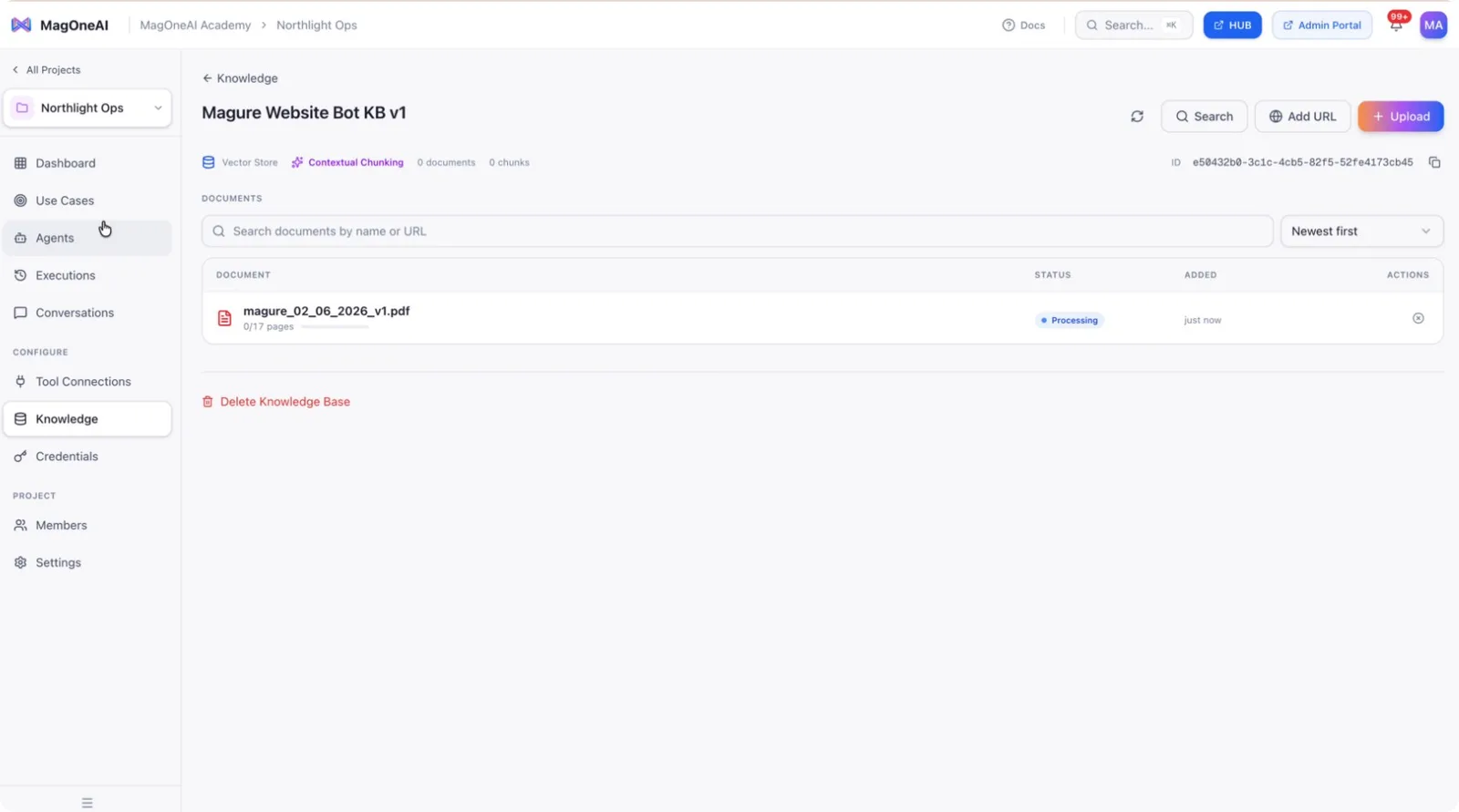
The system will start processing and chunking the document (for example, all seventeen pages).
Step 5: Create a Chat-Based Use Case
While the knowledge base is processing, go to the Use Cases section and create a new use case.
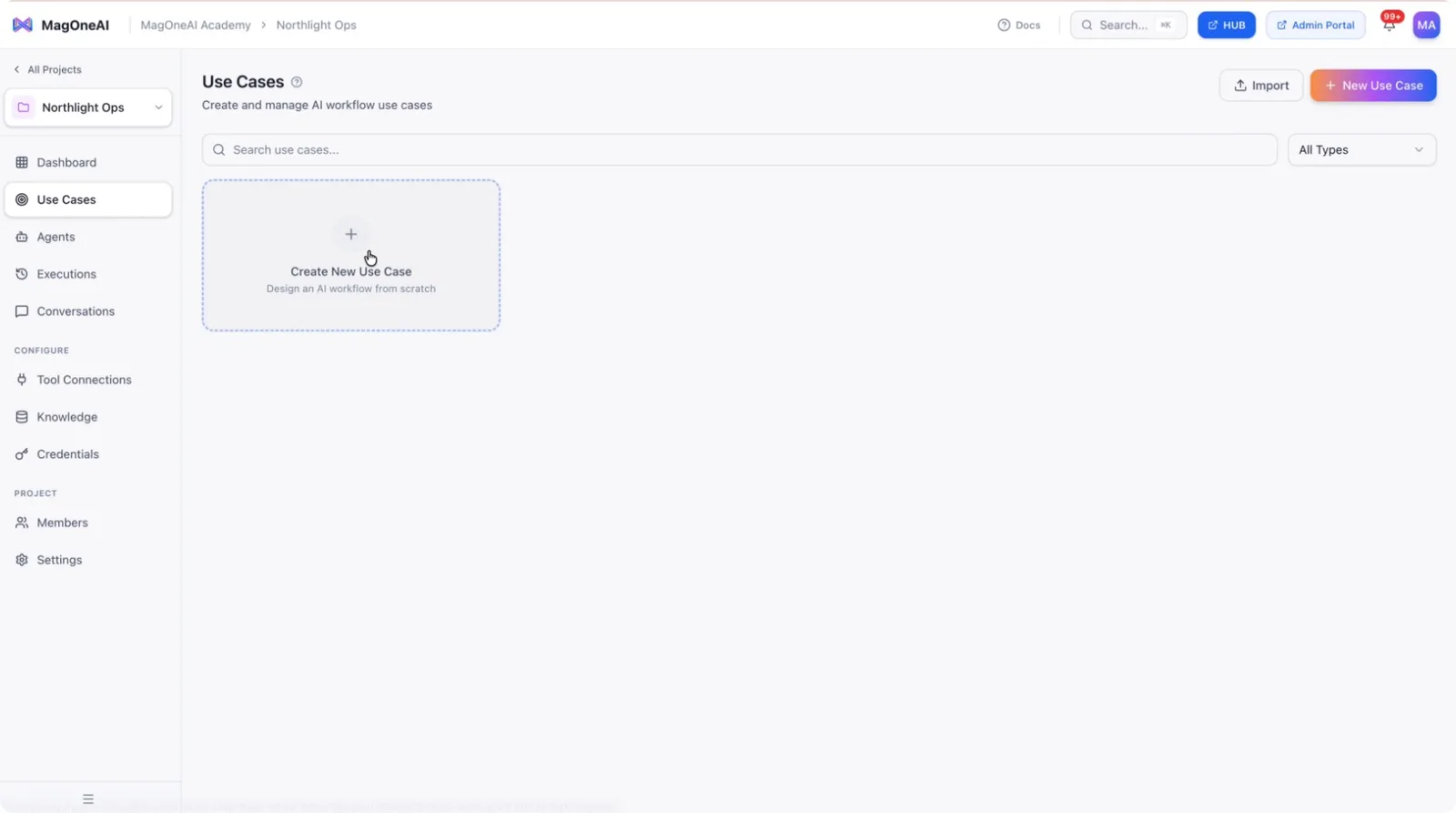
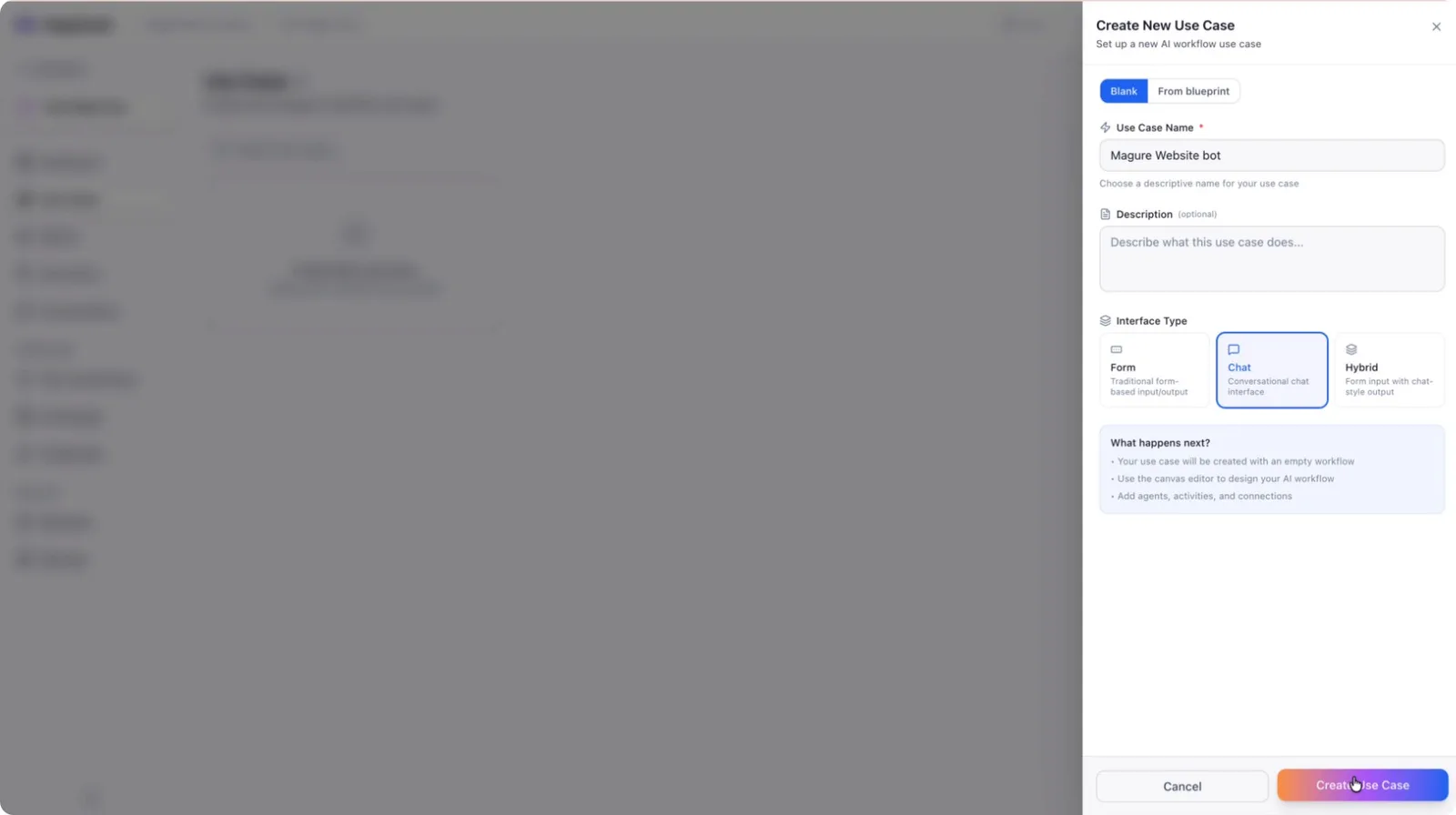
Choose a chat-based use case type and proceed to create it.
Step 6: Configure the Use Case and Agent
Within the use case, select an LLM model to power the agent.
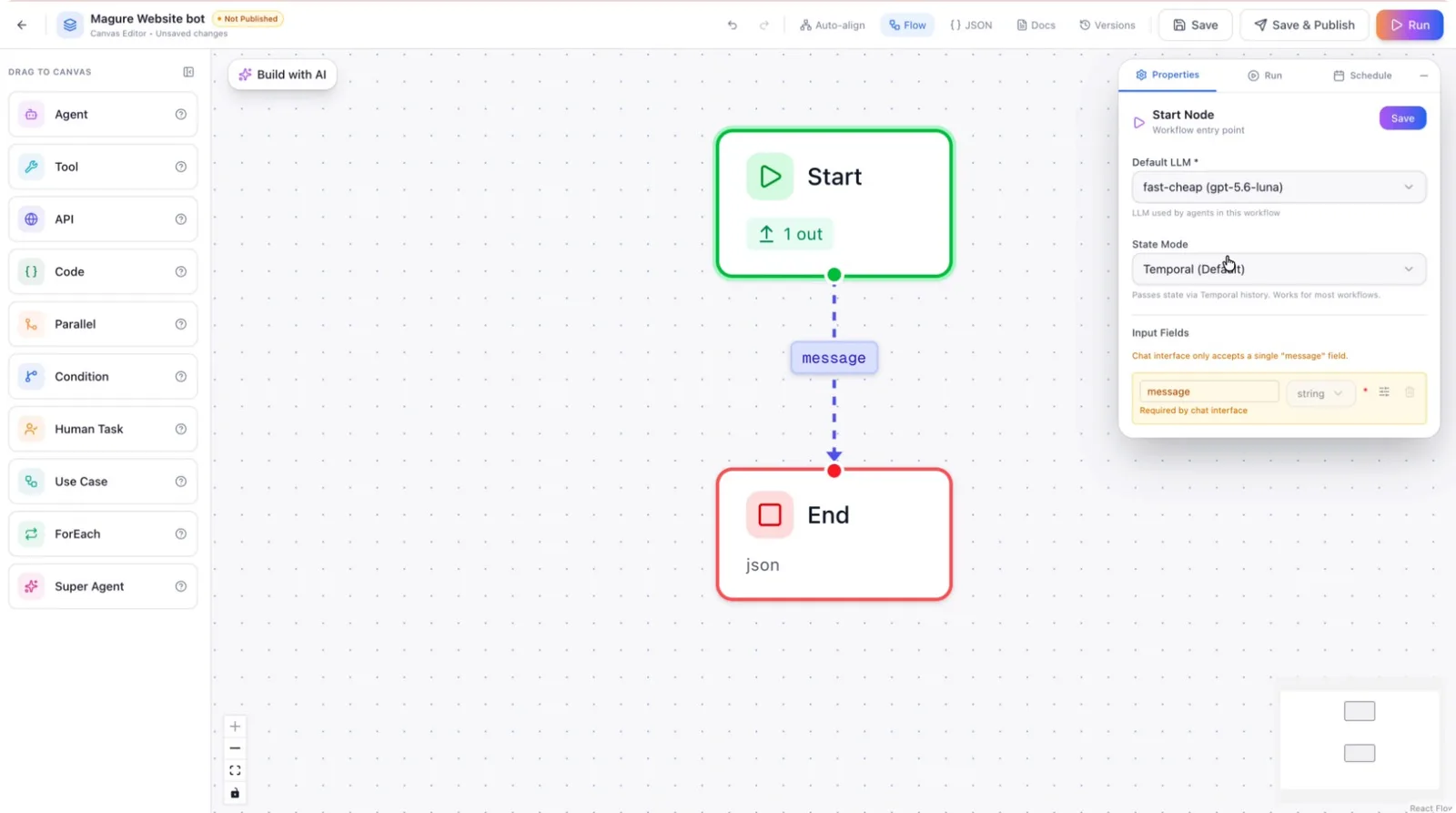
Drag and drop an agent into the flow or canvas. Add a prompt for the agent, for example: “You are our website chatbot. Answer the questions from the knowledge base.” Then create the use case.
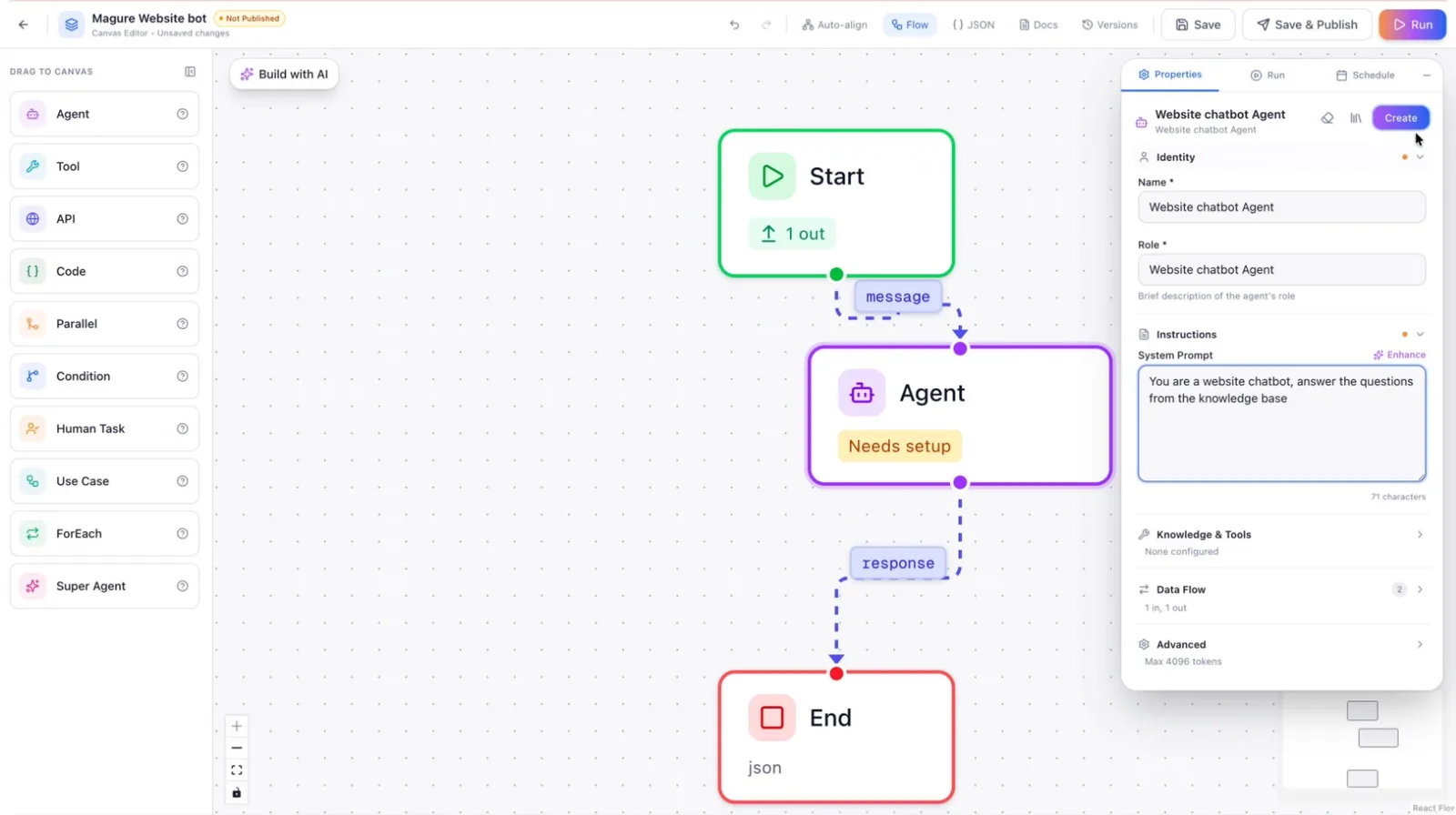
If prompted about missing LLM config, save the configuration.
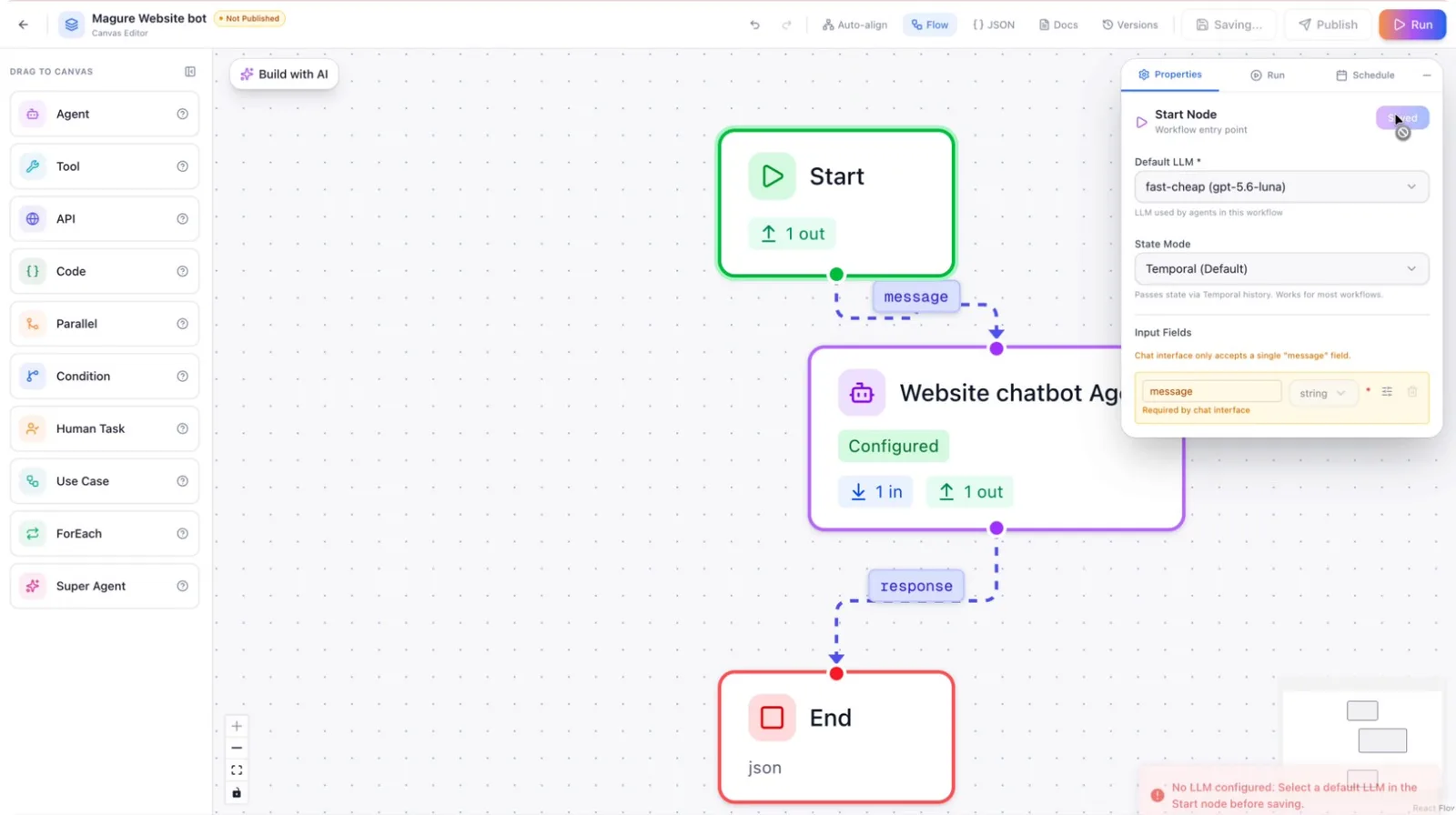
Save and publish the use case so far.
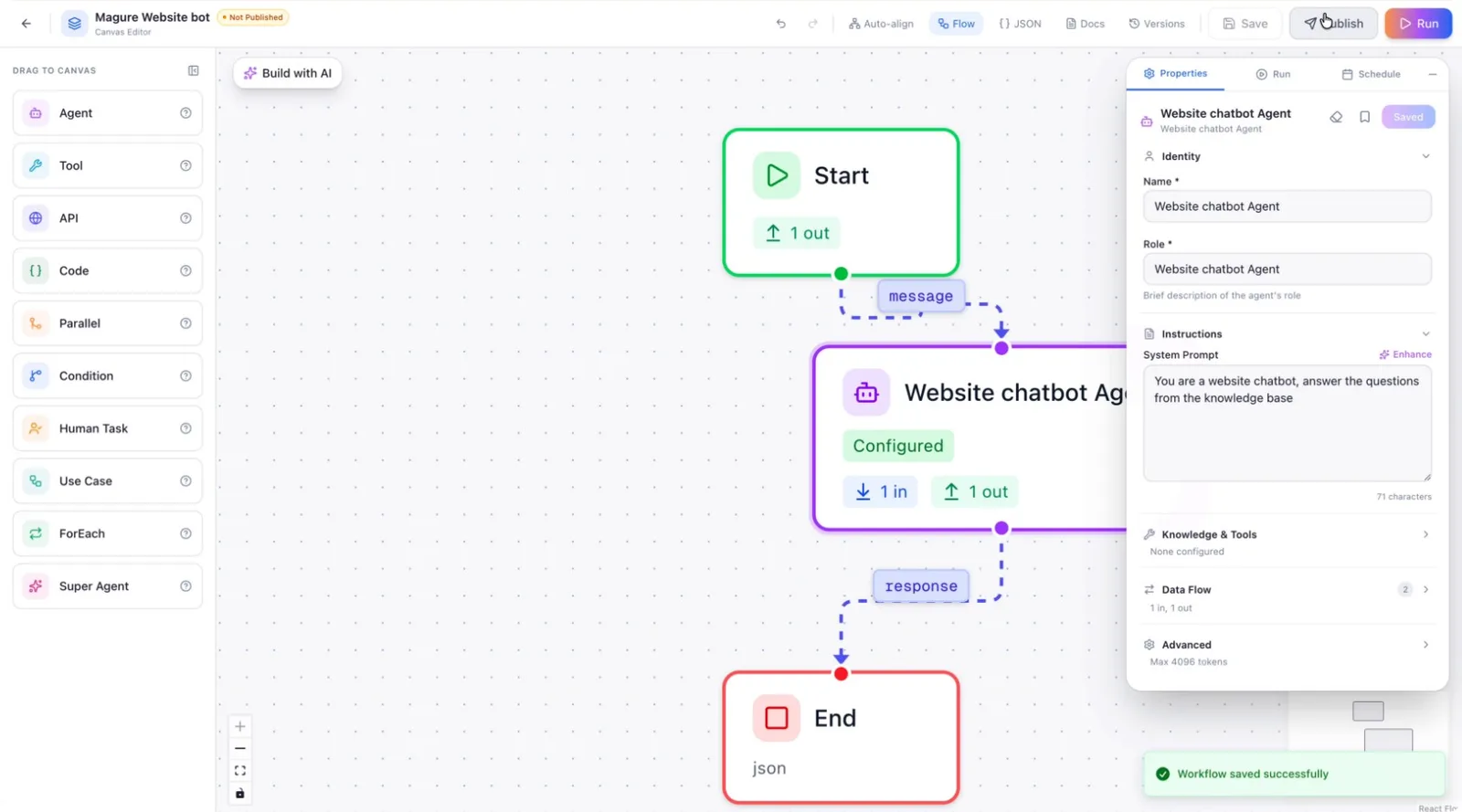
Step 7: Verify Knowledge Base Indexing
Return to the knowledge base and confirm that it has finished processing and is indexed.
Once you see it is indexed, the knowledge base is ready to be used.
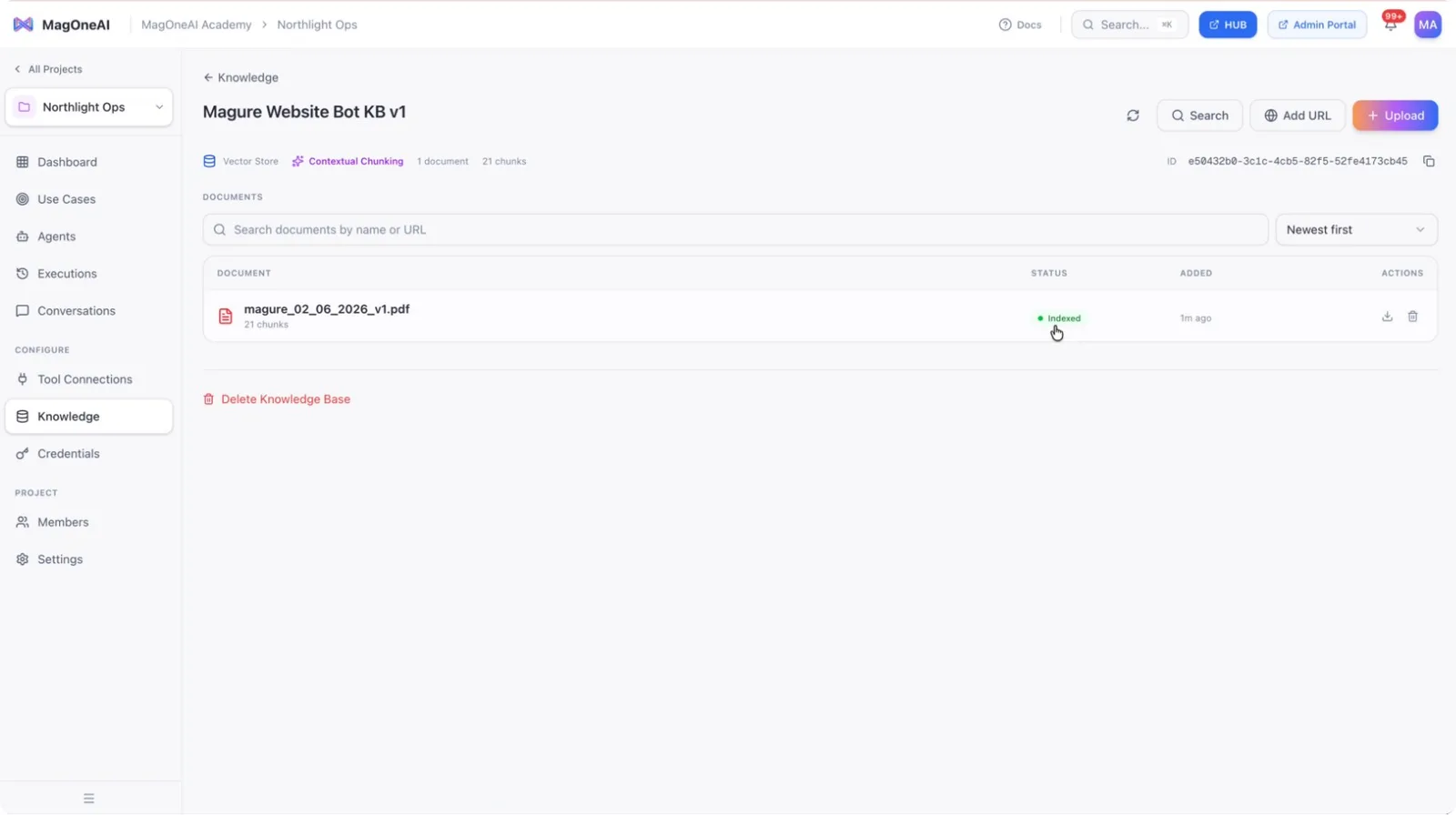
Step 8: Attach the Knowledge Base to the Agent
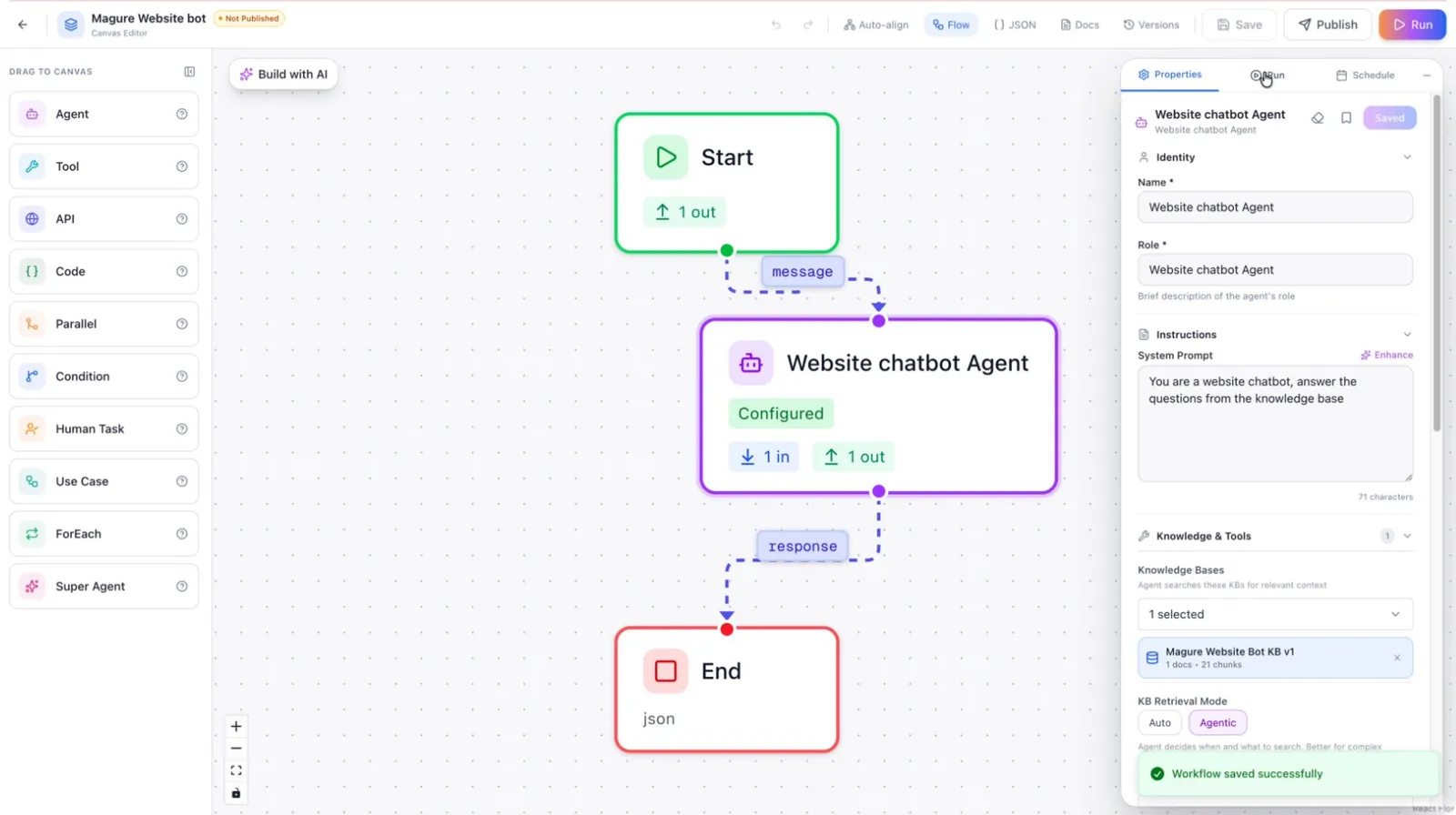
Go back to the use case, click on the agent node to open its settings.
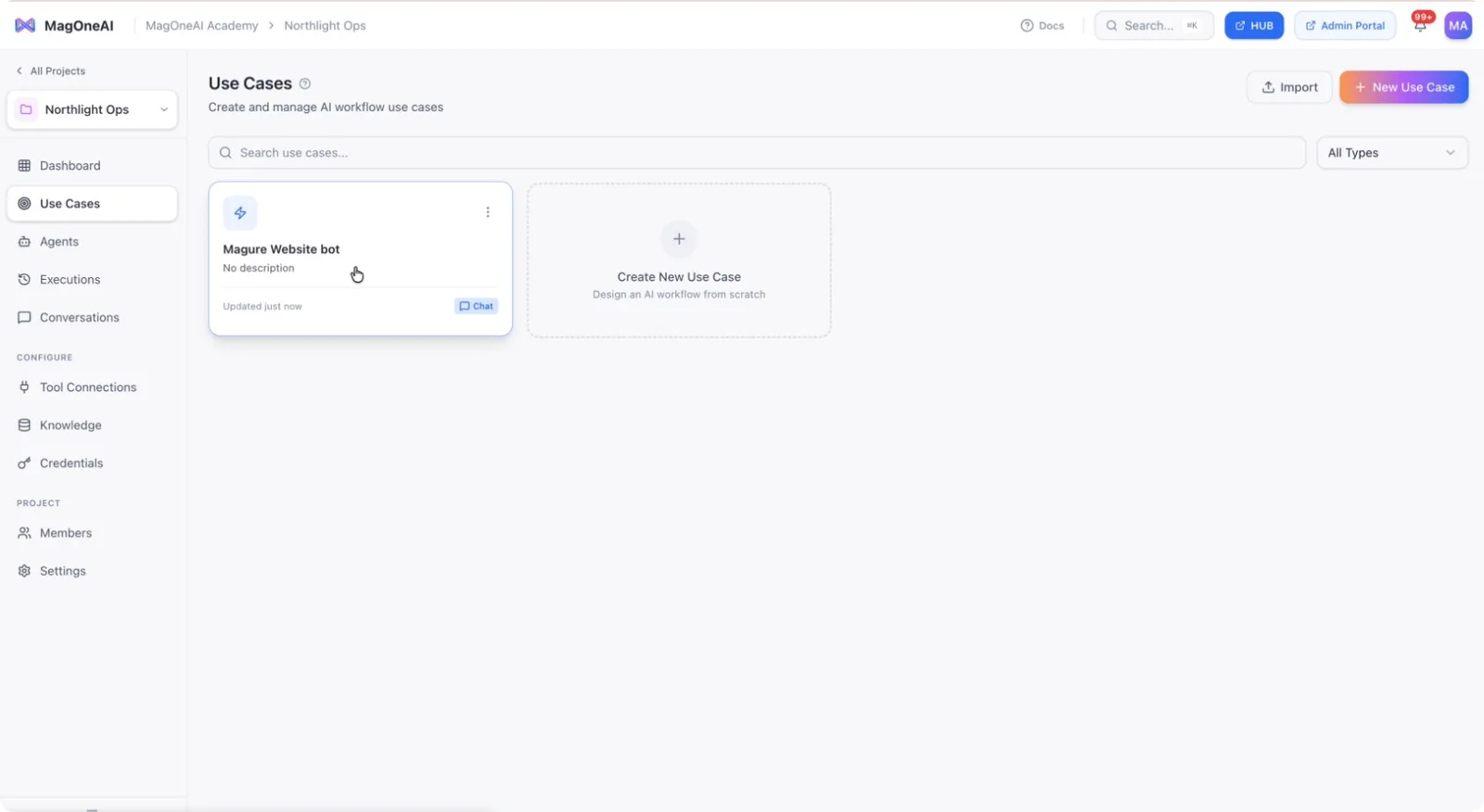
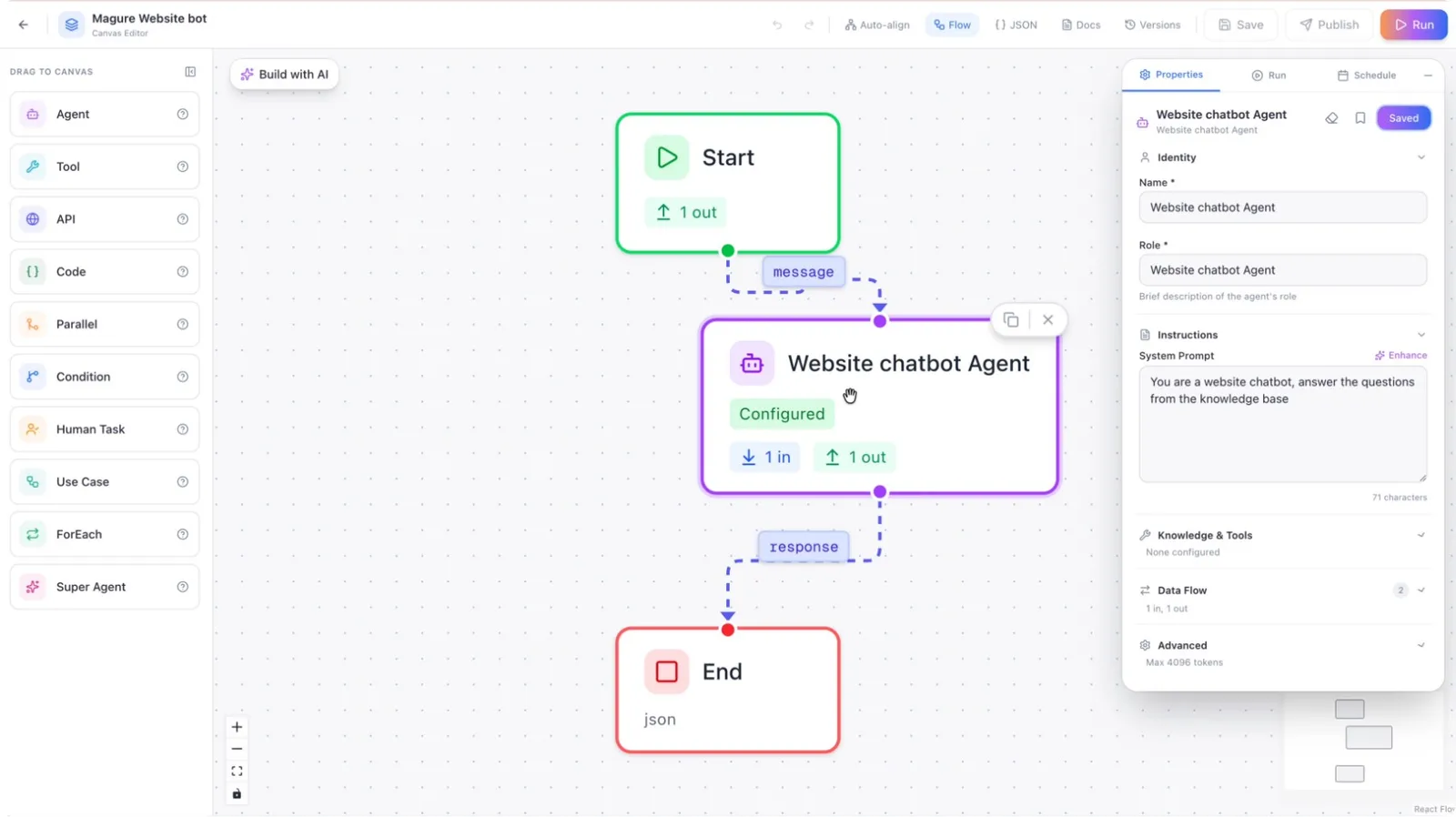
Then navigate to the Knowledge tab within the agent configuration.
Click Select Knowledge Base.
Choose the knowledge base you created from the list and select it.
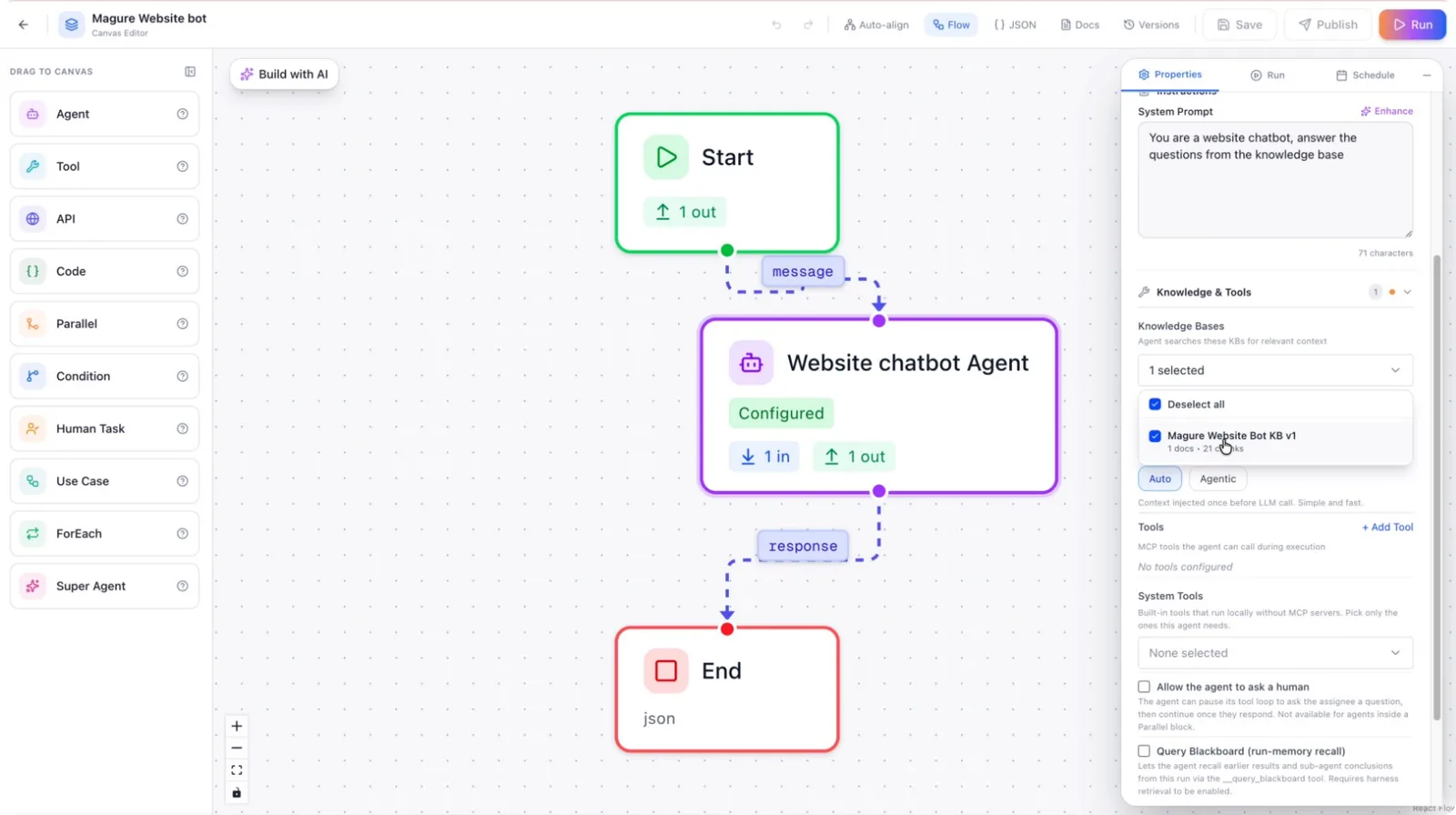
Step 9: Configure Retrieval Mode and Advanced Options
Choose a retrieval mode:
- Auto: The system automatically selects the best retrieval approach.
- Agentic: The agent can perform multiple retrieval iterations if it cannot find a satisfactory answer on the first attempt (up to a maximum of ten tries).
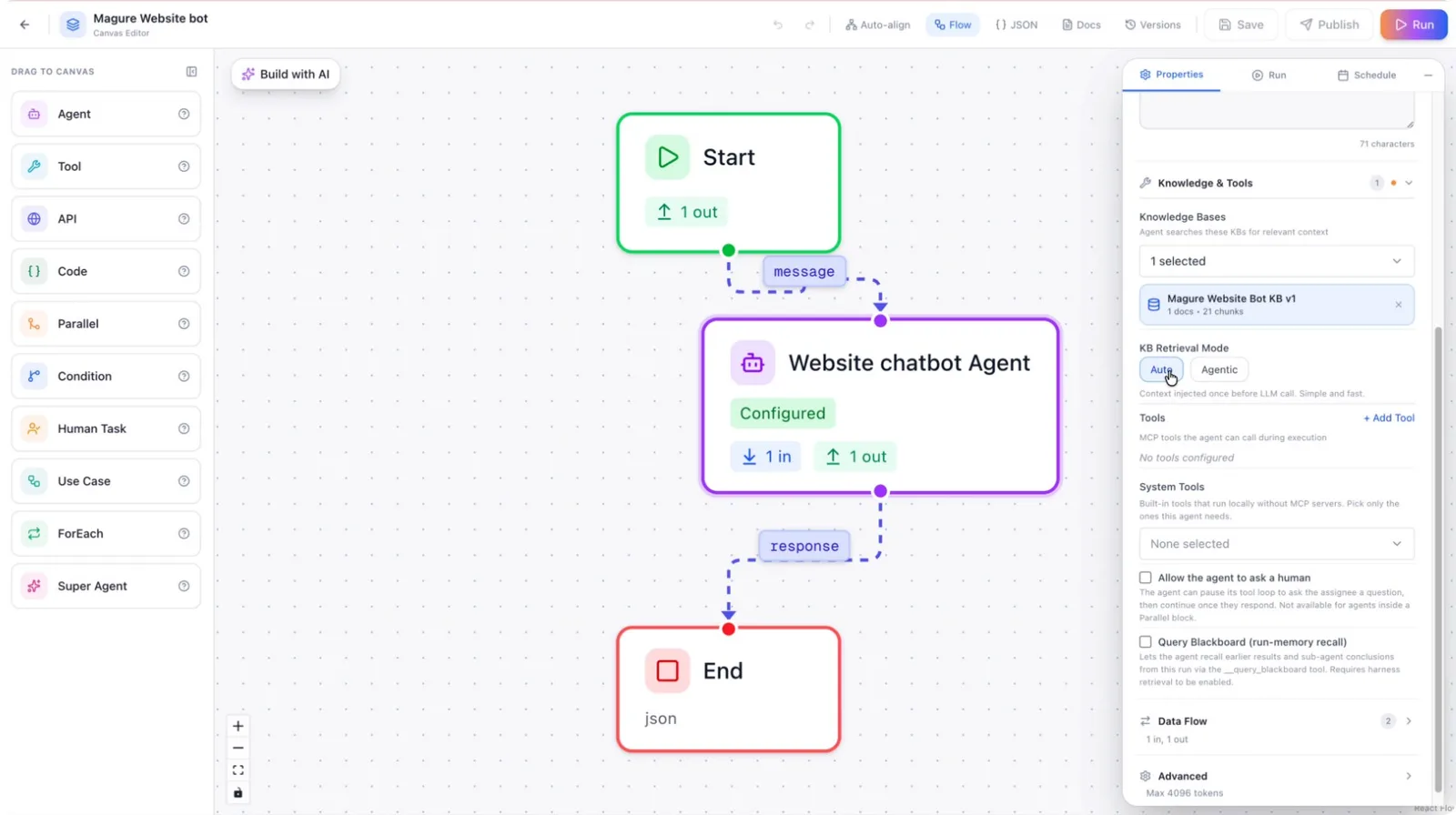
In Agentic mode, the agent will keep trying to retrieve an answer, iterating until it reaches the limit or finds a good response.
Optionally, configure additional retrieval options:
- Search guideline: Provide instructions to modify the search prompt when the agent retries.
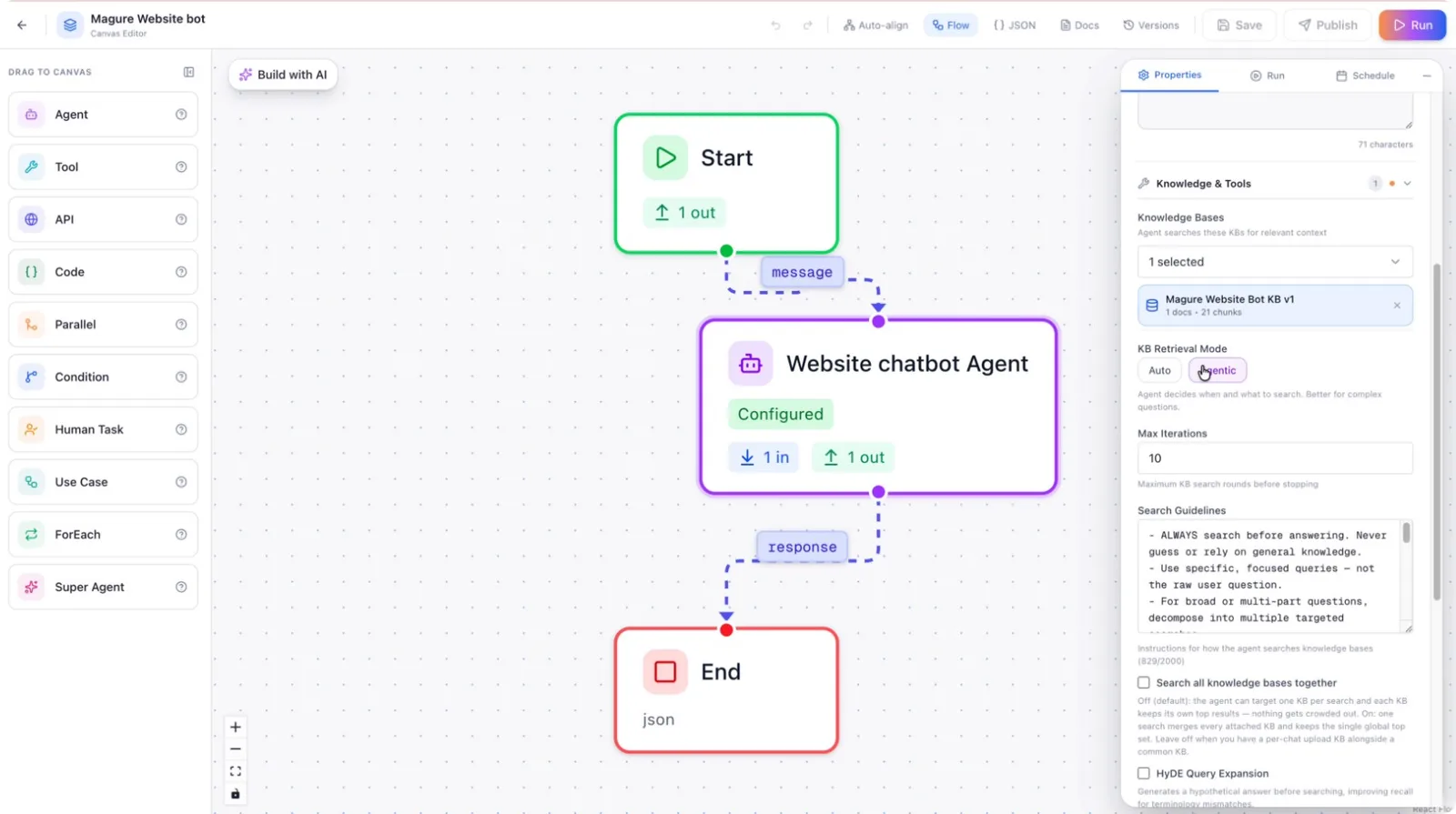
- Query expansion: Enable this so the LLM can automatically expand search terms to improve recall.
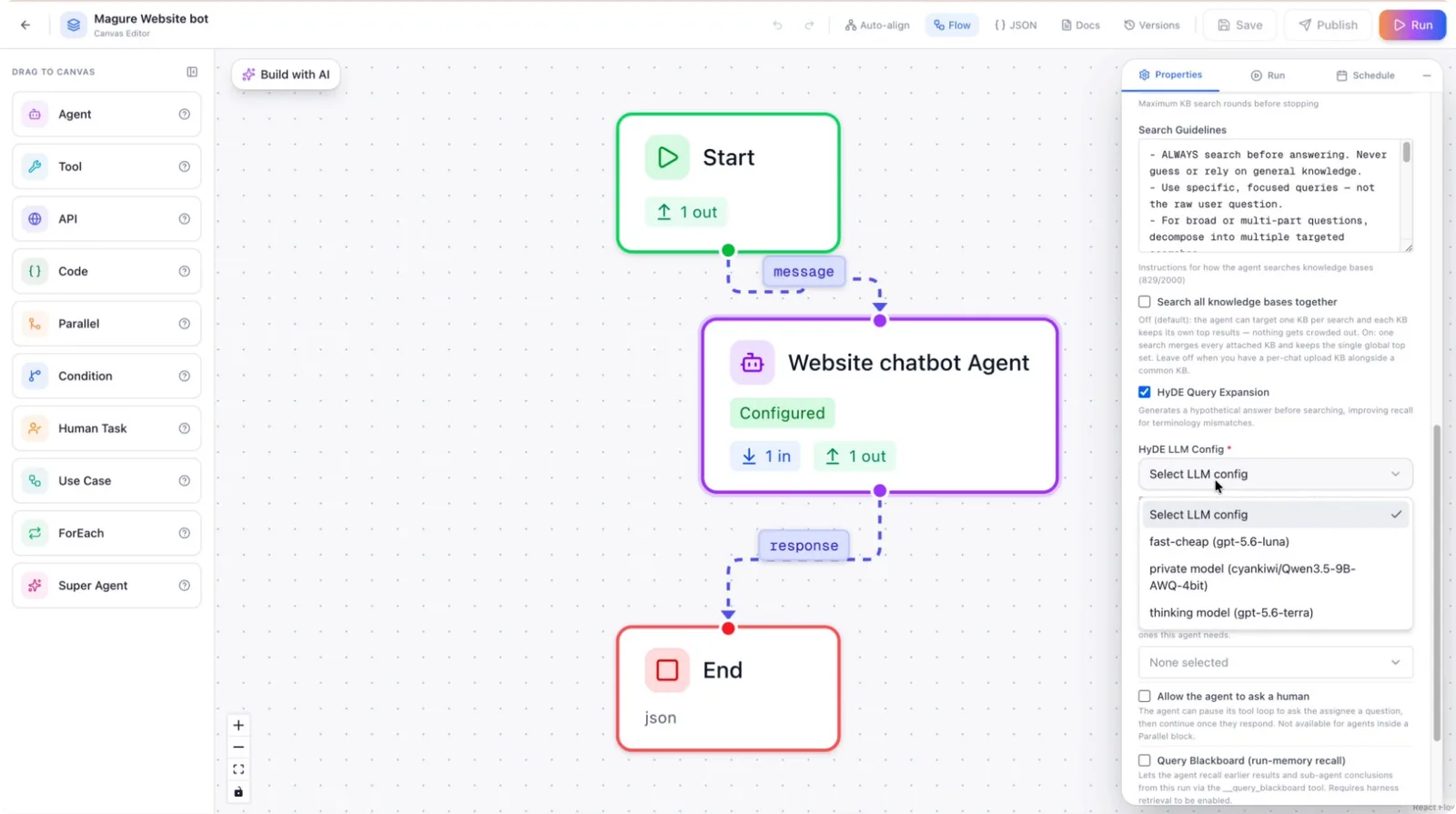
- Search all knowledge bases: Allow the agent to search across all available knowledge bases (useful when you have many, such as 15–20), to improve the hit rate.
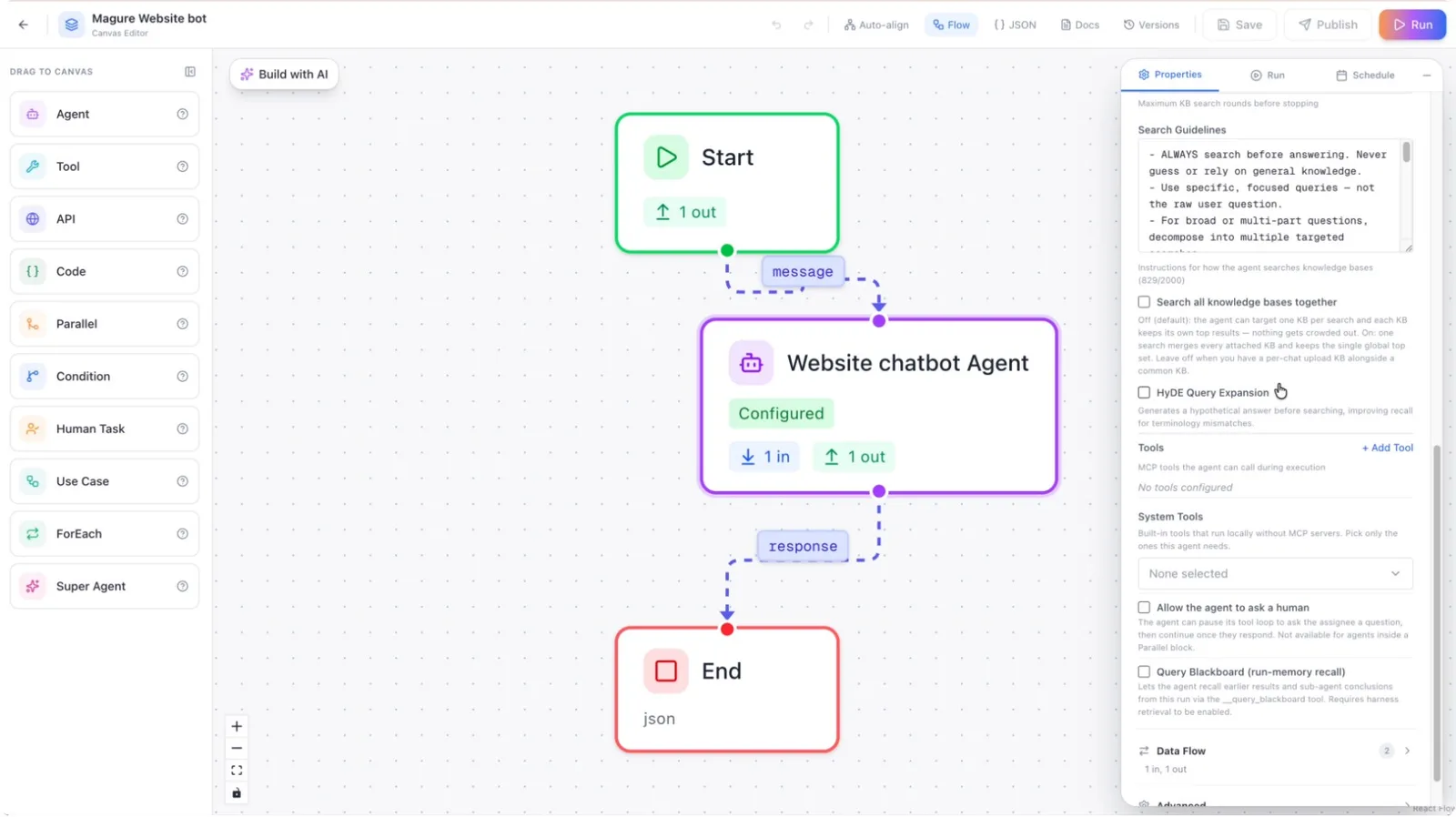
Adjust these settings as desired (for example, keep Agentic mode enabled and disable query expansion if not needed), then click Save.
Step 10: Test the Agent with the Knowledge Base
Run the use case and start a chat with the agent.
Ask a question that should be answered from the uploaded knowledge base, for example: “Tell me about Magure.”
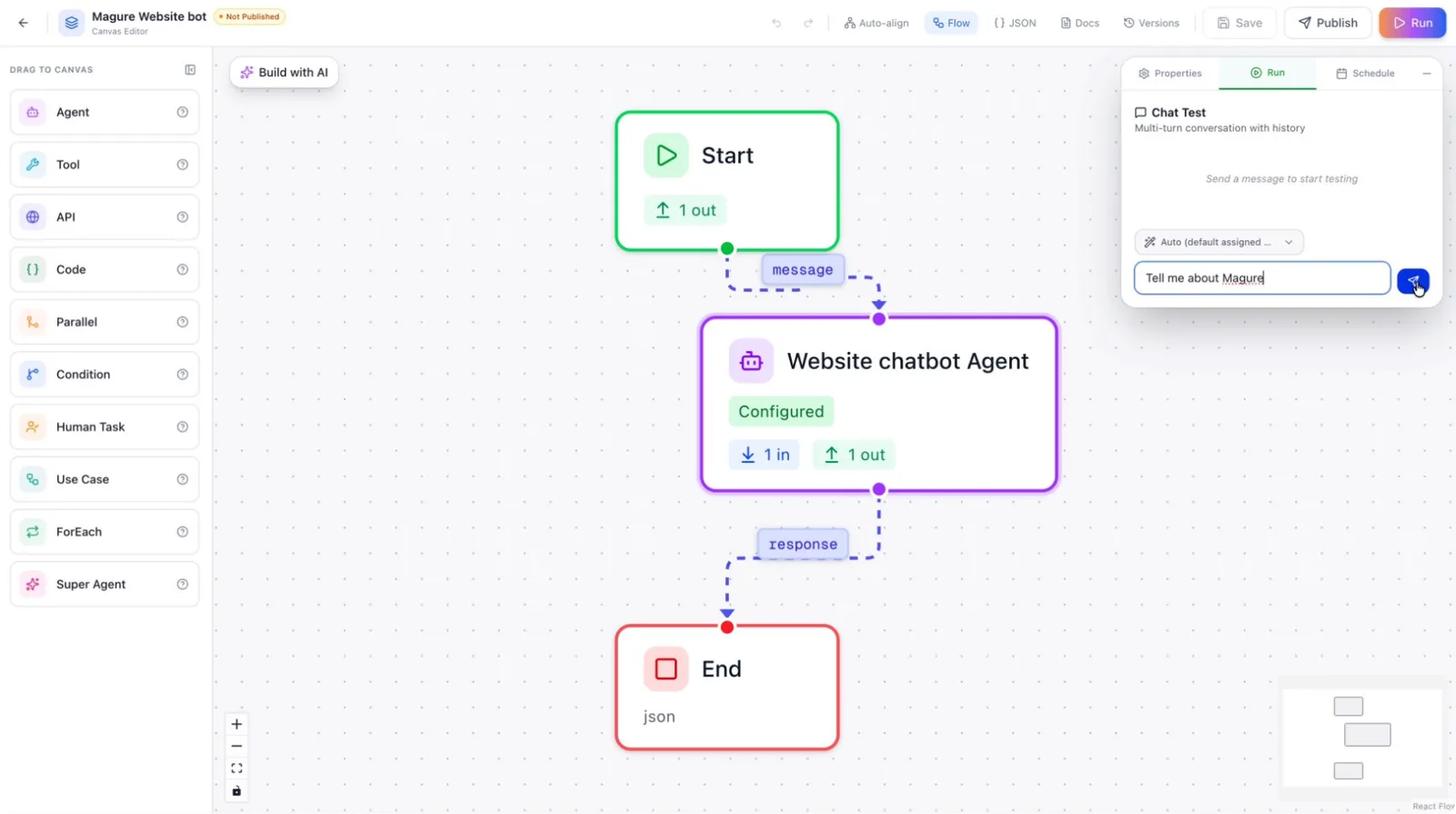
The agent will retrieve information from the Magure knowledge base and respond accordingly. This confirms that your knowledge base is correctly attached and functioning with the agent.